

Your Profile
Every other page in the app is about the market. This one is about you: who the app thinks you are, what you are entitled to open, and what you have earned.
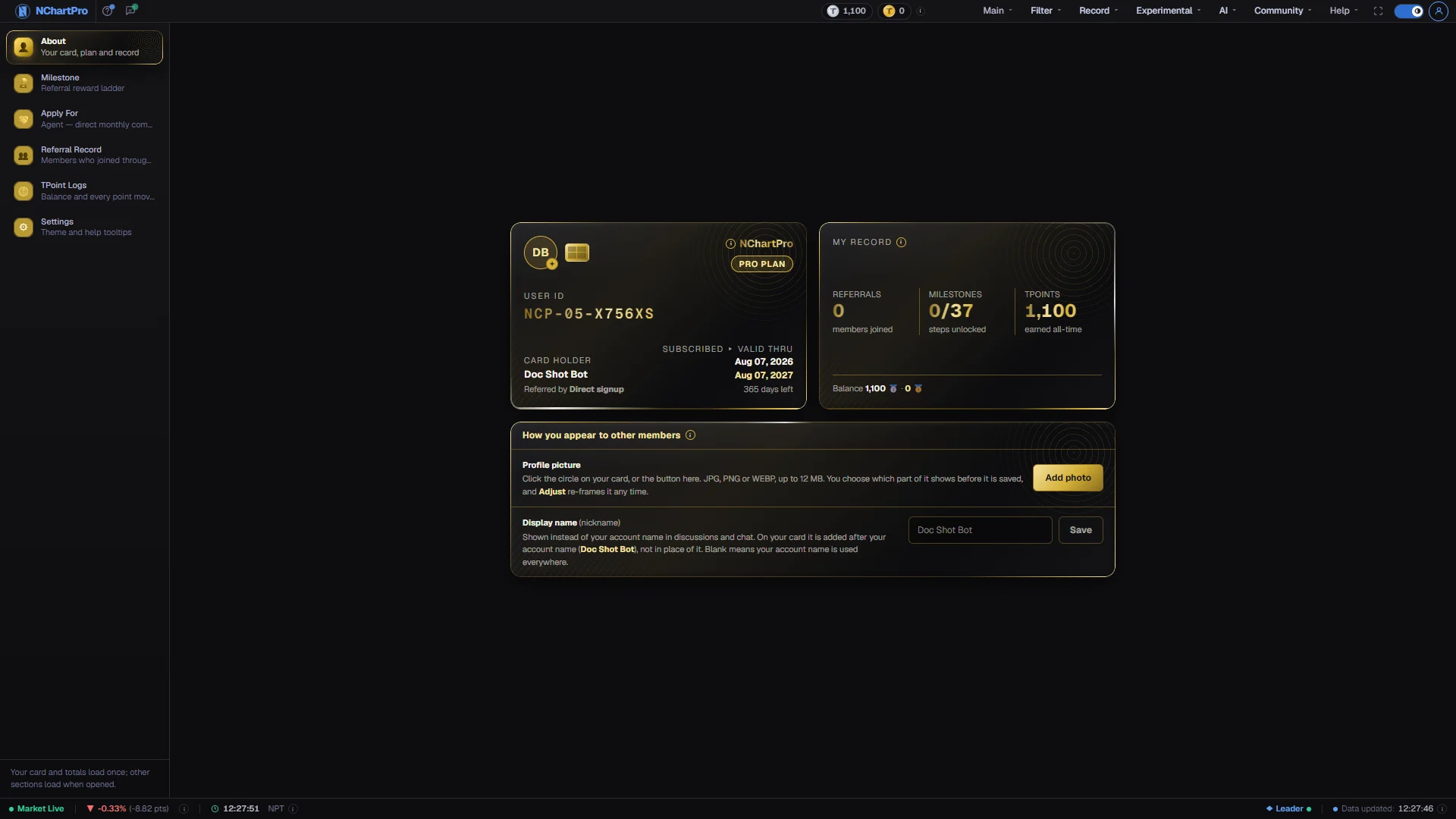
What this page is
The profile page is your account, laid out as seven sections down the left. About holds your membership card and your totals. Milestone is the referral reward ladder. Apply For is the Agent programme. Referral Record lists the members who joined through you. TPoint Logs is your point balance and its full history. MarketPlace is where points unlock a single page. Settings changes how the app looks and how much it explains.
Only the section you open loads its data, so the page is quick even though there is a lot behind it. Your card and your headline totals are always there.
This page is also where the answers to the two questions people ask most often live: what your plan actually gets you, and why signing in behaved the way it did. The plan question is answered on Plans & Upgrade; the sign-in rules are set out below.
Why it helps you
- Check the TPoint balance in the top bar before a session where you expect to lean on group chat or Dr Live, because those are the actions that spend points as you go. AI chat is not one of them any more — it runs on its own prepaid credit balance, topped up on the AI Credit page.
- The only part worth a periodic look is your subscription window on the membership card. Everything else here changes far more slowly than your holdings do.
When to use it, and where to find it
- Once, when you first sign up, to set the tooltip verbosity and the theme before you learn anything else.
- When a page you expected to open is locked, to see what your level is and whether a single unlock covers it.
- When you have referred someone and want to confirm the credit landed.
- Before contacting support, since your member number is on the card and nowhere else.
- The account icon at the top right of every page opens a menu with Profile at the top. That is the normal way in — there is no entry for it in the main section menus.
Try it — a short walkthrough
- 1Note your member numberOpen About and read the USER ID off the card. It is the one identifier support can use to find your account, and no other page in the app shows it.See this part in detail →
- 2Set the tooltip level before anything elseIn Settings, choose Detailed while you are learning. Every small ⓘ in the app then gives the full explanation with formulas rather than a one-line label.See this part in detail →
- 3Find out what your points are worthOpen TPoint Logs. The ledger shows what earned each point and what spent it, so an unexpected balance always has a line explaining it.See this part in detail →
- 4Check whether a locked page can be unlocked on its ownOpen MarketPlace and look under Available to unlock. If the page you want is listed, it can be rented with Gold points without changing your plan.See this part in detail →
- 5Confirm your referrals were countedReferral Record is the real list the milestone ladder counts from. If somebody used your invite and is not on it, the milestone will not move either.See this part in detail →
Every part of the page
In the order you meet them on screen, each with a close-up of the real thing. The numbers match the dots on the figure above.
Your membership card
Your NChartPro identity, laid out like a bank card. It is shown in the About section and nowhere else in the app. USER ID reads NCP · your plan level as two digits · a permanent six-character code that is yours alone.
How — There is nothing to click. Copy the USER ID from here when you contact support.
- The two middle digits are your plan (01 Free … 05 Pro), so they change if you change plan. The last six characters never change.
- SUBSCRIBED ▸ VALID THRU is the real window your plan runs for, read from your account. A plan with no end date shows “No expiry”.
- “Referred by” is the member whose invite you joined through, or “Direct signup”.
Your record, in three numbers
The companion card under your ID card: how many members you have referred, how many milestone steps you have unlocked, and how many Silver TPoints you have earned in total.
How — Each number has its own section in the menu on the left if you want the detail behind it.
- TPOINTS EARNED is your lifetime total before spending; the smaller line under it is your spendable balance.
- If you have unlocked pages with TPoints, the count appears along the bottom of the card.
Seven views of your account
About is your card and totals. Milestone is the referral reward ladder. Apply For is the Agent programme and its rules. Referral Record lists members who joined through you. TPoint Logs is your point balance and history. MarketPlace is where TPoints buy a single page. Settings changes how the app looks and how much it explains.
How — Click an entry in the menu on the left to switch. Apart from your card and totals, a section only fetches its data when you open it.
- MarketPlace disappears once your plan is on the top tier — at that point there is nothing left to buy.
- The tour opens a section for you when a step lives inside it, and puts your own section back at the end.
The referral reward ladder
A grid of 16 steps at a time. Each card names how many referrals that step needs and what you get for reaching it. A gold card is achieved; a grey card is still locked and carries a bar showing how close you are.
How — Use the ‹ › arrows above the grid to move between pages of 16.
- The steps, rewards and pictures are set by the NChartPro team, so the ladder can change over time.
- Achieved state is worked out on the server from your real referral count, so it is the same on every device.
- The ladder is for organic member referrals only, so the whole section disappears from the menu from the moment you apply to be an Agent.
Apply For — become an Agent
An Agent promotes NChartPro to their audience and earns a direct commission on the subscriptions sold through them. This entry opens a full landing page: a title screen, then five rules one screen at a time, then the application button at the foot.
How — The next few steps open that section and scroll through the whole of it, so you see the parts that sit below the first screen.
- It is longer than one screen by design — the rules are what you are agreeing to, so they are not squeezed into a box.
- One of the five rules changes what your account earns. Read that one even if you skip the others.
The first screen: what an Agent is
“NChartPro Agent”, and one sentence under it: promote NChartPro to your audience and earn a direct commission on every member who joins through you, withdrawable once a month, in the first week.
How — The ⓘ at the end of that sentence gives you the whole programme in five bullets without scrolling. Everything else on this section expands on it.
- This first screen is deliberately exactly one screen tall — the rules start below it.
- Rule 01 further down narrows the commission to YEARLY subscriptions. The rules are the exact terms; this line is the summary.
Where your application stands
This pill only appears once you have applied. “Application under review” means it is with our team. “Approved — finish your KYC” means your reach qualified and the form at the top of this section is the last step. “You are an Agent” appears only after that form has been verified.
How — Nothing to click — it is a status, and it changes on its own when the team makes a decision.
- Approved is NOT the same as being an Agent. Verifying your identity and bank details is what grants the role.
- If you have not applied yet, or were not approved, this pill is not shown and the Apply button at the foot of the section is live instead.
The three facts, before any reading
💰 Direct commission — on every YEARLY subscription sold through you. 🗓 1st week of the month — the withdrawal window, once a month. 📣 Any 1 channel · 5k+ — one qualifying channel is enough.
How — If you read nothing else on this section, these three cards are the programme. The rules below are the same three facts written out in full, plus what happens after you apply.
- A monthly or quarterly subscriber who joined through you earns you nothing — only a yearly one does.
- Outside the first week of the month the balance simply carries over to the next payout.
This is where the page continues
“Scroll for the rules ▾”. Everything you have seen so far is the first screen. Below it are five rule panels, one screen each, and then the application button.
How — Scroll the content pane — the title screen stays pinned behind and the rules slide up over it. The tour does the scrolling for you from here on.
- This hint is the reason the section looks like it ends at the three cards. It does not.
How the Agent programme works
The heading of the second half: five rules — how you are paid, what qualifies you, and the one thing that changes about your account once you are approved.
How — The ⓘ beside it says why the first and the last matter most. The next five steps take the rules one at a time, in the order they are written.
- The rules are numbered 01 to 05 on screen, and each one has a picture that says the same thing.
Rule 01 — how you are paid
Agent earnings are a DIRECT commission — not points, not a milestone reward — and they apply to YEARLY subscriptions only. Withdrawals open once a month, during the first week of that month.
How — Nothing to do here; it is the term you are accepting. The three chips under the text are the short version: Direct commission · Withdraw days 1–7 · Otherwise it carries over.
- Somebody who joins through you on a monthly or quarterly plan still counts as yours and still appears in your Referral Record — but earns you nothing until they take a yearly plan.
- Miss the first week and nothing is lost: the balance carries over to the next payout.
Rule 02 — what qualifies you
5,000+ followers on ANY ONE channel. YouTube, Facebook, Instagram, TikTok or X — one qualifying channel is enough, you do not need all five.
How — Add every profile you have to the application anyway. The strongest one is what the application is judged on.
- This is the rule most often misread. It is any one channel, not all five.
Rule 03 — what you submit
Official profiles only: the accounts you actually own and post from. Our team opens each link by hand and checks the follower count against your application.
How — Paste the real profile address of each channel you use. Nothing is checked automatically, so a page you do not control will simply fail the review.
- Accounts you own · Every link opened · Counts checked against the form — the three chips are the whole rule.
Rule 04 — what happens next
Reviewed by a person, not a bot. While your application is being checked, the panel at the foot of this section shows “Application under review” in place of the Apply button. You are notified once a decision is made.
How — There is nothing to chase. If it is turned down, the reason our team wrote is shown at the top of this section and again inside the form when you re-apply.
- A human reviewer · “Under review” meanwhile · You are notified either way.
Rule 05 — the one that changes your account
Referral MILESTONES do not apply to Agents. The milestone ladder is purely for members and organic referrals; once your agent application is approved you stop earning referral milestones, and your agent rewards are handled through the agent programme instead.
How — This is the rule you tick a separate box for on the application form. Read it before you tick it — it is the one thing an Agent gives up.
- Members you bring in still appear in your Referral Record either way.
- The Milestone section disappears from the profile menu from the moment you apply, which is why this rule is marked in the warning colour and its picture is struck through.
The closing panel
The end of the section. While the Apply button is live, the same five channel marks from the top of the screen are repeated here, with “5,000+ on any one of these?” and a line saying the button opens a short form for your official profile links, which then goes to our team.
How — This is the last thing on the page — if you scroll past it there is nothing more.
- If you have already applied, this panel shows your status and one line about it instead of the button.
- If your account has been barred from the programme it reads “Not available on this account”, and the reason is at the top of the section.
Apply for Agent
The button that opens the application. It reads “Re-apply for Agent” instead if a previous application was turned down, and in that case the reason our team gave is shown inside the form, right where you retype the links.
How — Pressing it opens a dialog with five link fields — YouTube, Facebook, Instagram, TikTok, X. Fill in the ones you have, leave the rest blank, tick the two boxes and press Submit Application.
- At least ONE link is required, and both tick boxes must be ticked: one confirms 5,000+ followers on at least one channel, the other confirms you understand that referral milestones do not apply to Agent accounts.
- You must be signed in. If you are not, the login box opens in place and you come straight back here.
- The header of the dialog counts how many of the five you have filled in, and a bar under it fills as you go.
Approved — one step left
This gold panel appears at the TOP of Apply For once your application is approved, above the landing page you just walked through. It says your reach qualified and names what is still needed: who you are, a government document, your PAN, and the bank account we send the money to.
How — Read it, then work down the form below it. You become an Agent as soon as our team verifies what you file.
- Approval alone does not make you an Agent. Verification of this form does.
- The panel states the tax rate withheld from your commission — it is the live rate, so read it from the panel rather than from memory.
About you
The first block of the form: full name as printed on your document, address, phone, email and a photo of your face. Every one of them is required — a red * marks each.
How — Type the name exactly as it appears on the document you are about to upload. A mismatch is the most common reason a form is sent back.
- Address is a free-text box — ward, tole, municipality, district.
- What you type here is kept and shown again if the form comes back for a correction, so nothing has to be retyped.
Your photo
A clear picture of your face. PNG, JPG or WEBP, up to 4 MB.
How — Press Choose file. The picture is uploaded the moment you pick it, and the thumbnail beside the button then shows what the server actually stored — not what your browser thinks it sent. The button changes to Replace.
- A file over 4 MB is refused straight away with its real size in the message, so nothing is lost silently.
- Our team checks this photo against the document picture below, so use a face shot rather than a logo or an avatar.
Your identity document
Which document you are using — National ID card, Citizenship certificate or Passport — its number as printed, your PAN, and a picture of the document itself. PNG, JPG, WEBP or PDF, up to 4 MB.
How — Pick the type from the list, type the number exactly as printed, and upload a picture in which both the number and your name are readable.
- The number is not checked by any rule as you type. Nepal issues these in several shapes, some handwritten, so a person reads it rather than a pattern rejecting a real one.
PAN number
Your Permanent Account Number from the Inland Revenue Department. It is required.
How — Type the number as it appears on your PAN card. It sits in the identity block because it is a government number about the person, not about the bank.
- The tax withheld from your commission is deposited against this number. Without a PAN that deduction never reaches your tax record — which is why the form cannot be sent without it.
Where we pay you
Bank name, branch, account holder name and account number. Bank name, account holder name and account number are required; branch is optional and the box says so.
How — Put the account holder name in exactly as the bank has it — that is what a transfer is matched against, not your NChartPro name.
- If the account holder name does not match the full name you gave above, a note appears here at once saying that is fine if the account really is in another name, but to check it matches the bank exactly or the transfer will bounce.
- Once your details are verified these become read-only. To change a bank account after that you have to contact support — and that restriction is what makes the account safe to pay into.
The Terms of Reference
The agreement itself, in ten numbered clauses: what you are, how you earn, promotional offers, tax and your PAN, when you are paid, what you must not do, honest information, your data, ending it, and changes. It is collapsed by default.
How — Press Read to open it. The date the wording last changed is printed at the top of the document.
- Clause 3 is the one people miss: while a promotional offer is running, no sale earns you anything — no commission, no referral TPoint, no milestone progress.
- It is written in plain sentences on purpose, because an agreement about real money that gets accepted unread is worse than none.
The tick that lets you send
One box, and it says what you are accepting: that you earn on yearly subscriptions only, that your commission is paid to the bank account above after tax is withheld against your PAN, and that the details you have given are true.
How — Tick it after reading the terms above. Without it the form refuses to send and says “Please read and accept the Terms of Reference.”
- The tax percentage written into this sentence is the live rate. The rate in force on the day you accept is frozen onto your record, so a later change never rewrites what you agreed to.
Submit for verification
The end of the form. The line beside the button counts how many fields are still to fill, or reads “Ready to send” once nothing is missing — or “Accept the Terms of Reference to send” if that is the only thing left.
How — Press Submit for verification. If the form was sent back for a correction the button reads “Send corrected details” instead, and everything you filled in before is still there.
- If anything is missing the form does not send and names exactly which fields, so you never have to hunt for the red one.
- After sending, this whole panel becomes a short "your details are with our team" note until the check is done.
Referral Record
The members who joined NChartPro through you, by member ID, the day they joined and the plan they are on. This is the real list your milestone ladder counts from.
How — Click the section to open it. Click any column heading to sort by it; click again to reverse.
- Full names, emails and phone numbers are never shown — only a shortened name and the member ID, for their privacy.
- Every referral pays Silver TPoints; the TPoint Logs section shows the rate in force.
TPoint Logs
TPoints are NChartPro's in-app points. You earn them by using the app and spend them on paid actions. This section shows your Silver and Gold balance, the Gold-equivalent total, and a line-by-line ledger of every point earned or spent.
How — Click the section. In the ledger, green with a + is earned and red with a − is spent; "Earn From" is the action that paid you and "Use In" is what you spent on.
- EARN: daily login 100 · referral 10,000 · event attendance 1,000 · chart share 100 · comment 100 · new discussion 50 · reply 25 · quiz 10 · like 5.
- SPEND: a group-chat message 10 · a Dr Live chat message 10 · an AI question past your daily free limit 1,000 · a MarketPlace unlock, priced in Gold.
- A spend never takes you below zero — if you are short, chat still lets you through free instead of charging you.
- 1,000,000 Silver is rolled up into 1 Gold automatically, which is why the Silver figure never grows past that.
MarketPlace — what your TPoints can unlock
Some pages belong to a higher membership level. Rather than upgrading your whole plan, you can rent one of them on its own with Gold TPoints. This section lists what you currently have unlocked and how long is left on it, what is still available at your level, and a permanent record of every feature you have paid for.
How — Open the section, look under “Available to unlock”, and press Unlock on the one you want. The page it belongs to opens immediately.
- Every unlock bought with Gold TPoints lasts 1 month, then lapses — it is a rental, not a permanent purchase.
- What is on the shelf and what it costs is set by the NChartPro team, and the price depends on the level you are on: the further your level is below the feature, the more Gold it costs.
- Each purchase is written into your TPoint Logs as well, so the spend is always traceable.
- The section is not shown at all once your plan is on the top tier — everything is already included.
Settings — the one a new user needs
This section holds two display preferences. Theme switches between dark and light. Help tooltips controls how much every ⓘ in the whole app explains: Detailed (full explanation with formulas and thresholds), Short (one line saying what the thing is) or Off (no ⓘ icons at all).
How — Click the section, then pick Detailed, Short or Off. It applies everywhere immediately — no save button.
- Detailed is the default and is the setting worth keeping while you are learning the app.
- These two are saved in this browser, not on your account, so they do not follow you to another computer or phone.
Your balance in the top bar
The same Silver and Gold balance from the TPoint section is shown as two coin chips in the navigation bar, on every page.
How — Glance at it before sending a chat message or an extra AI question, since those are the actions that cost points.
Reading the numbers
- The middle two digits of your USER ID are your plan level, so they change when your plan does. The last six characters are permanent and are the part that identifies you.
- TPoints come in two denominations. A million Silver rolls up into one Gold automatically, which is why the Silver figure never grows past that point.
- The two coin chips in the top navigation bar are the same balances shown in TPoint Logs, so you never have to open this page to check them.
- Referred members are shown by member number and a shortened name. Full names, emails and phone numbers are never displayed, for their privacy and for yours.
- The theme and the tooltip setting are saved in the browser you set them in, not on your account, so they do not follow you to another computer.
What it does not do
- One account is meant for one person. You can be signed in from as many browsers and tabs as you like on the same network, and a desktop and a mobile each get their own slot at the same time. The same device moving between home wifi, the office and mobile data is recognised and allowed.
- What is not allowed is a second, different device on a different network at the same time. Signing in there does not fail — it takes over. The newest sign-in wins and the older session is ended, so the other device is signed out and has to sign in again. Nothing is banned automatically.
- The rule is applied only when you sign in, never while you are using the app, so a phone moving between towers will not interrupt you mid-session.
- This means you cannot be signed in on two computers at once, and the practical effect is that the two of you would keep signing each other out if an account were shared. It also means a session left open by a browser that was closed without signing out never locks you out: your next sign-in simply replaces it.
- You stay signed in while you keep using the app. A sign-in ends after 24 hours with no use, or 30 days after you signed in, whichever comes first. If you open the app every day, you only sign in again once a month.
- A password reset link can be used once and expires after thirty minutes. Completing a reset signs every session of the account out, including the one you are reading this on.
- The forgot-password form always gives the same reply whether or not an account exists at the address you typed. That is deliberate, and it means a confirmation message is not proof the account is there.
- The reward ladder, its steps and its pictures are set by the NChartPro team and can change over time. Approved Agents do not earn referral milestones; agent rewards are handled separately, and the Apply For section says so before you apply.
- While a promotional offer is running — a percentage off subscription prices, for a set period — no subscription sale earns the referrer anything. No commission, no referral TPoint, and no milestone progress, and the sale does not count toward the referral counter. That applies to every sale made in the offer window, whether or not the buyer's price was actually discounted by it, and whether the plan is yearly or 3-month. Separately, while an offer is live it replaces the referral discount for the buyer, even when the referral discount would have been larger.
- MarketPlace disappears entirely once your plan is on the top tier, because there is nothing left to buy.
Questions people ask
If you did not use the app for 24 hours, or you signed in more than 30 days ago, the sign-in ends by itself — just sign in again. Otherwise, something signed in to your account somewhere else, and the newest sign-in always wins. If that was you on another computer or a different browser, this is normal — just sign in again. If it was not you, change your password straight away: completing a password reset ends every session on the account, including whoever was using it.
Yes. Mobile has its own slot, so one desktop and one mobile signed in at the same time is expected and allowed. A tablet counts as mobile.
That is intended. Completing a reset ends every session on the account, so anyone who had access through an old session loses it. Sign in again with the new password.
Points are spent by actions as well as purchases — a group-chat message, a Dr Live message, a MarketPlace unlock. Every one of them is a line in TPoint Logs with what it was spent on. AI chat is not on that list: it is charged against a separate prepaid AI credit balance, never against TPoints.
No. Every unlock bought with Gold points runs for one month and then lapses. MarketPlace shows how long is left on each one you currently hold.