

Social Discussions
When to use it, and where to find it
Every part of the page
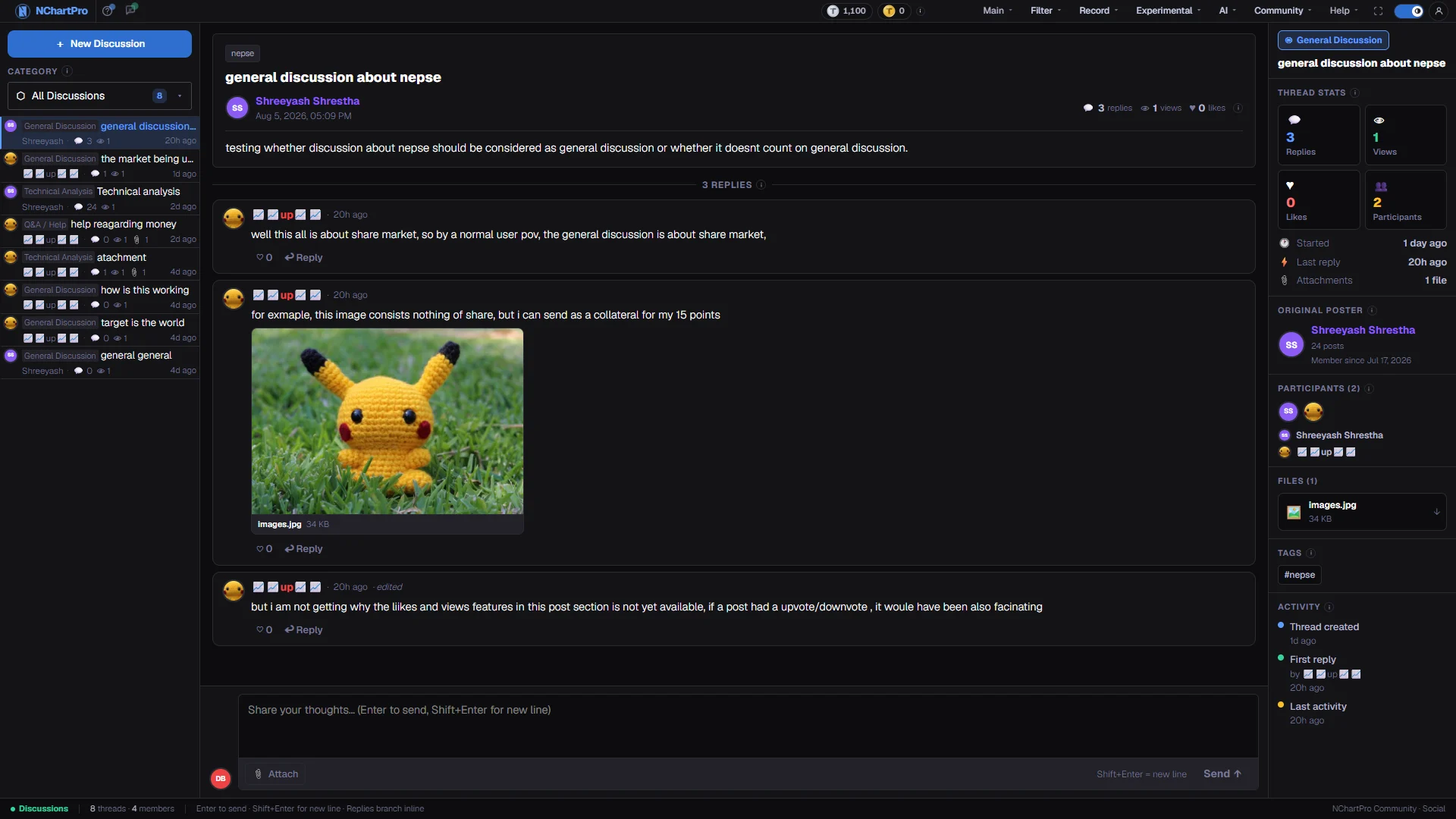
In the order you meet them on screen, each with a close-up of the real thing. The numbers match the dots on the figure above.
Categories and thread list
Threads loaded from the server, grouped into categories. Pick a category at the top, then a thread from the list to read it in the middle.
How — Click a row to open that thread.
- The number beside each category is how many threads it holds; "All" is the whole board.
- PIN marks a pinned thread, always sorted to the top. HOT marks a thread flagged as busy.
- Row meta: 💬 replies (nested ones included) · 👁 the thread's stored view count · 📎 attachments · time of the last reply.
Reading a thread
The opening post, then the replies nested underneath it — an answer to one message sits under that message instead of at the bottom, up to 3 levels deep.
How — Click "▼ collapse" on a reply to fold its whole branch away.
- 💬 replies is a real count from the reply tree; 👁 views and ♥ likes are stored fields, not counters that tick up as people read.
- ♡ on a reply is a local highlight in this browser only — it is not sent to the server.
- A coloured ring on an avatar marks a role: red ADMIN, amber MOD, green ANALYST.
Thread details
A side panel for the open thread: its category, title, counters, who has taken part, and every attachment collected from the whole thread in one place.
How — Use it to see at a glance how busy a thread is before reading all of it.
The reply box
Enter sends, Shift+Enter starts a new line, and ↩ Reply on any message aims your answer at that message.
- On this page the reply is only added to the screen — it is not saved to the server and it is gone after a reload.
- Post on Community → Discussion instead if you want your reply kept and attributed to your account.
New Discussion
Opens a compose box for a whole new thread — title, category, tags and body.
- Same caveat as the reply box: the new thread appears in the list but is never sent to the server, so it will not be there for anyone else or after a reload.