

Reading the screen
Every page in the app is wrapped in the same frame, so once you learn the bar at the top and the bar at the bottom, nothing else surprises you.
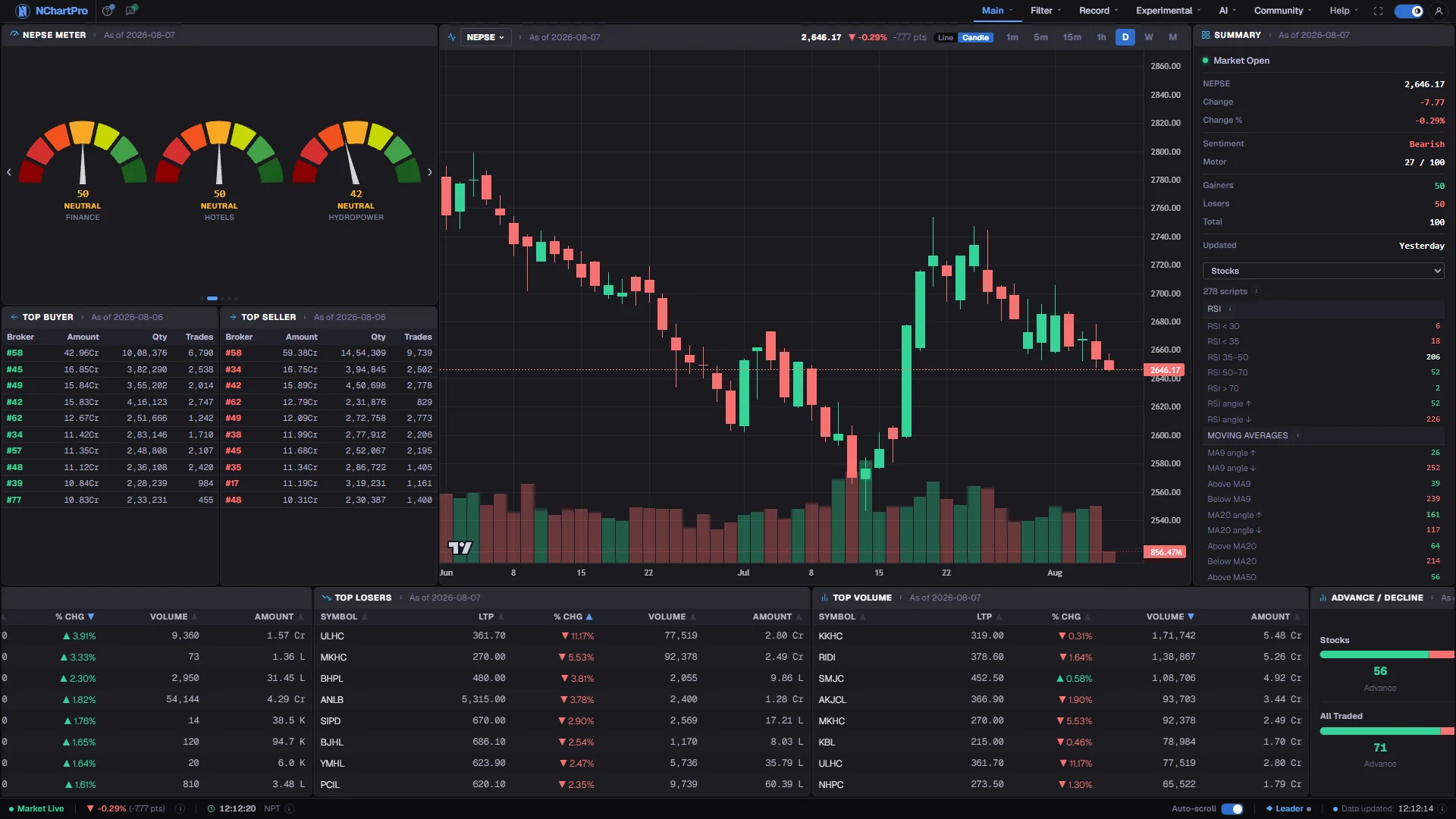
What this page is
Between those two bars sits the page itself, and it always fills exactly the space left over. Nothing scrolls off behind the menu and nothing hides under the footer, on any screen size.
The top bar carries navigation and identity: the brand, the guided-tour button, a stock search box on pages that can use one, your reward balance, the camera, the fullscreen and theme buttons, and your account. The bottom bar carries market state: whether a session is running, the Nepal-time clock, and when data last arrived.
Two small icons repeat throughout the app and mean the same thing wherever they appear. A circled i explains the number or panel it sits beside. A question mark plays the guided tour for the current page.
Why it helps you
- The bottom bar is the one piece of the frame you actually watch. The pulsing dot tells you ticks are still arriving, and the Updated stamp tells you how stale the screen is if they stop.
- The stock search box in the top bar changes the symbol on the page you are already on, so you can move between names on the chart without going back to a list.
- Fullscreen removes the browser chrome and gives the chart the whole display, and it survives navigation between pages because the menu links never reload the document.
- The faint blue tint on a menu item is your map of what needs an account, and a small padlock marks what your plan does not yet include. Neither is an error.
- The circled i is worth using slowly. It carries the formula behind a figure, which matters far more when you are comparing companies once a quarter than when you are watching a price tick.
- The theme switch is remembered on the device, so a light screen for daytime reading stays light the next time you open the app.
When to use it, and where to find it
- Read this before the Dashboard page. Every later page in this document assumes you know what the two bars are and stops explaining them.
- Come back the first time a menu item refuses to open, or the first time the market looks frozen. Both have an explanation in the frame rather than in the page.
Try it — a short walkthrough
- 1Open a menu sectionClick Main, Filter or any other section name in the top bar and its list drops open. The section you are currently in is coloured and underlined.
- 2Spot a gated item before you click itItems in a faint blue tint need you to be signed in. An item with a small padlock is locked for your plan and can be bought or upgraded to. Items you cannot get at all are simply not listed.
- 3Hover a circled iPoint at one beside any title or unfamiliar number. A panel appears with what the thing is, how it was calculated and what it does not tell you. Press Escape to close it.
- 4Play the tour for the page you are onPress the question mark near the left of the top bar. It highlights each part of the current page in turn, in English or Nepali, and changes nothing while it runs.
- 5Read the bottom bar left to rightDot and label, then the Nepal-time clock. At the far right, which browser tab holds the live connection and when data last landed.
- 6Flip the themeThe switch near the top right is one toggle: on is dark, off is light. There is no third choice, and your pick is stored on this device only.
Every part, up close
The shared frame, on the Dashboard. Each part with a close-up of the real screen; the numbers match the dots on the picture.
The menu
The same seven groups on every page. A faint blue tint means an account is needed; a padlock means your plan does not include it yet.
Guided tour
Plays the walkthrough for whatever page you are on, in English or नेपाली. It is the ? you will see referred to throughout this document.
Fullscreen
Drops the browser chrome and survives moving between pages, because the menu never reloads the document.
Theme
The moon icon: filled is dark, outline is light. Every screenshot in this document follows whichever one you pick here.
The market bar
Session state, the Nepal-time clock and when data last arrived — the one strip worth watching all day.
Reading the numbers
- A green pulsing dot with "Market Live" means real ticks are still arriving. A red dot with "Market Closed" means they are not, and the page is showing the last values it received.
- The bottom bar carries no price or change figure. The move for a symbol belongs to the page showing it — the chart header, or the table you are reading.
- The clock in the bottom bar is Nepal time, not your computer clock. On a machine set to another timezone the two will disagree, and the Nepal one is the one that matters.
- The search box appears only on pages that can act on a symbol. Its absence on the Dashboard or an AI page is deliberate, not a fault.
- On a narrow screen the whole menu collapses into a hamburger drawer on the right, and the search box shrinks to a magnifier until you tap it.
What it does not do
- The market-open schedule behind the live and closed labels treats Saturday and Sunday as the weekend, and exchange holidays are not tracked at all. The label also flips to live whenever genuine ticks arrive, so on an unusual trading day trust the ticks over the schedule.
- The reward-balance chips appear only once you are signed in. A signed-out visitor sees no chips rather than a zero.
- The Updated stamp is your own browser clock, not a server timestamp. It tells you when data reached this tab.
- Fullscreen does not render on browsers that do not support element fullscreen, so the button may simply be absent.
Questions people ask
Pages your plan does not include are hidden rather than greyed out, so the menu only ever lists what you can actually open. The exception is a feature you could buy, which stays listed with a padlock.
Check the Updated stamp on the right. If it is still moving, ticks are arriving and the label will flip. If it has stopped, reload the page so this tab can take over the live connection.
Yes. Every guided tour has an EN and नेपाली switch inside its box. This document is English only.