

What NChartPro is
The Nepal Stock Exchange publishes a great deal every trading day, and this app gathers all of it in one place, then turns it into something you can act on.
What this page is
NChartPro is a desktop-first workspace for the Nepal Stock Exchange. It takes the exchange feed, the daily floor sheet that records every completed trade, and company disclosures, and presents them as charts, filters, screens and portfolio pages you can work in during the session.
The app is organised the same way the menu at the top of every page is organised. Main is the daily working surface: the dashboard, the chart, your portfolio. Filter narrows the whole market down to a handful of names. Record is the reference archive of reports, news and corporate actions. Experimental holds newer tools still being tuned. AI answers questions in plain language. Community is where other traders are.
Nothing on any page is a sample value. Every figure is computed from data the app has ingested, so if a number looks wrong it is a data problem worth reporting, not a design placeholder.
Why it helps you
- The pages you live in are Dashboard and Chart. One tells you what the whole market is doing in the first minutes of the session, the other tells you what one stock is doing tick by tick.
- Floor-sheet pages under Filter show which broker numbers were buying and selling a stock yesterday. That is the closest thing NEPSE gives you to seeing the other side of your trade.
- The screens refresh themselves while the market is open, so you can leave a page up and glance at it rather than reloading.
- Fundamental and Record are the sections that matter to you. Reported earnings, book value, dividend history, right shares, bonus announcements and AGM dates all sit there and change a few times a year, not a few times a minute.
- The sector sub-indices are the quickest read on whether a weak stock is weak on its own or simply carried down by its whole sector.
- Portfolio tracks cost, holding period and realised profit across years, which is the record you will need at tax time and the one most people never keep.
When to use it, and where to find it
- Read this page once, before you open anything else. The two primers that follow it explain the furniture and the data, and everything after that assumes you know both.
- Come back to it when you cannot find a feature. The section descriptions here mirror the top menu exactly, so they tell you which menu to open.
Try it — a short walkthrough
- 1Create your account, then open the DashboardRegistering is free and takes a moment — the person icon at the top right opens the box. Then Main, then Dashboard: it shows the whole market at once, so it is the quickest way to see whether the app is showing live data right now.
- 2Look at the bottom barThe dot on the left says Market Live or Market Closed. If it says Closed outside 11:00 to 15:00 Nepal time, that is correct, not a fault.
- 3Open the Chart on any stockMain, then Chart. Use the Stock List panel on the right edge to pick a company.
- 4A tinted menu item means you are signed outMenu items shown in a faint blue tint need you to be signed in, and while you are signed out that is nearly all of them. Click the person icon at the top right to sign in or register, and the page you wanted opens straight away.
- 5Press the question mark on any pageIt plays the guided tour for whatever page you are on, in English or Nepali. This document repeats none of it, so the two together cover a page completely.
Every part, up close
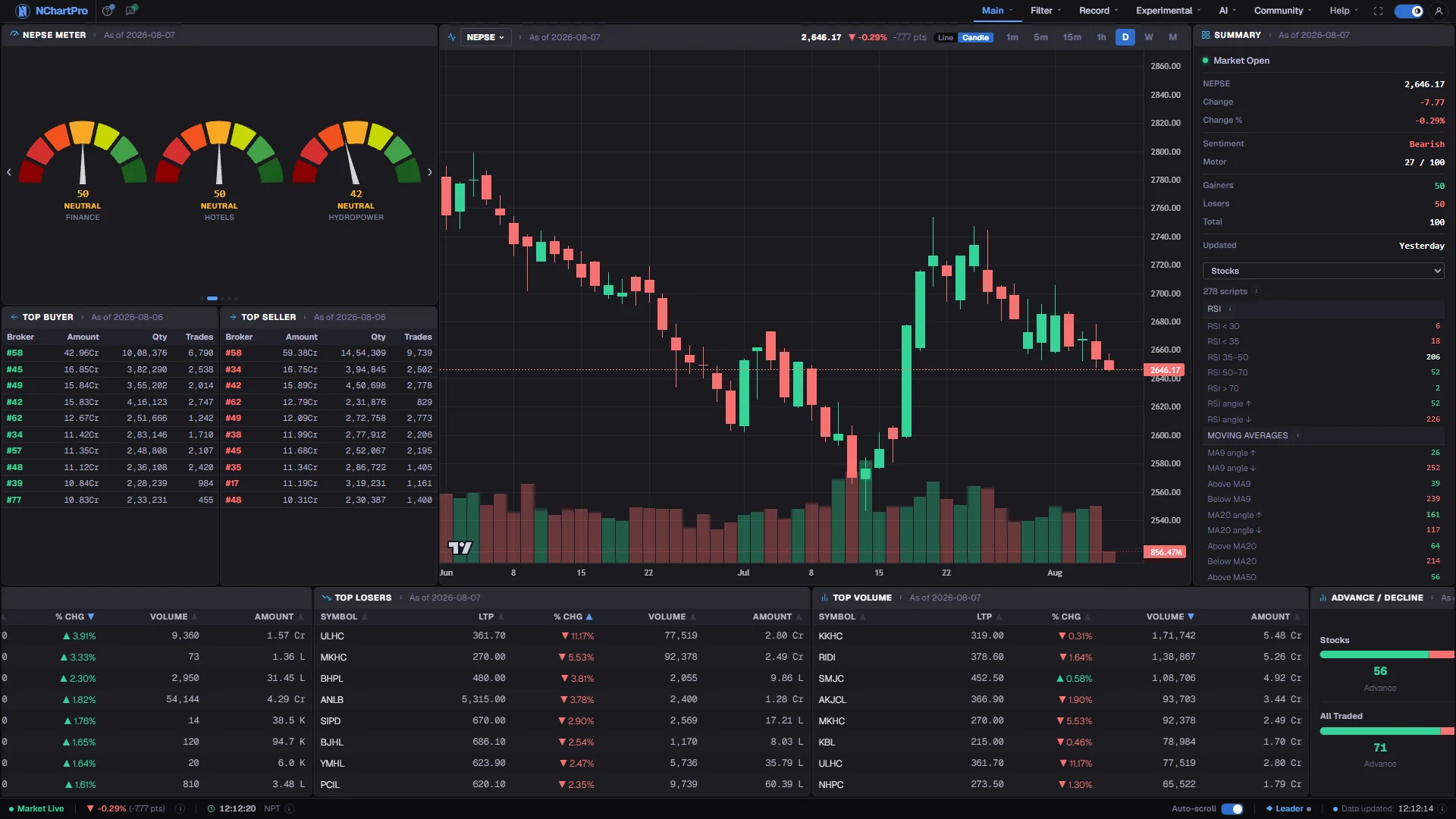
The Dashboard — the whole market on one screen. Each part with a close-up of the real screen; the numbers match the dots on the picture.
Sector meters
Each dial scores one industry from its own stocks. Nothing here is typed in; it is computed from the day's trading.
The index chart
NEPSE itself, or any sub-index, on the same chart engine the full Chart page uses.
Market summary
The session's state in numbers — level, change, breadth, and how many stocks sit in each indicator band.
Top broker flow
Who bought and sold most. This one is the previous completed day, because brokers are only attached to trades in the floor sheet published after the close.
Movers
Gainers, losers, volume and advance/decline, refreshed while the market is open.
The seven groups
Main, Filter, Record, Experimental, AI, Community, Help — the same order this document is in.
Reading the numbers
- Green means up and red means down throughout the app, in both the dark and the light theme. Amber means neutral or pending, blue means live or informational.
- Money is shown in rupees with Nepali units: K is a thousand, L is a lakh, Cr is a crore. Share counts are in kitta and are never abbreviated the same way.
- Every time and date is Nepal time, NPT, which is UTC plus five hours forty-five minutes. A date labelled "As of" is the trading day the data belongs to, not the date on your computer.
What it does not do
- The app is an analysis tool, not investment advice. Indicators, screens, probabilities and the AI commentary describe what the data has already done. They can be wrong, and none of them is a recommendation.
- Some pages are switched off in the top menu for the soft launch even though they exist and are documented here. If a page appears in this document but not in the menu, that is why.
- Only the home page and the About page open without signing in. Every market page, the Dashboard and the charts included, asks for an account first. Registering is free.
Questions people ask
No. It reads and analyses market data only. There is no order routing anywhere in it, and it never asks for your TMS or broker login. Paper Trading on the chart is practice with no real money.
It comes from the same exchange feed, so prices should agree. Broker and floor-sheet figures are a completed-day record and only settle after the close, so during the session they show the previous trading day.
No. An account is required but costs nothing, and a free one opens the Dashboard and the charts. What else you can reach depends on your plan, and the Plans page lists what each level includes. A few features can also be unlocked individually with TPoints.