

Live Chat
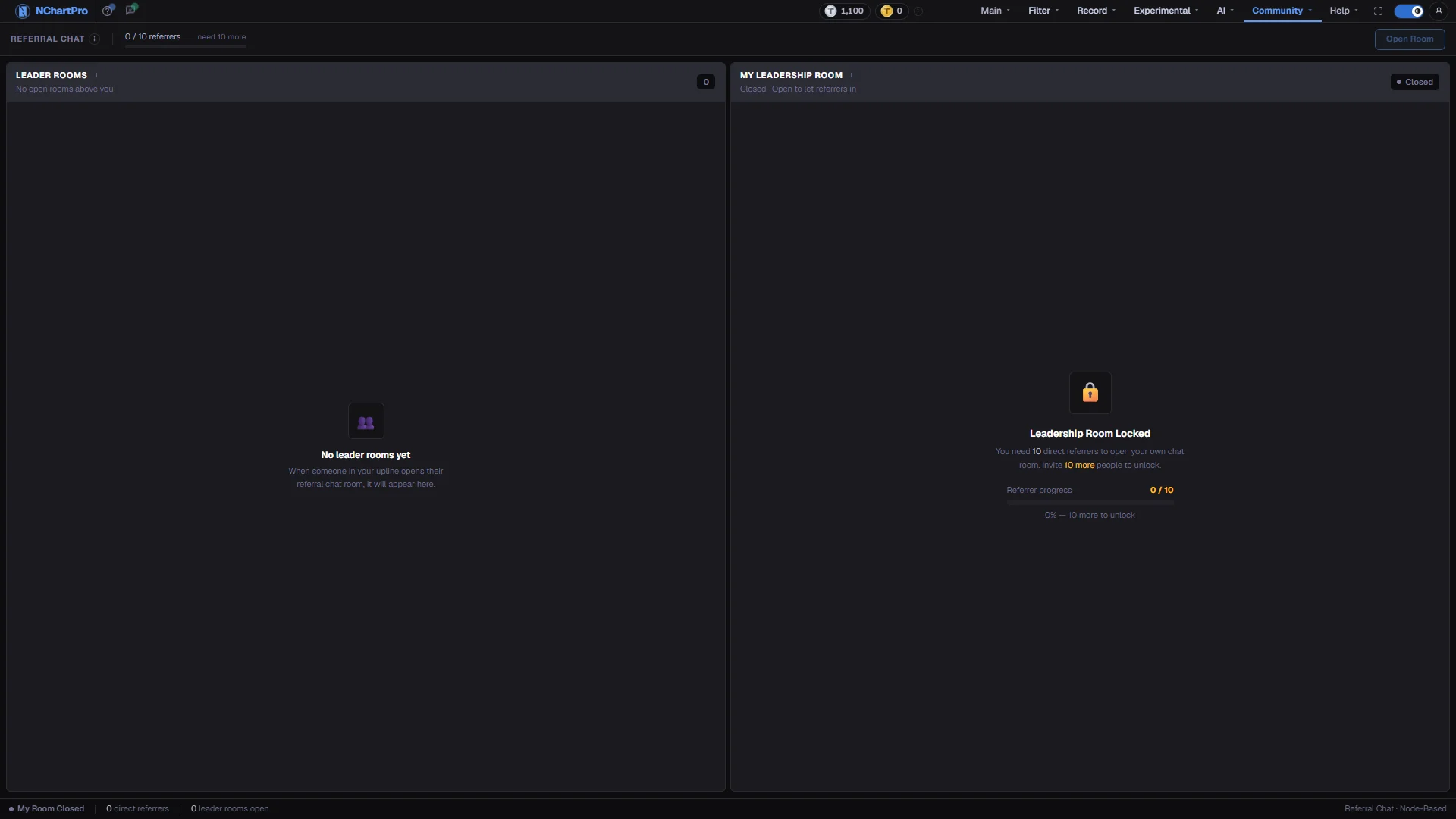
When to use it, and where to find it
Every part of the page
In the order you meet them on screen, each with a close-up of the real thing. The numbers match the dots on the figure above.
The status bar at the top
Everything about YOUR position in one strip: how many direct referrers you have, whether that is enough, and whether your room is currently open.
How — Read this first — it tells you whether the right-hand panel will let you do anything yet.
Referrer progress
How many people you have directly referred, against the 10 needed to unlock your own room. The bar fills as you get closer and reads ELIGIBLE once you are there.
- "Direct" means people who signed up on your own referral link — not people they in turn invited.
- While you are short it shows "need N more"; the bar is amber until you qualify, then green.
Open Room / Close Room
The one switch that turns your own room on and off. It stays greyed out until you have the 10 referrers.
How — Press Open Room to let your referrers in, Close Room to shut it again. You must be signed in — the login box opens here if you are not.
- Opening and closing is instant and can be toggled as often as you like.
- Closing hides the room from your referrers; it does not delete the messages.
Leader Rooms
Rooms opened by people ABOVE you in the referral tree — the person who invited you, the person who invited them, and so on. You are a guest in these.
How — Type in any of them to chat. You cannot open or close someone else's room, only talk in it.
- A room appears here only while its owner keeps it open, and disappears when they close it.
- Up to 4 rooms are shown side by side; the number in the corner is how many are open.
- "No leader rooms yet" means nobody in your upline has opened a room.
My Leadership Room
Your own room. While it is open, everyone you directly referred can join it and talk to you; while it is closed, nobody can. Until you reach 10 referrers this panel shows a locked card with your progress instead.
How — Once unlocked, use Open Room here or the button in the top bar — they do the same thing.
- Only your direct referrers see this room; it is never on the public board.
Sending a message
Type and press Enter. New messages arrive live over a WebSocket, and the earlier history is loaded from the server when the room opens.
How — You must be signed in to send — the login box opens right here if you are not.
- Each message costs the TPoints shown under the input box.
- If your balance is short the message still goes through, and your balance is not driven negative.
- The green dot and number in the room header are how many people are in the room right now.
Status bar
A one-line summary: whether your own room is open or closed, how many direct referrers you have, and how many upline rooms are open right now.