

Relation
When to use it, and where to find it
Every part of the page
In the order you meet them on screen, each with a close-up of the real thing. The numbers match the dots on the figure above.
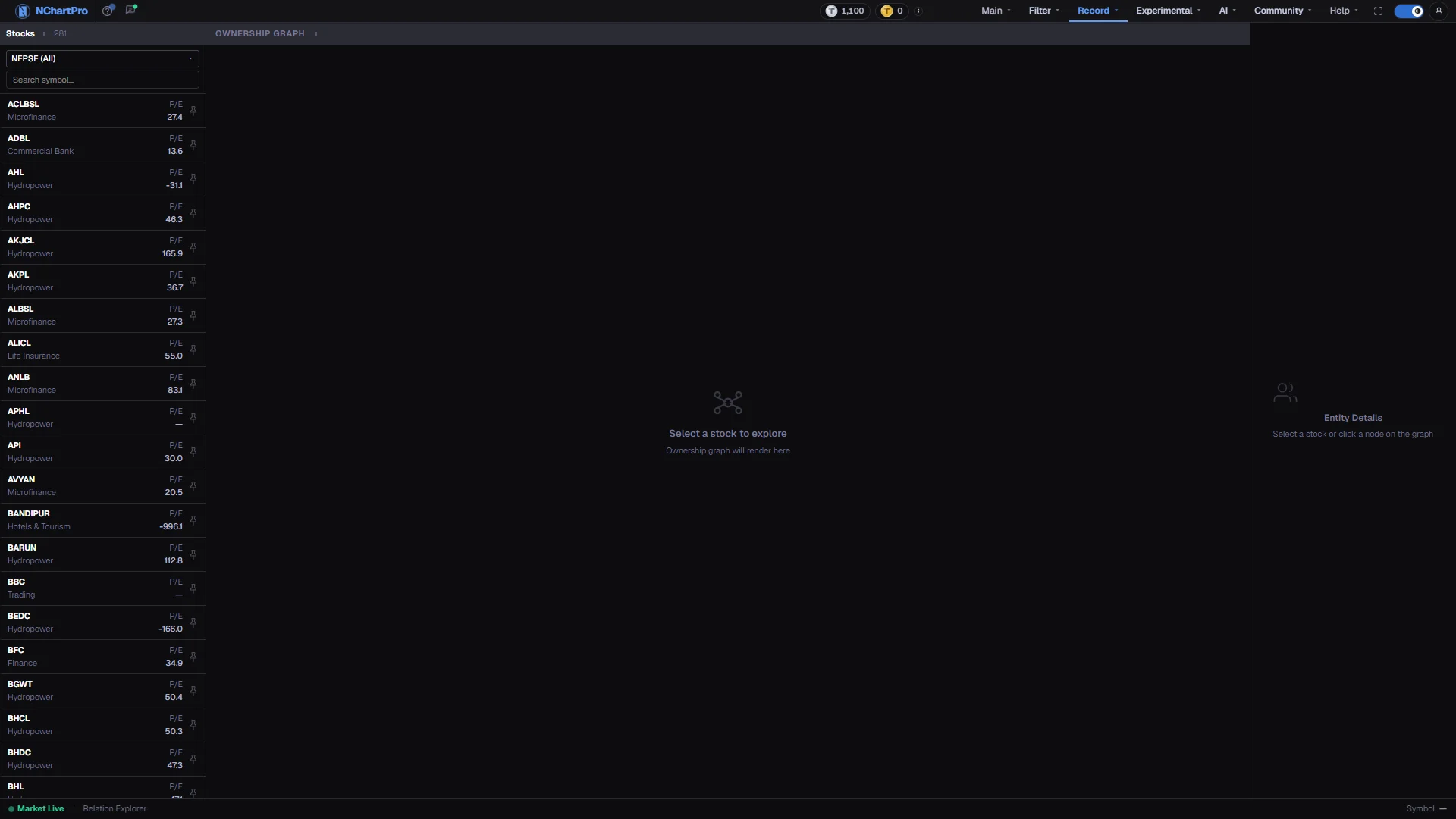
Pick the company
Every stock, grouped by sector, with its P/E where fundamental data is loaded. Whatever you click here becomes the subject of the graph and the right-hand panel.
How — Narrow the list with the sector box, or type a symbol in the search field, then click a row.
- P/E (Price to Earnings) is the share price divided by yearly earnings per share. A dash means no fundamental data is loaded for that symbol.
- No row shows a green DATA chip on this page — there is no list yet of which symbols have relation records, so you find out by clicking one.
Graph header
Shows OWNERSHIP GRAPH, then the symbol and company name you are looking at. A Clear selection button appears here once you have clicked a circle in the graph.
How — Press Clear selection to drop back from one person or subsidiary to the whole-company view.
Four ways to draw it
Mind Map, Tree, Org Chart and Force are four arrangements of the SAME relationships — the data does not change, only the picture.
How — Click whichever is easiest to read for the company you are looking at. Mind Map is the default.
- Mind Map — company in the centre, everything radiating out; best for a quick overall view.
- Org Chart — people above, subsidiaries below; best for seeing who controls whom.
- Force — the circles push each other apart automatically, useful when many connections would otherwise overlap.
The ownership graph
The centre circle is the company you picked. Around it are the people and institutions who own or run it, the companies it owns a stake in, and other listed companies it is linked to. The % printed on a line is how much of the company that person or institution holds.
How — Scroll to zoom, drag to pan, and click any circle to load that entity into the right-hand panel. Click the same circle again to deselect it.
- Before you pick a stock it reads "Select a stock to explore"; if the chosen symbol has no records it says so and suggests trying NABIL, NIBL, EBL, HIDCL or UPPER.
- Built from the company-relations dataset, which reads disclosed shareholding and board records.
Legend
What each colour means. Circles: Selected Company, Person / Institution, Subsidiary / Investee, Cross-Ownership. Lines: chairs, invests, owns, cross-owns.
- A dashed line is a cross-ownership link; solid lines are direct board or holding links.
- The line style in the legend follows whichever layout you picked, so it always matches the picture.
Zoom controls
+ zooms in, − zooms out, and ⟳ resets the view back to the middle at normal size.
How — Use ⟳ whenever you have dragged the graph off screen and cannot find it again.
- The view also resets by itself when you switch stock or switch layout.
Entity details
Details of whatever is selected. With nothing selected it shows the company — founded year, head office, how many persons and subsidiaries are linked, a short overview, then sections A (persons and investors), B (subsidiaries / investees) and C (shared entities). Click a circle in the graph and this panel switches to that person, subsidiary or linked company.
How — Click any row in section A or B to focus the matching circle in the graph. The coloured chip beside the name tells you what you are looking at — the person's role, the subsidiary type, Cross-Owned, or the company's sector.
- Promoters and directors normally hold PROMOTER shares, which are restricted and cannot be sold freely like the ordinary shares you buy.
- In section B, above 50% ownership usually means full control, so that company's profits and losses flow into the parent's accounts.
- Section C is empty for every symbol right now — no cross-ownership records have been loaded into the backend yet.
Status bar
A one-line count for the loaded company: how many persons, subsidiaries and cross-links it has, and the symbol currently selected.
How — Use it as a quick check that data actually loaded — all three counts at zero means nothing was found for that symbol.