

News
A chart shows you that a stock moved. This feed usually holds the reason — a payout notice, a regulator circular, a project reaching commercial operation.
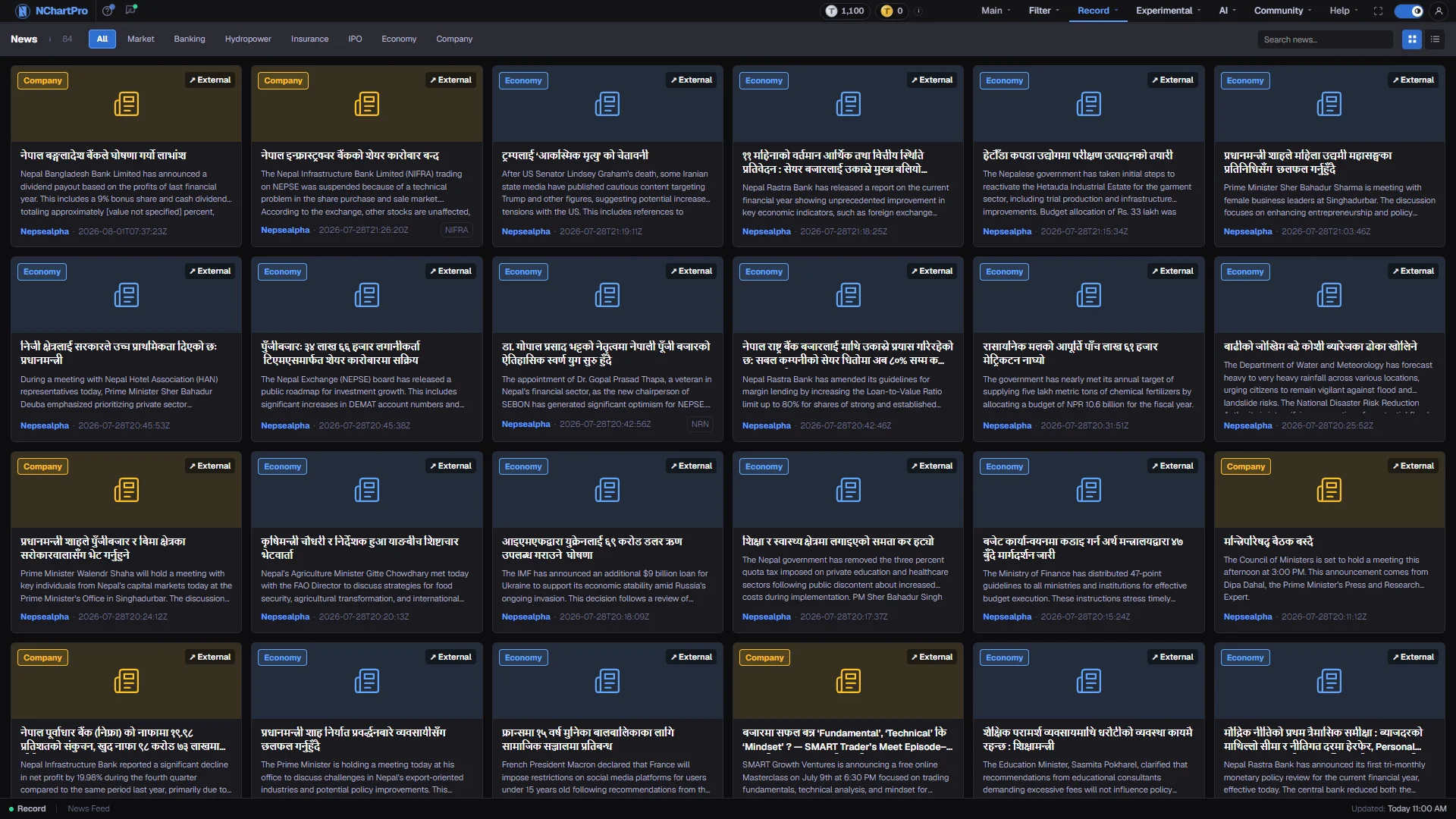
What this page is
One feed of Nepali market and company news, collected from publishers and stored in the app. Filter it by topic, search the headlines, and read either as cards with a summary or as a compact list.
The articles are real. They are scraped from Nepali publishers and served from the app's own news table, so this is not sample text.
Most items keep their source link, so clicking usually takes you to the publisher's site in a new tab. That is deliberate — you read the story where it was written, not a rewritten copy.
Why it helps you
- A gap open with no technical cause almost always has a headline behind it. Search the symbol before you decide the move is noise.
- Category is the fastest way to sit in one theme. Filtering to Banking or Hydropower for a week tells you whether a sector move is one company or the whole group.
- Order is strictly by published time, never by importance, so a headline near the top is recent rather than significant.
- Regulator news matters more to a long holding than any single company story. An NRB directive on capital or provisioning re-rates every bank at once.
- Search a company you own once a month rather than reading the feed daily. What you are looking for is a change in the business, not a change in the price.
- Use it alongside the Knowledge Base: the headline announces a dividend or a rights issue, the Knowledge Base records the dates and ratios behind it.
When to use it, and where to find it
- Before the open, to see what happened overnight and what may set the tone.
- The moment a stock you follow moves more than the market without an obvious cause.
- Around results season and policy announcements, when reasons matter more than levels.
Try it — a short walkthrough
- 1Pick a topicClick one of the category buttons. The choice is sent to the backend, so only articles filed under it come back — the filtering is not happening in your browser.See this part in detail →
- 2Narrow it with a wordType a symbol or a word like dividend into the search box. It combines with the active category, so you can search inside Banking alone.See this part in detail →
- 3Switch to the listClick the lines icon when you are scanning many headlines. Switch back to cards when you want the summary under each one.See this part in detail →
- 4Open one at the sourceClick an article. An item badged External opens the publisher's own site in a new tab; one without the badge opens inside the app.See this part in detail →
- 5Judge how fresh the feed isRead the timestamp on the newest article at the top of the feed, not the Updated time in the status bar.See this part in detail →
Every part of the page
In the order you meet them on screen, each with a close-up of the real thing. The numbers match the dots on the figure above.
The toolbar
Everything that controls the feed sits in this one row: the title with the article count, the category buttons, the search box and the two view icons.
How — The number next to "News" is how many articles the backend returned for your current filter — it changes as you filter or search.
- At most 100 articles are loaded at a time, newest first.
Category buttons
Eight buttons: All, Market, Banking, Hydropower, Insurance, IPO, Economy and Company. They are the only categories an article can carry.
How — Click one to filter. The choice is sent to the backend, which returns only articles filed under it — the filtering does not happen in your browser.
- A sector story wins over a generic one when the article is filed: a hydropower dividend notice lands under Hydropower, not Company.
- Only one category at a time. Click All to clear it.
Search
A free-text search across the headline and the summary of every stored article.
How — Type a company name, a symbol, or a word like "dividend" or "IPO". It combines with the active category, so you can search inside Banking only.
- It matches the title and summary text, not the full article body.
Card or list view
Two icons. The grid icon shows wide cards with a summary; the lines icon shows a compact one-line-per-article list.
How — Use cards when you want to read the gist, and the list when you are scanning many headlines quickly.
One article
Each item carries its category badge, the headline, a short summary, the publisher name, the published time and its first tag (a related symbol or sector).
How — Click anywhere on the item to open it. An item marked "↗ External" opens the publisher's own website in a new tab; one without that badge opens inside the app.
- Most stored articles keep their source link, so expect most clicks to leave the app — that is intentional, you read it at the source.
- The time is the raw published timestamp in UTC, not converted to Nepal time, so it can read a few hours behind your clock.
- Always check the publisher name before acting on a headline.
The feed area
The scrolling area that holds the results, newest article first.
How — Scroll for older items. If your filter matches nothing you get "No articles match your filter" instead of an empty screen.
- Order is strictly by published time, newest at the top — it is not ranked by importance.
The status bar
The bottom strip labels the section (Record · News Feed) and shows an "Updated" time on the right.
- That "Updated" time is fixed text on this page, not the real time the feed last refreshed. Judge freshness from the newest article's own timestamp instead.
Reading the numbers
- The number beside the title is how many articles came back for your current filter. It changes as you filter or search.
- At most 100 articles load at a time, newest first.
- Search matches the headline and the summary, not the full body of the article.
- An article carries one category only. A sector story wins over a generic one, so a hydropower dividend notice is filed under Hydropower rather than Company.
What it does not do
- Published times are printed as the raw UTC timestamp and are not converted to Nepal time, so an article can read a few hours behind your own clock.
- The "Updated" time in the status bar is fixed text, not the moment the feed last refreshed.
- Coverage depends on which publishers were scraped. A quiet feed is not proof that nothing happened.
- Nothing here is verified or ranked by the app. Check the publisher name before acting on a headline.
Questions people ask
Because that article kept its source URL. Items badged External open at the publisher. Only an article stored without a link opens on an in-app page.
No. One category at a time. Click All to clear it, then use the search box to narrow further.