

Trading Journal
The Trade Ledger records what you bought. This board records why — written on the day you decided, so you can check your own reasoning weeks later.
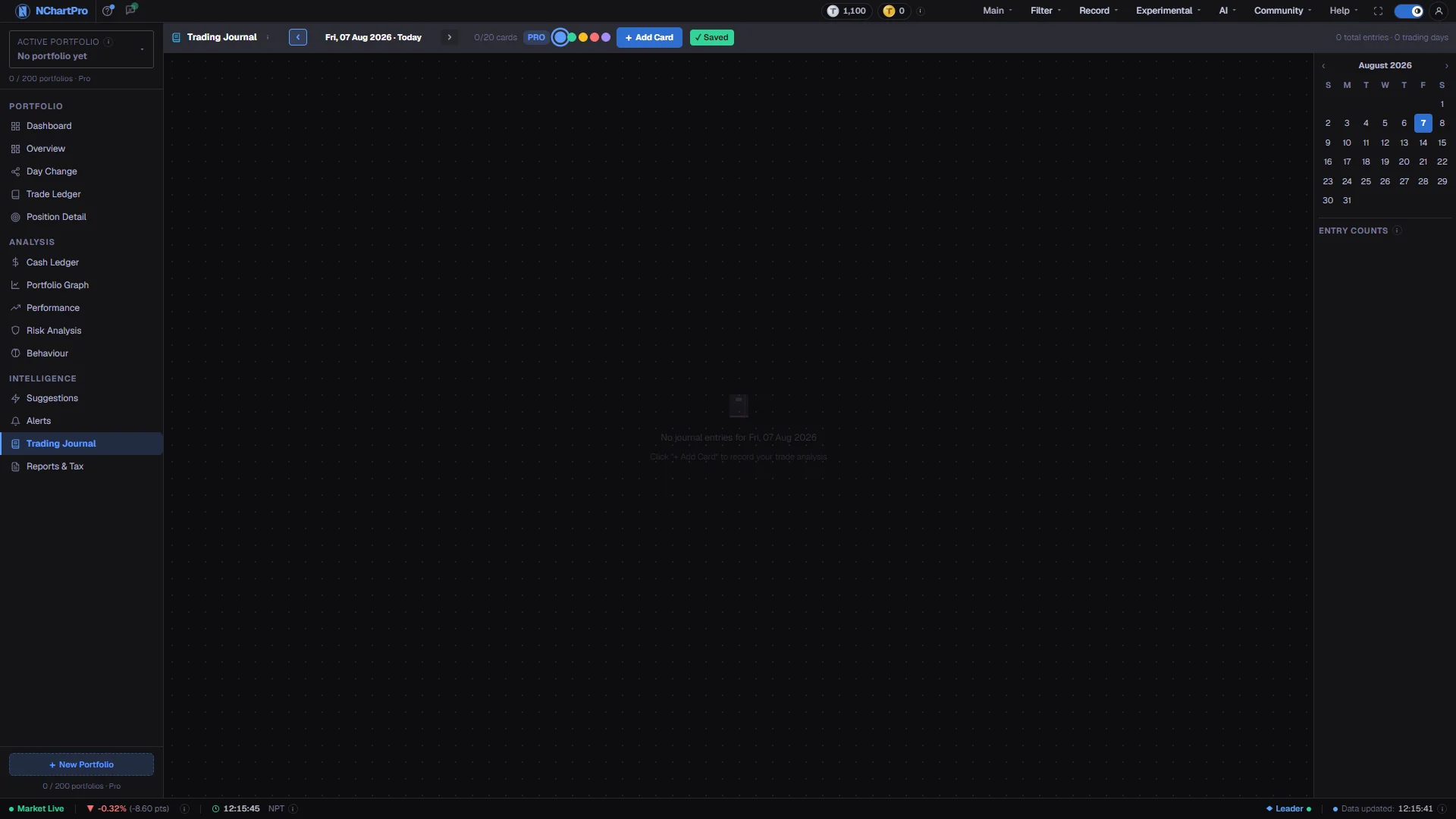
What this page is
The Trading Journal is a private notebook filed by date. Each note is a sticky card carrying a symbol, an intent, a price, a quantity in kitta, and the reasoning you want to remember.
Cards sit on a dotted board and can be dragged anywhere on it. Where you drop one is part of the note and is saved with it, so the board looks the same next time you open that day.
Nothing written here affects your holdings, cash or tax. It is a record of your thinking; to record an actual trade, use the Trade Ledger. Notes are saved to your account, so you need to be signed in to write one.
Why it helps you
- Write the note before the trade, not after. The reason you can state at the moment you buy is the only one you can honestly test later, and the one you reconstruct after a loss is always kinder to you.
- Record the level at which you would be wrong. When the price gets there, the note is the argument against the story you will have built in the meantime.
- After a losing streak, open the dates from Worst Decisions on the Behaviour page and read what you wrote. The pattern is usually visible in your own words before it is visible in the numbers.
- For a holding you intend to keep for years, one note at purchase is enough: what the company does, what you paid, and what would make you sell. Everything after that is noise you can ignore.
- Use the Watch intent to park a company you are not ready to buy, with the price you would want. It keeps the idea without turning it into a position.
- Reading a year of entry counts in the calendar tells you something plainly: months where you wrote nothing were usually months where you did nothing, and for a long-term holder that is a good sign rather than a bad one.
When to use it, and where to find it
- At the moment you decide to buy or sell, before you place the order.
- On the evening of an unusually large move in something you hold.
- At a weekly review, stepping back through the days you traded.
- Whenever the Behaviour page shows a trade you cannot explain to yourself.
Try it — a short walkthrough
- 1Land on the right dayCheck the date in the toolbar; it says "Today" when you are on the current date. Step with the arrow buttons, or click any date in the calendar on the right.See this part in detail →
- 2Add a cardPress + Add Card and a sticky note appears on the board. The counter beside the button shows how many of your daily allowance you have used.See this part in detail →
- 3Fill it inClick each field on the note to type: symbol, intent, price, quantity in kitta, and your reasoning in the text area. Price takes numbers with up to two decimal places (1098 or 1098.50); quantity takes whole numbers only. There is no Save button — everything writes as you go.See this part in detail →
- 4Arrange the board so it readsDrag a card by its body to move it; the one you drag comes to the front. Group the day's related notes together — the position is saved when you release.See this part in detail →
- 5Give a long note more roomDrag the small grip in a card's bottom-right corner to resize it, or drag its right or bottom edge to change just the width or just the height. The text area grows with the card, so a detailed note need not be read through a scrollbar. The size is saved per card, exactly like the position.See this part in detail →
- 6Confirm it savedWatch the small label in the toolbar settle on Saved. If it reads Not saved, check you are still signed in; an expired session opens the login box the next time you type.See this part in detail →
- 7Come back and re-readUse the calendar and the Entry Counts list to jump to an older day. Re-reading a note beside what the trade actually did is the entire reason to keep one.See this part in detail →
Every part of the page
In the order you meet them on screen, each with a close-up of the real thing. The numbers match the dots on the figure above.
The toolbar
Everything on this page is controlled from this one row: which day you are writing in, how many cards you have used, the colour of the next card, the Add button and the save status.
How — On a phone the row scrolls sideways — swipe it to reach the controls on the right.
- The right end of the row shows your totals: how many entries you have written altogether and across how many days.
The day you are writing in
Notes are filed under the date shown here. The label also says "· Today" when you are on the current date.
How — Use ‹ and › to step back and forward one day. The › button is disabled on today, because you cannot journal the future; a "Today" button appears to jump straight back.
- Choosing a date in the calendar on the right does the same thing.
+ Add Card
Drops a new sticky note onto the board for the selected day. Each note records a symbol, an intent (Buy / Sell / Hold / Watch / Note), a price, a quantity in kitta, and your reasoning.
How — Click the fields on the note to type into them — everything saves by itself, there is no Save button.
- The counter to the left of the button shows cards used out of your per-day limit: 5 on free, 10 on basic, 20 on pro. The button greys out when you reach it.
- The intent pills are just labels for your own review; choosing "Buy" here does not place or record a trade.
Card colours
Five dots choosing the colour of the NEXT card you add. The colour is yours to use however you like — one colour per sector, or per conviction level.
How — Click a dot before pressing + Add Card. The colour also cycles by itself so a run of new cards is easy to tell apart.
- The colour is only visual; it does not change how the note is stored or read.
The board
The dotted area where your notes for the selected day live. Notes can sit anywhere on it — the layout is part of the note.
How — Drag a card by its body to move it; the card you drag comes to the front. Click into the symbol, price, quantity or the text area to edit, and use the × in the corner to delete a note.
- The position where you drop a card is saved, so the board looks the same next time you open that day.
- When a day has no notes it shows "No journal entries for" that date.
- On a phone the board gets a fixed height and the calendar moves below it.
The save indicator
There is no Save button — every change is written to your account as you make it. This little label tells you the state: ✓ Saved, ● Saving…, or ⚠ Not saved.
How — If it reads ⚠ Not saved, check that you are still signed in; a session that expired opens the login box automatically when you next type.
- Moving a card saves too — the position is persisted when you release the drag.
The calendar and entry counts
A month view for jumping between days, plus a short list of your six most recent journal days and how many notes each holds.
How — Click any date to open that day's board, or use ‹ › above the month name to change month. Click a row in Entry Counts to jump straight to that date.
- A small dot under a date means you wrote at least one note that day.
- Today is outlined in the accent colour; the day you are viewing is filled in.
- Days with no notes are simply left out of the Entry Counts list.
Reading the numbers
- A card records a symbol, an intent (Buy, Sell, Hold, Watch or Note), a price, a quantity in kitta, and free text. The intent is a label for your own review and records no trade.
- The price and quantity boxes take numbers only — a letter or a stray symbol is simply not accepted. Price allows up to two decimal places, because a rupee has 100 paisa; quantity allows none, because a share cannot be split. The ceilings are the same ones the Add Trade form uses: Rs 99,999 per share and 99,999 kitta. Both fields may be left empty, which is normal on a Watch or Note card.
- The per-day card limit comes from your plan: 5 on free, 10 on basic, 20 on pro. The + Add Card button greys out once you reach it, and the counter beside the button shows where you are.
- The save indicator has three states: Saving while a write is in flight, Saved when it has landed, and Not saved when it has not. Moving or resizing a card saves too, at the moment you release the drag.
- A card can be resized between 240 and 900 wide and 170 and 800 tall, and it cannot be grown past the right or bottom edge of the board. The size belongs to that one card, so a card carrying a long note can be large while the rest stay compact.
- The five colour dots choose the colour of the next card you add, and the colour also cycles by itself so a run of new cards is easy to tell apart. Colour is purely visual and changes nothing about how the note is stored.
- In the calendar, a small dot under a date means you wrote at least one note that day. Today is outlined in the accent colour and the day you are viewing is filled in.
- Entry Counts lists your six most recent journal days with how many notes each holds. Days with no notes are left out entirely.
- The forward arrow is disabled on today, because there is no future day to write in, and a Today button appears to jump straight back.
What it does not do
- Journal notes belong to your account as a whole, not to the portfolio selected in the sidebar. Switching portfolio does not change what you see here, so if you keep separate portfolios you will need to name them inside the note yourself.
- The card limit is per day, not per month. On the free plan that is five notes for a given date, and there is no way to add a sixth to that day later.
- Writing requires a signed-in account. Everything on the board is saved to your account, so a signed-out session cannot add, edit, move or delete a note.
- There is no export from this page and no search across days. Finding an old note means knowing roughly when you wrote it and using the calendar.
- The intent pill is a label only. Choosing Buy on a card does not create a trade, change your holdings, or appear in the Trade Ledger.
- On a phone the toolbar scrolls sideways and the board takes a fixed height with the calendar below it, so a crowded day is easier to read on a desktop.
Questions people ask
No. Journal notes are private to your account. Nothing on this page is shared, published, or visible in the community sections.
They are separate records on purpose. The journal holds your reasoning; the ledger holds the actual trade with its quantity, price and charges. A note with the Buy intent still has to be entered as a trade in the ledger.
Either put more in one card, or upgrade — the allowance is 5 on free, 10 on basic and 20 on pro, and it resets on the next date.
Yes. Step back with the arrow or pick the date in the calendar, then add a card there. You cannot write into a future date.