

Group Chat
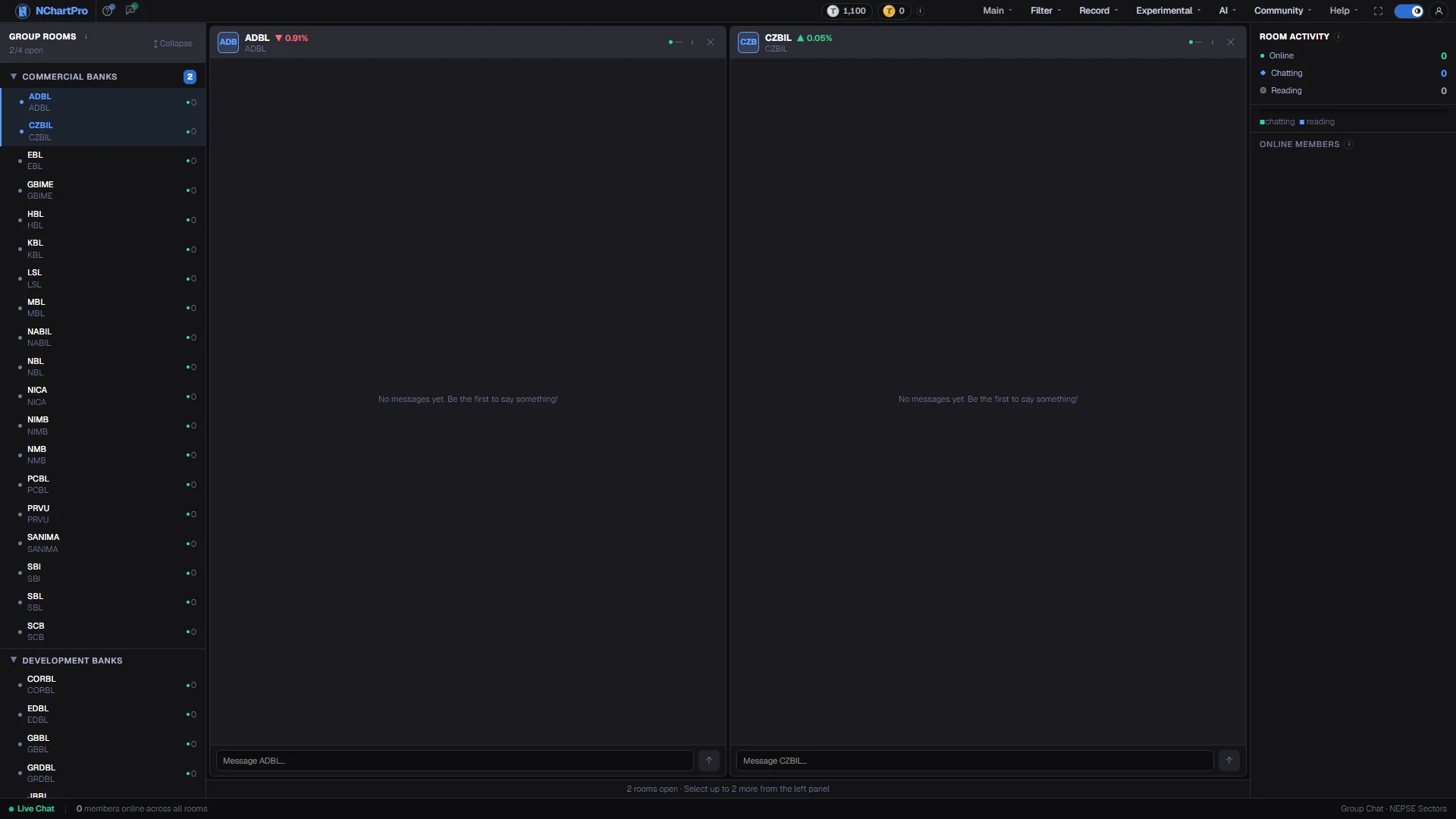
When to use it, and where to find it
Every part of the page
In the order you meet them on screen, each with a close-up of the real thing. The numbers match the dots on the figure above.
The room list
Every stock with a room, listed under its sector. The sector list comes from the app's own stock classification, so every sector and symbol matches the rest of NChartPro.
How — Click a stock to open its room in the middle; click it again to close. Use ↕ Collapse / ↕ Expand to fold every sector at once.
- Up to 4 rooms can be open. Once four are open the rest of the list is dimmed until you close one.
- The green dot and number next to a stock are how many people have posted in that room in the last 10 minutes.
- The accent badge on a sector row counts how many of its rooms you currently have open.
The room header
The stock this room is about, its live change today, and how busy the room is.
- The ▲/▼ percentage beside the symbol is that STOCK's change today, refreshed every 30 seconds — it is not a chat statistic.
- The green dot and number are how many people have posted here in the last 10 minutes.
- ✕ closes the room; reopen it any time from the list on the left.
The conversation
The message history for this room, loaded from the server, oldest at the top. Other members appear on the left with their name and initials; your own messages appear on the right in the accent colour.
- Each member's avatar colour is derived from their name, so the same person always looks the same.
- "No messages yet" means nobody has written in this room, not that loading failed.
The message box — read this one
Type here and press ↑ (or Enter) and your line appears on the right straight away. Be aware: sending from this page is NOT wired to the server yet, so the message stays in this browser session only and is gone when you reload or close the room.
How — If you want a message that other members will actually see and that survives a reload, use Community → Live Chat, which does post to the server.
- Nothing is charged for what you type here, because nothing reaches the server.
- In the chat that IS wired up, the backend prices a group-chat message at 10 TPoints and lets it through anyway when your balance is short — it never hard-blocks you.
How many rooms are open
The strip under the rooms tells you how many you have open and how many more you can add before you hit the limit of four.
How — When it reads "4/4 rooms open", close one with ✕ before opening another.
Who has been active
The most recent people to post — up to 12 members, newest activity first. The name under each is the room they were last active in.
- These labels are worked out from how recently someone posted, not from live presence tracking, so read them as "recently active", not "watching right now".
- Chatting = the 2 most recent posters · Reading = the next 3 · Online = everyone else in the recent list.
The activity bar
The same Chatting / Reading split drawn as proportions of the recent list — green is chatting, accent is reading.
- It is a picture of the numbers above it, not a separate measurement.