

Custom Index
When to use it, and where to find it
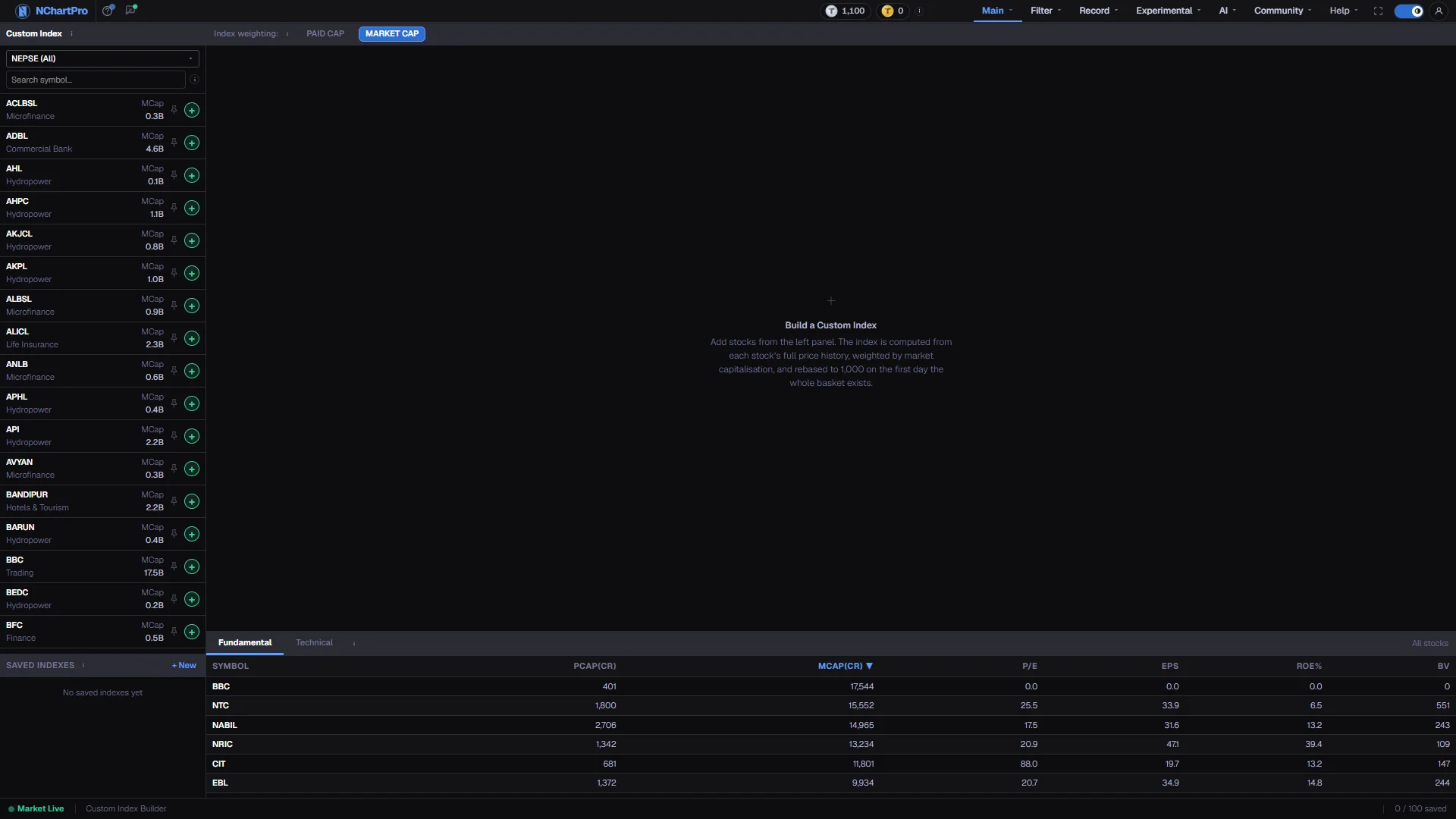
Every part of the page
In the order you meet them on screen, each with a close-up of the real thing. The numbers match the dots on the figure above.
The stock picker
The list of stocks you can put into your index, with each one's MCap — market capitalisation, the whole company's value at today's price — shown in billions of rupees. The grey text under a symbol is its sector.
How — Narrow the list with the sector box or by typing part of a symbol, then press + to add a stock and − to take it out. The pin icon keeps a stock at the top of the list across the whole app.
- A stock only appears here once its fundamentals have been fed into the backend, so this list can be short or empty — that is a data-feed state, not a bug.
- Bigger MCap stocks pull the index more when it is Market-Cap weighted.
Saved Indexes
Your own saved baskets. Each row shows the name, how many stocks are in it and the first few symbols.
How — Click a row to load that basket into the chart and tables; click it again to go back to the basket you were building. "+ New" clears everything for a fresh start, and the × deletes a saved basket after a confirm tick.
- These are private to your account — nobody else can see them, and you must be signed in to save or delete one. The login box opens in place if you are not.
- Deleting a saved index does not touch any holdings; it is only a list of symbols.
Index weighting
This decides how much say each stock gets in your index. A weighted index adds up the VALUE of the companies in the basket, so a large company moves the line more than a small one.
How — Market Cap counts each stock in proportion to its market capitalisation (share count used = market cap ÷ latest close). Paid Cap counts it in proportion to its paid-up capital, the money actually raised from shareholders (share count used = paid-up capital ÷ Rs 100 par value). Click either button to rebuild the chart.
- The result is rescaled to start at exactly 1,000 on its first day, whichever basis you pick.
- The counter on the right shows how many stocks are in the basket and which basis is in use.
Your index, charted
The composite line for the current basket, computed on the backend from every constituent's daily price history times its capitalisation. It starts at 1,000 on the first day on which EVERY stock in the basket already had price data.
How — Read the badge in the top-left corner of the chart: it says whether the line is truly Market-cap / Paid-cap weighted or fell back to Equal-weighted, and gives the base date.
- If a company's capital figures are missing, the whole basket falls back to EQUAL weight — every stock counts the same — and the badge names the symbols to feed.
- A day a stock did not trade carries its previous close, so it never drops out of the index.
- Values come from daily closing prices, not from live ticks, so the line does not move during the session.
The two bottom tabs
Fundamental shows company-health figures for every stock in your basket. Technical shows chart readings for the same stocks: trend, RSI, moving averages, 100-day high and low, and week move.
How — Click either tab to switch. The counter on the right tells you whether you are looking at your basket or all stocks.
- Technical values come from the daily candles after the market closes. A dash means that reading is not ready for the stock yet.
The Fundamental table
One row per stock in your basket, with a Total / Avg row at the end so you can judge the basket as a whole — the capital columns are totalled and the ratio columns averaged.
How — Click any column heading to sort by it; click again to flip the direction.
- PCap(Cr) = paid-up capital in crore Rs. MCap(Cr) = market capitalisation in crore Rs.
- P/E = price ÷ earnings per share, roughly how many years of current profit you pay for a share. EPS = profit per share in Rs. BV = book value per share.
- ROE% = profit as a percentage of shareholders' money — higher usually means a more efficient company.
- A dash or 0 means that company's fundamentals have not been entered yet.
The status bar
The bar along the bottom names the page, shows which saved index you are viewing (or how many stocks you are building with), and counts how many indexes you have saved.
How — Use it as a quick check that the chart above is showing the basket you think it is.
- Honest note: the green "Market Live" dot on this page is fixed text, not the real market clock. Use the Main → Dashboard footer for that.