

Comparison
Two shares at very different prices cannot be compared by putting their charts side by side. Drawing both as percent from the same starting day can, and that is what happens here.
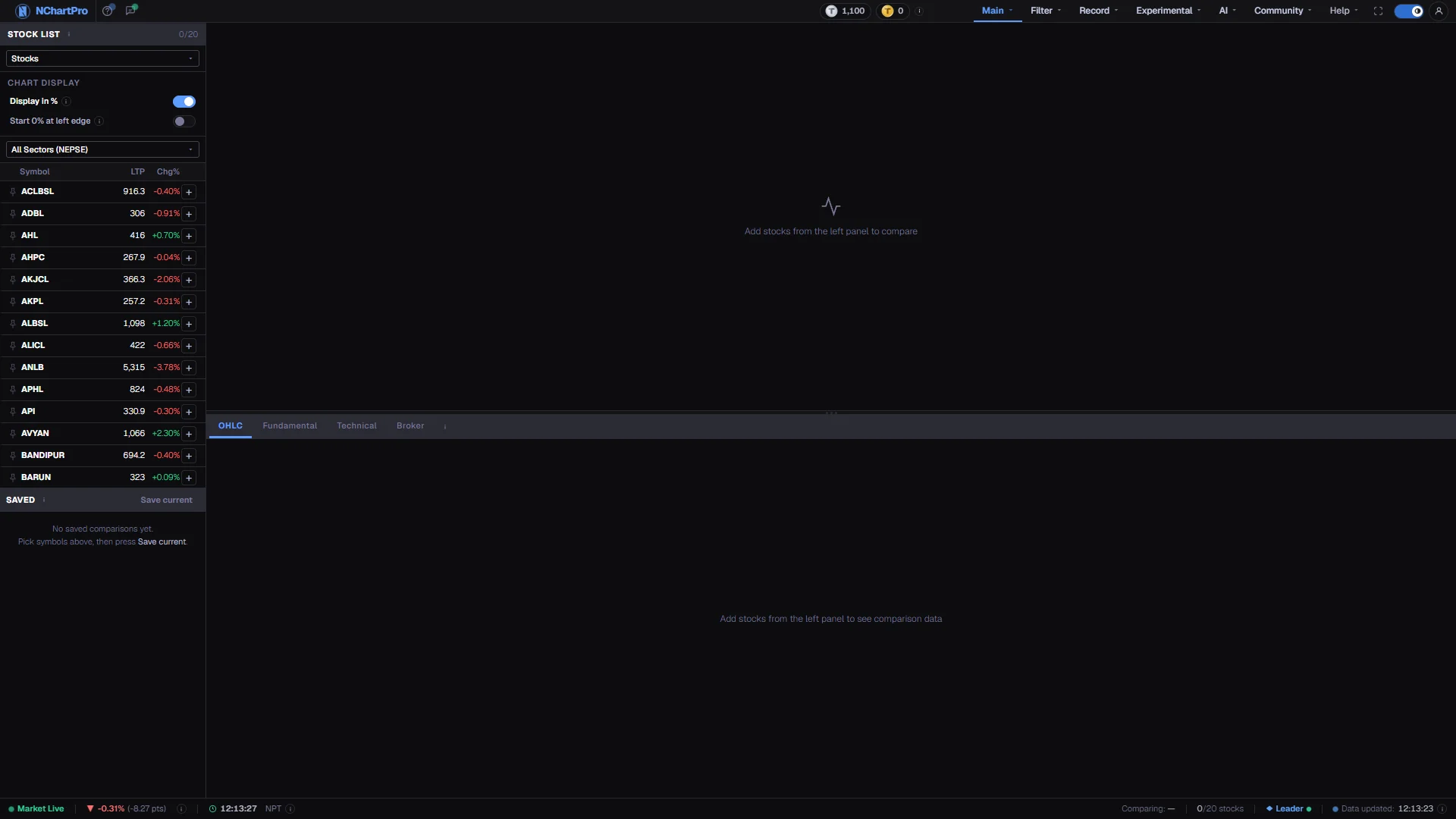
What this page is
You build the comparison yourself. The page opens empty, you add symbols from the left panel, and the chart and table below fill with exactly the set you chose.
The chart answers which one performed better. The table underneath answers why, through four tabs that show the same set of stocks as prices, as company fundamentals, as technical readings, and as broker activity.
Comparisons can be kept. The Saved comparisons panel under the stock list stores named sets, so a group you look at often is one click away instead of eight.
Why it helps you
- Relative strength is the trade. When a sector runs, the names leading it usually keep leading, and this chart shows that ranking directly instead of making you infer it from a column of percentages.
- Compare your candidate against three peers before entering. If the one you like is lagging while its sector moves, you are either early or wrong, and it is worth knowing which.
- The Broker tab summarises the current month's floor-sheet totals for every stock in the set, so you can see which candidate is being accumulated and which is being distributed.
- The Technical tab puts RSI, MA 20, trend, support, resistance and ATR percent for the whole set into one grid, which is quicker than opening four charts in turn.
- Comparing inside one sector is the comparison worth making, because those companies face the same interest rates, the same rules and the same season.
- The Fundamental tab is the reason a long holder opens this page. Earnings per share, book value, price to earnings, price to book, return on equity and dividend for a whole peer group in one grid is exactly the view a valuation needs.
- A long window matters more than a short one. Across the loaded year, the line that finishes highest is the business the market re-rated — a fair question to ask about the peers you did not buy.
- The cheaper share is not the better one. The chart shows what performance you missed; the Fundamental tab shows what you would be paying for it.
When to use it, and where to find it
- When a choice has narrowed to a few names and you have to pick one.
- After a sector moves, to see which members led it and which lagged.
- Once a quarter, with your holdings set against their sector peers, as a check that you still own the right member of the group.
- At any hour, since the chart is built from stored daily candles and does not need the market to be open.
Try it — a short walkthrough
- 1Add a few stocksPress the plus on a row to add it and the minus to remove it. The counter at the top of the panel shows how many of the twenty places you have used.See this part in detail →
- 2Keep it inside one sectorChoose a sector in the box above the list. Companies that face the same conditions are the ones whose difference in performance actually means something.See this part in detail →
- 3Read the rankingEvery line starts at zero percent, so the line finishing highest gained the most over the window. Move the cursor across the plot and the table below freezes on that date.See this part in detail →
- 4Ask whySwitch the table to Fundamental, then Technical, then Broker. The ⓘ beside the tabs changes with the tab and explains each of its columns.See this part in detail →
- 5Give the half you are reading more roomDrag the handle between the chart and the table up when you want columns and down when you want a taller chart. Your setting is remembered in this browser.See this part in detail →
Every part of the page
In the order you meet them on screen, each with a close-up of the real thing. The numbers match the dots on the figure above.
Pick the stocks
Every symbol with its LTP (Last Traded Price — the price of the latest deal) and Chg% (today's move against yesterday's close). This list is where a comparison is built.
How — Press + on a row to add that stock, − to take it out again. Added rows are marked with an accent stripe down their left edge. The counter at the top of the panel shows how many you have used out of 20.
- The two number columns update live from the price feed while the market is open (Mon–Fri); off-market they show the last session's close.
- A dash (—) means no quote has arrived for that symbol yet.
- The pin icon keeps a stock at the top of the list across the whole app, which is handy when you compare the same names often.
Narrow the list by sector
A picker for the 12 NEPSE sectors — Banking, Dev Bank, Finance, Hotels, Hydropower, Investment, Life Insurance, Manufacture, Microfinance, Non-Life Insurance, Others and Trading.
How — Choose a sector to show only its symbols; "All Sectors (NEPSE)" brings every symbol back.
- Comparing inside one sector is usually the more useful comparison — the companies face the same conditions.
The comparison chart
One line per chosen stock, and every line starts at 0%. A share costing Rs 3,000 and one costing Rs 200 cannot be compared on a normal price chart, so here both are drawn as % gain or loss instead of rupees.
How — Move the cursor across the plot: the table below freezes on the date under the crosshair and a HOVER badge appears, so you can read every stock's candle for that same day. The coloured chips at the top-left tell you which line is which.
- Each line = (that day's closing price − the FIRST day's closing price) ÷ the first day's closing price × 100.
- The window is the last 365 daily candles available for each stock, so the price axis is percent and 0% is the start of that window.
- The line that finishes highest gained the most over the window — that is not the same as being the more expensive share.
- With nothing added it shows "Add stocks from the left panel to compare"; if a symbol has no candles in the database its line simply does not appear.
The split handle
The thin bar with three dots between the chart and the table. It decides how much height each of them gets.
How — Press it and drag up or down. Drag up when you want to read many columns of the table, down when you want a taller chart.
- The chart can take between 15% and 85% of the area; the table keeps the rest.
- Your setting is saved in this browser, so the page reopens the way you left it.
The comparison table
One row per compared stock. On the OHLC tab it shows that day's candle: O = Open (the first traded price of the day), H = High, L = Low, C = Close (the last price of the day), Vol = shares traded, and Time = the date of the candle shown.
How — Click any column heading to sort by it — click again to flip the direction. The symbol column stays fixed while you scroll sideways, and the × at the end of a row removes that stock from the comparison.
- Chg% in this table is the change since the FIRST day on the chart, not since yesterday — it is the same normalised figure the chart lines show.
- While the market is open the row updates live from the price feed; hovering the chart freezes it on the hovered date instead.
- A dash (—) means that stock has no candle for the shown date.
OHLC · Fundamental · Technical · Broker
The same set of stocks, seen four ways. OHLC is prices. Fundamental is company health. Technical is chart signals. Broker is who has been trading them.
How — Click a tab to switch. The ⓘ next to the tabs changes with the tab and explains every column of the one you are on — worth opening the first few times.
- Fundamental comes from each company's latest reported financial year: EPS (profit per share), Book Val (net worth per share), P/E, P/B, ROE / ROA, dividend, and NPL / CAR for banks and finance companies. It only changes when a company publishes.
- Technical is computed by the backend from the DAILY candles: RSI 14 (a 0–100 speed gauge, above 70 often called overbought and below 30 oversold), MA 20, trend, support and resistance, and ATR% as the volatility measure.
- Broker is taken from the daily floor-sheet totals for the current month to date: top buyer, top seller, their quantities, and whether buying (Accumulation) or selling (Distribution) dominated.
- Broker figures are activity, not advice — one broker acts for many different clients.
The 20-stock limit
How many stocks you are comparing, out of the maximum of 20. It turns amber when you reach the limit, and the + buttons stop working until you remove something.
How — The names beside it are the stocks currently in the comparison, so you can check the set without scrolling the list.
- Two to five lines is usually readable; twenty lines on one chart is hard to read even though it is allowed.
Reading the numbers
- Each chart line is (that day's close − the first day's close) ÷ the first day's close × 100, drawn over the last 365 daily candles available for that stock.
- Chg% in the table is measured from the same starting day as the chart, not from yesterday. It will not match the Chg% in the left picker, which is today's move.
- O, H, L and C are the open, high, low and close of the day shown, and Vol is the shares traded that day.
- The Display in % switch above the list turns the axis back to real rupees when you want to see the actual price gap rather than relative performance.
- A dash means that stock has no candle for the date being shown.
What it does not do
- Twenty lines is the cap and is rarely readable. Two to five is where the chart is genuinely useful.
- Fundamental figures come from each company's latest reported financial year, so they lag the price by months and change only when a company publishes.
- Broker figures cover the current month to date and are activity, not advice — one broker house trades for many different clients.
- A symbol with no candles in the database simply has no line, and nothing on the chart tells you it is missing.
- Saving a comparison needs you to be signed in. A sign-in box opens in place when you try.
Questions people ask
Because the axis is percent, not rupees. Both lines start at zero, so the chart compares how much each moved rather than what each costs. Turn off Display in % to see the real prices.
They measure different things. The picker shows today against yesterday's close; the table shows the change since the first day of the chart window.
Yes. The Saved comparisons panel under the stock list stores named sets and reloads one with a single click.