

Chart
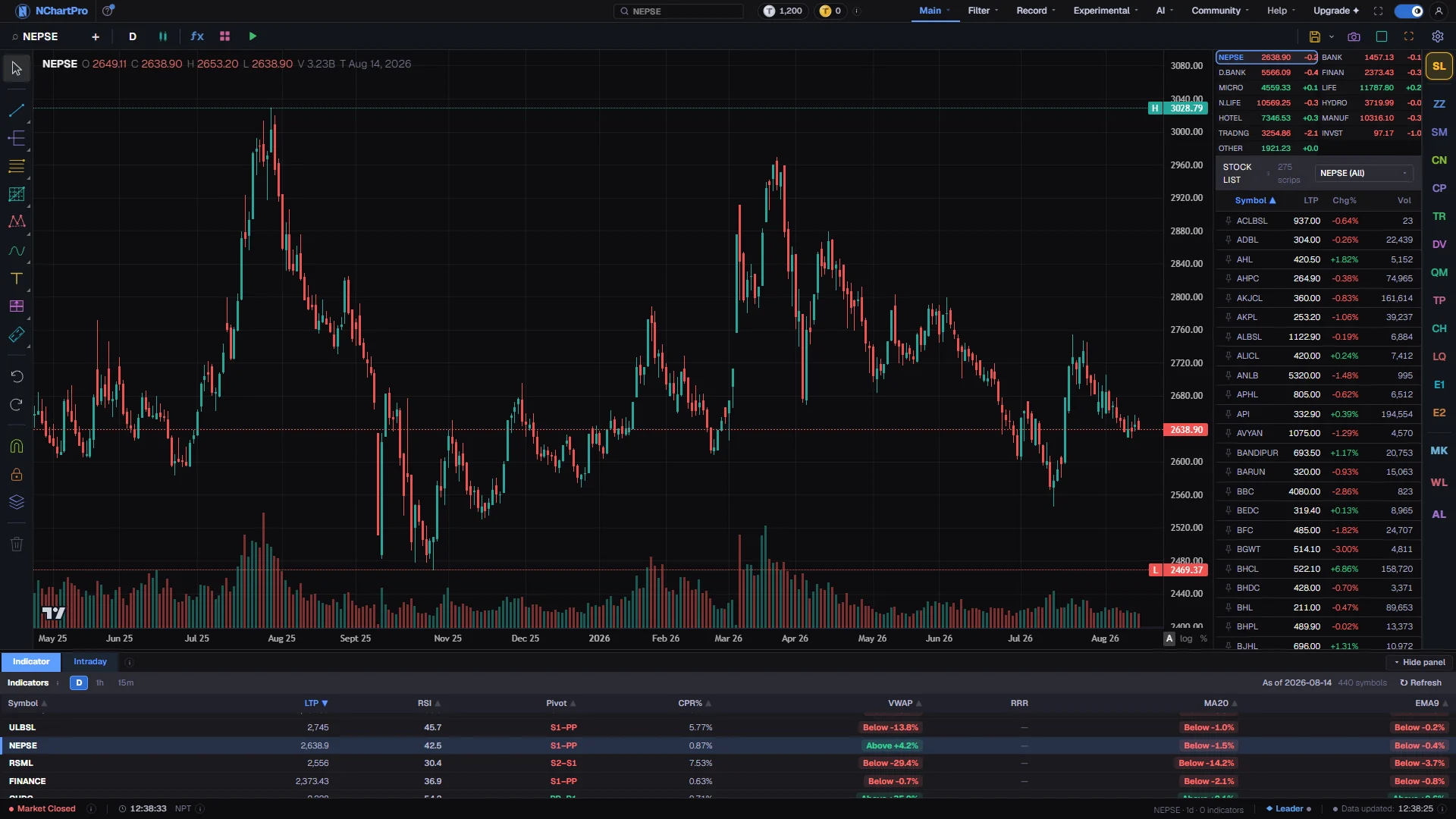
One stock studied closely: candles, volume, 276 indicators, drawing tools and pattern detectors, all in one screen — rendered by the app's own chart engine rather than a third-party library.
What this page is
Chart is NChartPro's main working screen: a toolbar across the top, a drawing rail down the left, a column of detector chips and panel buttons down the right, and a panel under the chart — all built around one or more chart windows you can split up to four ways.
Underneath, the chart is rendered by Karela — the app's own charting engine, written in C++, compiled to WebAssembly and drawing through WebGL2 in your browser (with a Canvas2D fallback where WebGL2 is unavailable), so the candles are painted by the graphics card rather than by JavaScript.
That engine is not new, and it did not begin on the web. NChartPro started as a Windows desktop program written in MFC, Microsoft's C++ framework for desktop software, and you can still see that version working in recordings on the project's YouTube channel. Its analysis code — the pivot engine, the proprietary indicator set, Smart Money Concepts, the pattern detectors — was ported out of it into portable C++ and now runs on the server. Its chart was rebuilt for the browser, carrying over the desktop chart's tool set and layout rules but none of the Windows code. The Karela Engine page tells that story properly.
The drawings are handled by the engine itself: the C++ engine owns the drawing model, the hit-testing, the handles and the undo history — not a JavaScript layer sitting over the canvas.
The page needs an account and is otherwise free. Which parts of the right-hand button column you get depends on your plan.
Why it helps you
- This is the page for working a chart closely: mark up levels, run a bar replay, split the screen to watch several setups, and lean on the detector chips (SMC, divergence, pattern, Elliott Wave and more) to do first-pass scanning for you.
- The number of chart windows you like is remembered, so returning to the page does not mean setting up the split again.
- A long holder charting monthly candles gets the same tools as a day trader — the difference is which timeframe and which detectors you actually use.
- A chart preset saved in the settings dialog is a look rather than a drawing, so the way you like charts to appear only needs setting once.
When to use it, and where to find it
- Whenever you want to study one stock closely rather than scan the whole market.
- When you want several windows on screen at once, comparing setups side by side.
- Filter → Technical instead, if you would rather scan the whole market than one stock at a time.
- Main, then Chart.
- A shared chart link reopens the same symbol, timeframe and drawings for whoever opens it.
Try it — a short walkthrough
- 1Open it and give it a momentMain, then Chart. The engine is downloaded and started the first time you visit, so the first chart takes a beat longer than usual. After that it is cached for the tab.
- 2Chart something with a long historyPick a well-traded company and set the timeframe to one day. Drag sideways through a couple of years and scroll to zoom.
- 3Try a splitOpen the layout grid on the toolbar and choose the two-window split. Each window keeps its own symbol and timeframe.
- 4Draw somethingTake a trend line from the rail on the left and place it — click twice to place, double-click the finished line to restyle. It is saved against the symbol.
- 5Save the layout under a nameUse the disk on the toolbar to keep a whole chart setup — symbol, indicators, drawings — under a name you can return to.
Every part of the page
In the order you meet them on screen, each with a close-up of the real thing. The numbers match the dots on the figure above.
The engine that draws this
This chart is drawn by Karela — NChartPro's own chart engine, written in C++ and compiled to WebAssembly so it runs inside your browser, painting through WebGL2 (and plain canvas where WebGL2 is unavailable).
How — Nothing to do here — just worth knowing what is drawing what you see.
- NChartPro started life as a Windows desktop program. Its analysis code was carried across and now runs on our server; this chart was REBUILT for the browser, keeping the desktop chart's tools and layout rules but none of its Windows code. Recordings of that older desktop version are on our YouTube channel if you want to see where this came from.
- The engine is about 1.3 MB, downloaded once. One copy serves the whole browser tab however many chart windows you open.
- It works out the geometry only and paints no text: every axis label, price tag and crosshair reading you see is drawn by the page on a layer above it.
- The hollow KARELA wordmark at the bottom-left and the developer credit at the bottom-right belong to this engine, and they are how you tell at a glance which engine drew a page. Both ignore the mouse entirely, so they never swallow a crosshair, a pan or a click.
- The whole story — where the engine came from, how it loads, and what it cannot do — is written up under Help → App Document → Chart reference → The Karela Engine.
Which stock
The symbol being charted. Click it to open the search box — or just start typing anywhere on the page and the box opens for you.
How — Type a symbol and press Enter. The + button beside it charts a SECOND symbol on the same axes, which is how you compare two companies directly.
- The last traded price, today's change and the open / high / low sit in the legend on the chart itself, top-left, not in this bar.
- While the market is open the price and the last candle update together on every live tick — the legend never lags behind the candle.
Timeframe
How much trading time each candle covers. On 15m every candle is 15 minutes of trading; on 1D every candle is one whole trading day.
How — Click the box and pick from Minutes, Hours or Days. Star the ones you use and they appear as one-click buttons right beside the box.
- Twenty timeframes are offered and every one is real. Only two series are ever downloaded — 1-minute and 1-day — and your browser regroups them into the rest, so switching 5m to 15m is instant.
- Indicator values change with the timeframe: a 14-period RSI covers 3.5 hours on 15m but 14 trading days on 1D.
Chart type
Twelve ways of drawing the same price data: Candles, Hollow Candles, Heikin Ashi, Bars, Line, Step Line, Area, Baseline, Renko, Line Break, Kagi and Point & Figure.
How — Open the menu and pick one. Star the types you use and they become one-click icons beside the menu, exactly as starred timeframes do.
- The first eight keep one mark per period, so the time axis is unchanged and the candle you are pointing at is still that 15 minutes or that day.
- Renko, Line Break, Kagi and Point & Figure are different in kind: they are redrawn from PRICE MOVEMENT, so a quiet stretch can add no new mark at all and the axis stops matching the clock.
- Heikin Ashi averages neighbouring candles to smooth the noise — a smoothed candle is NOT a real open / high / low / close, so do not read levels off it.
Indicators and templates
ƒx opens the indicator catalog — 276 of them, grouped as trend, momentum, volume, volatility and other. The four-box icon beside it is Indicator templates: a named set of indicators you can put back on any chart in one click.
How — Click ƒx, browse a category or search by name, and click an indicator to add it. Double-click one already on the chart to change its periods, colours and style.
- An overlay (moving averages, Bollinger Bands) draws on the candles themselves; an oscillator (RSI, MACD) gets a pane of its own below them.
- All 276 indicators are computed in your browser from the candles on screen.
- A template saves WHICH indicators and their settings — not the symbol — so the same template applies to any stock.
Bar replay
Winds the chart back in time and plays it forward one candle at a time, so you can practise reading a chart without already knowing what came next.
How — Open the menu, then Play / Pause, Previous bar, Next bar, or drag the scrubber to jump to a point. The speed buttons set how many bars a second Play adds.
- Reset — "Show every bar again" — puts the full history back.
- The controls are disabled when the chart has no bars to replay.
- Replay only changes what THIS chart window is showing; the status bar at the bottom tells you how far back it is wound.
Several charts at once
Splits the chart area into up to four independent chart windows. Ten arrangements are offered — a single chart, two halves either way, four kinds of three, and a 4-up grid.
How — Pick an arrangement, then click a window to make it the active one. The toolbar, both rails and the panel underneath always drive the window you last touched.
- Each window is a genuinely separate chart: its own symbol, timeframe, chart type, indicators, drawings and marks.
- There is only ever ONE toolbar and one of each rail, however many windows are open — which is why the highlighted window matters.
- A phone always gets one window whatever you picked here.
Fullscreen and settings
The last two buttons on the bar. ⛶ gives the chart the whole screen; the gear opens Chart settings, which is where the chart's appearance lives.
How — Settings has six tabs — Symbol, Status, Scales, Canvas, Watermark and Presets. Change something and the chart follows immediately; Presets saves a whole look under a name, and can apply one another member has shared.
- A setting this engine cannot honour is greyed out with a line saying why, rather than left looking as if it did nothing.
- Just left of these sit the saved-layout menu and the camera: the first keeps your whole chart setup under a name, the second downloads or copies the picture, copies a link to it, or posts it to the community.
- A link you copy reopens the chart with the same symbol, timeframe and drawings restored.
Reading the candles
Each candle is one period of trading. The thick body runs between the opening and closing price — green when it closed higher than it opened, red when lower — and the thin wicks reach the highest and lowest price of that period.
How — Drag sideways to pan through history, scroll to zoom, and move the crosshair over a candle to read its exact open, high, low and close in the legend.
- The bars along the bottom are volume: how many shares traded in each period. For an index that bar is the turnover in rupees instead, because an index has no share count.
- While the market is open (Sun–Thu, 11:00–15:00 NPT) the last candle keeps growing as trades arrive, so anything read off it mid-session is provisional.
- Times on the axis are Nepal time (NPT).
- Candle data is downloaded once — 1-minute and 1-day series — and resampled to every other timeframe in your browser.
The price-scale corner
Three small buttons in the square where the price axis meets the time axis: A, log and %. They decide how price is mapped onto the vertical axis.
How — A keeps the axis fitted to whatever is on screen — turn it off and the axis stays where you dragged it. log and % are the two axis modes, and clicking the one already on returns the axis to normal.
- log — logarithmic: equal PERCENTAGE moves take equal vertical space, which is what you want over years of history or on a stock that has multiplied.
- % — percentage: prices are shown as the percent change from the left edge of the view, which is how you compare two symbols that trade at different prices.
- An axis has one mode, so log and % cannot both be on.
- The corner is measured off the live chart, so it sits in the axis square whatever the prices on it are as wide as.
The drawing rail
The left edge holds the drawing tools — trend lines and channels, pitchforks and angle tools (the Gann set lives with them), Fibonacci sets, patterns and Elliott shapes, geometric shapes and brushes, text, stickers and annotations, and prediction and measurement tools — grouped into eight categories.
How — Click a category to see what is in it, pick a tool, then click on the chart to place it. Click a finished drawing to select it, drag its handles to adjust it, and double-click it to open its colour and style settings.
- Your drawings are anchored to a price and a time, not to the screen, so they stay on the right candles when you pan, zoom or change timeframe.
- They are saved to your account, per symbol.
- Star a tool you use constantly and it gets its own shortcut button, so you do not have to open the category each time.
- The rail asks the engine what it can draw rather than assuming. If a tool ever cannot be drawn here it is greyed out and its tooltip says so, instead of arming a tool that would draw nothing.
Undo, magnet, lock, clear
The block at the bottom of the drawing rail: Undo, Redo, Magnet, Lock all drawings, Object tree, and Remove All Drawings.
How — Undo is Ctrl+Z and Redo is Ctrl+Y (or Ctrl+Shift+Z) — both work on the chart itself, not only from these buttons.
- Magnet snaps whatever you are placing to the nearest price bar, so a level lands exactly on a high or a low instead of a pixel away from it.
- Lock freezes every drawing on the chart, so you can pan and zoom without dragging a line by accident. It hides nothing — it only stops edits.
- Object tree lists everything you have drawn on this chart, which is the quickest way to find and remove one drawing out of many.
- The trash removes them ALL. The small badge on it is how many drawings are on the chart, and the button is disabled at zero.
The detector chips
The coloured two-letter chips at the top of the right-hand column. Each opens a detector that reads this chart and draws its findings straight onto the candles.
How — Click a chip to open its settings panel, set it up, and the marks appear on the chart. Click the same chip again to close the panel — the marks stay until you switch them off in it.
- The twelve are ZZ ZigZag with support and resistance, SM Smart Money Concepts, CN candle patterns, CP chart patterns, TR trend, DV divergence, QM Quasimodo, TP trade levels, CH cup and handle, LQ liquidity setups, and E1 / E2, two different Elliott Wave engines.
- These detectors are C++ compiled to WebAssembly, like the chart engine itself — they run in your browser rather than on the server.
- Every chip is gated by your account level, so this strip is not the same length for everyone — and it disappears entirely if your level unlocks none of them.
- Hover any chip: a one-line explanation of that detector appears without opening anything.
The panel chips
The lower half of the same column. These chips open the chart's side PANELS — lists and scanners that sit beside the chart rather than drawing on it.
How — Click one to open its panel; click the same one again to close it and give the chart back the full width. Hover a chip to read what it opens.
- SL — Stock List: the index strip plus every stock, with live price and change. It sits at the very top of the column, above the detector chips.
- 101 — 101 Analysis: an automatic reading of the daily chart, one card per check and one Buy / Exit / Wait signal. It sits just under SL.
- AU — Auction: Auction Market Theory. Volume at each price for every day, the value area, the first hour's range and a plain reading of today.
- WL — Watch List: your own saved symbols with buy / sell / stop target prices.
- AL — Alert: make an alert for this stock or for all stocks. The server watches it for you, even after you close the tab.
- Which chips you see depends on your account level, so this column is not the same length for everyone.
- One more exists but is NOT finished: MK (Mark) is an empty placeholder, and because it is unfinished it is hidden from ordinary accounts — if you cannot see it, nothing is wrong.
- There is no SMC, Divergence or Candle Pattern chip down here: those panels were merged into the detector chips above, so each of them is reached from one place instead of two.
Stock List panel
The index / sector strip at the top, and under it every listed stock with its live price and change. This is how you move from one stock to another without leaving the chart.
How — Click any row to chart that stock. Use the sector drop-down to narrow the list to one sector, and click a column heading to sort it.
- Prices here stream from the same live feed as the chart, so the list and the candles never disagree.
- The index strip above it shows NEPSE and the sector sub-indices with their own move and turnover.
Auction panel
Opened by AU. It reads each day as an auction: how much traded at each price, the busiest price (POC), the value area that held most of the volume, and the first hour's range (Initial Balance).
How — Use the switches in the Show card to pick what is drawn: session profile, yesterday's levels, naked POC, Initial Balance, TPO letters, single prints, HVN / LVN, composite and balance areas. Hover any line of the card at the top to read the rule behind it.
- The card at the top reads today: price against yesterday's value, open type, acceptance, the 80% rule, the first hour against its average, day type, shape and value migration.
- "Forming" means the day is still open and that rule needs more time. Open type is final after 30 minutes, day type only after the close.
- Profiles need an intraday chart (1m to 1h). On a daily chart only the levels are drawn. Close the panel and every Auction drawing goes away.
- Profiles use the prices that really traded. On the adjusted chart, days before a bonus or right share are hidden, and the panel says so.
- Broker profile — who bought and who sold at each price — needs its own account level, and works on stocks only. An index does not trade.
The bottom panel
A workspace under the chart with up to three tabs. Indicator is always there; Paper Trading appears when an ordinary stock is charted, and Intraday appears when you are on NEPSE itself.
How — Click a tab to switch. Drag the thin line above the panel to make it taller or shorter, and use the Hide control in the panel's own tab row to put it away.
- If all you can see here is a thin ▲ Show panel strip, the panel is hidden — click the strip to bring it back.
- Indicator — the indicator values for this stock across the daily, 1-hour and 15-minute timeframes side by side.
- Paper Trading — practise trades with no real money, saved to your account, under the real T+2 settlement wait. Ordinary company shares only, and you must be signed in for the tab to appear.
- Intraday — same-day practice trading on the NEPSE index. Type the price you want to get in at (it starts on the live price), add a stop-loss and a target, and the server does the rest — it waits for your entry, then closes the trade the moment the stop or target is hit, even with this tab shut. Nothing is held overnight. Signed-in users only.
- Your practice trades are saved to your account and picked up anywhere you view them in the app.
- On a phone the panel is not shown at all — the chart needs the height more.
The status bar
The strip along the very bottom. It tells you whether a trading session is running, and what the chart you are looking at is currently set to.
How — Nothing to click — it follows whichever chart window you last touched.
- Market Live means real ticks are still arriving and the last candle is unfinished; Closed means you are looking at a settled picture.
- Beside it: the symbol and timeframe on screen, how many indicators are loaded, and where bar replay has been wound back to if you are using it.
- Today's open, high, low and previous close are in the chart's own legend, top-left — not here.
Reading the numbers
- The engine is C++ compiled to WebAssembly, drawing through WebGL2, with a Canvas2D fallback for machines that cannot give it WebGL.
- The 276-entry indicator catalog is computed in your browser from the candles on screen. Karela ships an indicator library of its own and it is deliberately not used, so an indicator's numbers do not depend on which part of the engine happens to be doing the drawing.
- One copy of the engine is loaded for the whole browser tab however many chart windows you open. It reserves a fixed block of memory at startup, which is why the first load is the slow part and opening a second window is not.
- The drawing rail asks the engine what it can draw and greys out anything it cannot, with a tooltip on the greyed row naming the tool and saying this chart engine cannot draw it. As of today Karela draws all 90 tools the rail offers, so nothing is greyed — if a row ever is, that tooltip is the reason.
- The engine can actually draw a handful of things the shared rail has no button for at all — a sticker marker, a separate freehand pen, two automatic regression variants and a visible-range volume profile. They are not reachable from the rail today.
- A phone gets one chart window whatever split you chose, and so does a chart opened from a shared read-only link. Your stored preference is untouched and comes back on a desktop.
What it does not do
- The first visit downloads and starts the engine, so it is slower than every visit after it. Judge it on the second chart, not the first.
- The page has a fixed, non-scrolling shell. In a phone's web browser you get the chart and the toolbar only: the rails and the panel under the chart are left out. The Android app keeps the rails, and opens the panel from its own Panel button.
- The engine reserves its memory once and does not grow it. That is what keeps a four-window split affordable, and it is also why the page is deliberately capped at four windows.
- The Mark side panel describes what it will do rather than doing it. The detector chips above it are finished and do mark the chart, and the Alert panel works.
Questions people ask
The engine is downloaded and started on the first visit to the page. It is then kept for the rest of the browser tab, so every chart after that is immediate — including the ones in a split layout.
There used to be three chart pages, then two. Chart Pro moved onto /main/chart under the plain name Chart in 2026-08-16 (that history is /main/chart1's). On 2026-09-01 the app's second engine, a third-party lightweight-charts page that had shared the plain Chart label, was retired to stop maintaining two chart engines; Karela — until then at /main/chart2 — took over the /main/chart URL. There is one chart page now, and neither old address redirects any more.
It is the name of the chart engine, which is the project's own C++ rather than a third-party library. It descends from the Windows desktop version of NChartPro: the analysis code was ported from it, and the chart was rebuilt for the browser around the same tool set. The Karela Engine page under Chart reference covers it in full.
Watch it
NChartPro on YouTube — the earlier desktop version this engine came from