

Dashboard
One screen that answers the first question of every trading day: is the market up or down, and is the whole market agreeing with the index or arguing with it.
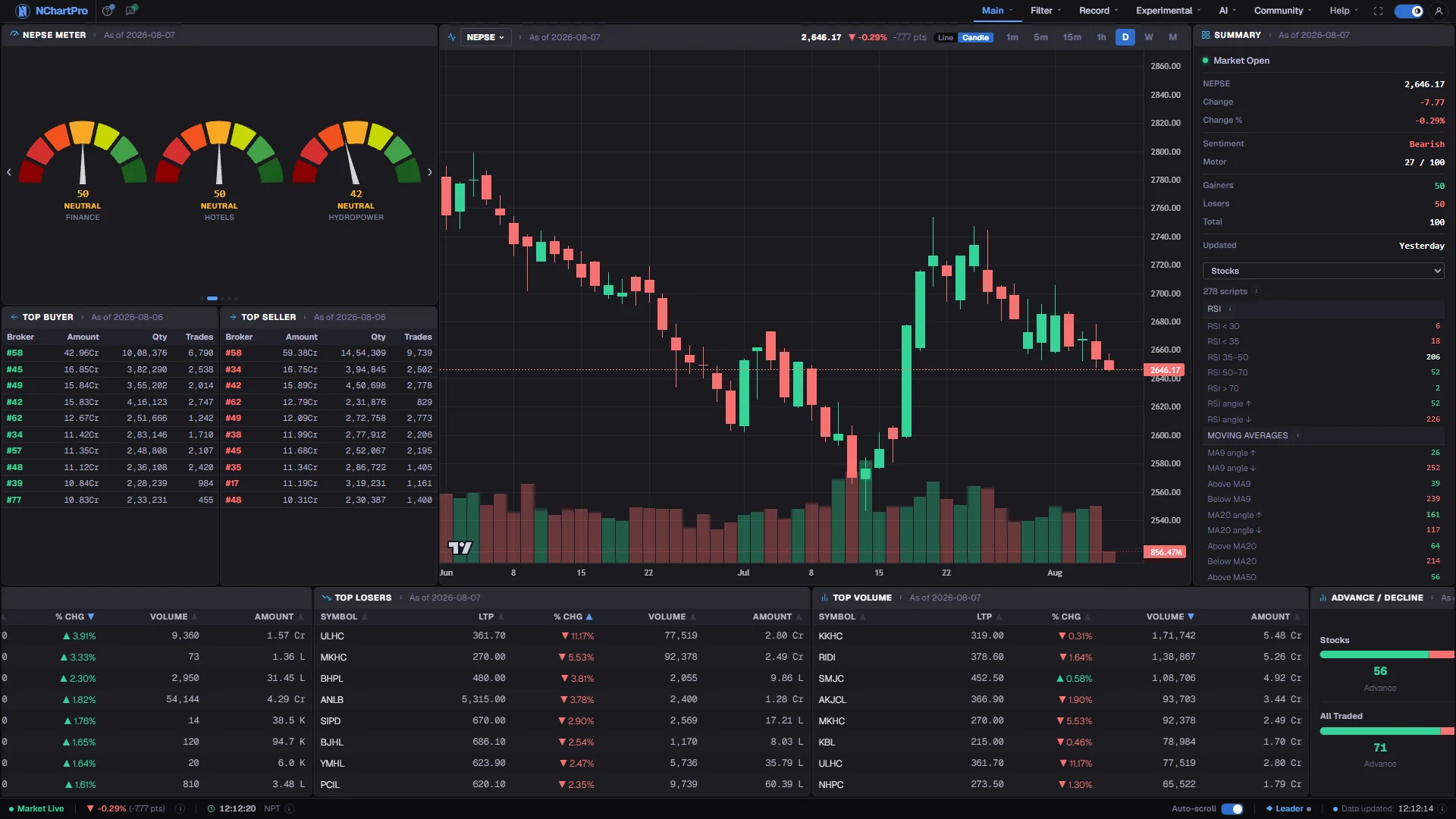
What this page is
The Dashboard is a summary, not a workbench. It is built so that a single glance settles direction, participation and where the money went, and so that anything you want to pursue is one click away on another page.
It is laid out in three bands. The upper band holds the panels that need room: the sentiment dial and the broker cards on the left, the index chart in the middle, the summary and the indicator breadth table on the right. A strip of ten live cards glides along the bottom. Under everything sits the status bar.
The distinction that runs through the whole page is between how far the index moved and how many stocks moved. The index is a weighted average and a few large companies can carry it. The dial, the advance and decline counts and the breadth table all count heads instead, which is why they can disagree with the index on the same day. That disagreement is information, not a bug.
It is the page to send someone who has never used the app — once they have signed in, it is the one screen that explains what the product does. It needs an account, as every market page in the app now does.
Why it helps you
- In the first half hour you want direction and participation, and the top of this page gives both without a single click. A rising index on falling breadth is the classic warning that the move is narrow.
- Top Turnover and Top Volume together tell you where liquidity actually is today. A name you like that appears on neither is a name you may not be able to get out of in size.
- The broker cards are the previous completed day, so treat them as context before the open rather than as something to trade off during the session.
- The card strip is the fastest shortlist in the app: gainers, losers and turnover in one horizontal sweep, and every column in every card sorts on a click.
- The Indices card is the one to read. It ranks NEPSE against its twelve sector sub-indices, so you can see whether a sector you own is leading or lagging the market rather than watching individual names.
- The indicator breadth table is a health check on the whole market rather than a signal. How many stocks sit above their fifty-day average tells you more about the broad trend than any single chart.
- Upcoming Events is where book closures, general meetings, dividends and right issues appear, which is the calendar that actually affects a long holding.
- Day-to-day movement on this page is mostly noise for you. Treat a red day as a data point, not an instruction.
When to use it, and where to find it
- Before the open, roughly between 10:45 and 11:00, when the live stream has started but trading has not. The broker cards and the previous close set your starting picture.
- In the first thirty minutes of the session, to see whether the day is broad or narrow before you commit to anything.
- After 15:00, once the session has closed and the numbers stop moving, as the daily record of what happened.
- On any sharply red or green day, to check whether the index move is matched by the number of stocks moving with it.
Try it — a short walkthrough
- 1Start with the mood dialThe first dial on the left is the whole market. Note whether it reads bear, neutral or bull before you look at anything else, then let it page through the sectors on its own.See this part in detail →
- 2Check the index against the dialRead the index level and its percentage move in the summary panel on the right. If the index is up and the dial is bearish, a few heavyweight shares are doing the lifting.See this part in detail →
- 3Find where the money wentDrag the bottom strip until Top Turnover is in view, then compare it with Top Volume. A stock high on volume but low on turnover is cheap and busy, not necessarily important.See this part in detail →
- 4Confirm with breadthScroll the right-hand panel down into the indicator breadth table and pick a scope from the drop-down above it. Every figure there is a count of stocks, so read them as head-counts.See this part in detail →
- 5Look at yesterday from the broker sideThe two cards under the dial show which broker firms bought and sold most by rupee value on the last completed day. Read the date beside the title so you know which day that was.See this part in detail →
- 6Hold the strip still while you readRest the pointer on a card and the strip stops; move away and it resumes. Turn the movement off with the Auto-scroll switch in the bottom bar. It starts moving again the next time you open the page.See this part in detail →
Every part of the page
In the order you meet them on screen, each with a close-up of the real thing. The numbers match the dots on the figure above.
The main menu
Every page of the app hangs off these sections: Main (dashboard, chart, portfolio, heat map), Filter (screening tools), Record (reports and news), Experimental, AI, Community and Help.
How — Click a section to drop its list open, then click a page. The section you are on is underlined and coloured.
- An item with a small padlock is locked for your plan — clicking it takes you to the upgrade page instead.
- Items in a faint blue tint need you to be signed in — which is nearly all of them, because every market page needs an account. Only the home page and Help → About are open to a signed-out visitor.
This tour button
The ? button you just pressed. It replays this walkthrough whenever you want it, and the EN / नेपाली switch inside the box changes the reading language.
How — It is on every page that has a tour, and it always explains the page you are currently looking at — not this one.
- Nothing is changed or saved while a tour is playing; it only points at things.
Dark / light theme
One moon icon for the whole app. A filled moon is dark, an outline is light.
How — Click it to switch. Your choice is remembered on this device.
NEPSE Meter — the market mood dial
A 0–100 sentiment gauge. The first dial is the whole market; the rest are the sector sub-indices. It measures how MANY stocks are rising, not how far the index moved.
How — It pages through the sectors on its own every few seconds — or use the ‹ › arrows, drag it sideways, or click a dot to jump to a page.
- NEPSE dial = (advancing + ½ × unchanged) ÷ all traded stocks × 100.
- Sector dials = 50 + (sector % change × 10), capped at 0–100. So 50 is flat and about +2% reads 70.
- 0–34 Bear (red) · 35–64 Neutral (amber) · 65–100 Bull (green).
- The index and the dial can disagree: a couple of heavyweight shares can lift NEPSE while most stocks fall and the dial stays bearish.
Top Buyer & Top Seller brokers
The broker firms that bought and sold the most by rupee value on the latest trading day, biggest first. This comes from the floor sheet — the official record of every single trade — so it is a completed-day figure, not a live one.
How — Read the date beside the title to see which trading day it covers.
- Left card is the buy side, right card the sell side. Amounts are rupees, not share counts.
- A broker high on BOTH lists is simply busy; it does not mean they are accumulating.
The index chart
The price history of NEPSE or of any one sector sub-index. The figures beside the title are that index's current level, its % move and its move in points.
How — Use the blue drop-down in the title to switch index, and the buttons beside it to change the timeframe and the candle/line style.
- A sub-index covers only one sector (Banking, Hydropower, Life Insurance …), so it tells you which part of the market is moving.
- While the market is open the live 1-minute bar is folded into both the minute series and today's daily candle, so the chart keeps moving by itself.
- All times are Nepal time (NPT). The "As of" date is the trading day the data belongs to — not your computer's date.
Summary — the numbers at a glance
Where NEPSE stands, how the mood meter reads, and how many stocks are up versus down right now.
How — Nothing to click at the top; it refreshes itself. Scroll down inside this panel for the full breadth table.
- Change and Change % are measured against the previous day's close.
- Sentiment is the same 0–100 meter as the dial: under 35 Bearish, 35–64 Neutral, 65 and over Bullish.
- Gainers and Losers count ordinary stocks trading above / below yesterday's close; Total is the two added up.
- "Updated" is the Nepal-time stamp that came back with the last refresh.
Indicator breadth table
A head-count of the whole market broken down by indicator: how many stocks sit in each RSI band, how many are above their 20-day average, how many are at each pivot level, and so on. Every figure is a NUMBER OF STOCKS — never a price or a percentage.
How — Use the drop-down above the table to switch the scope: all stocks, everything traded, or a single sector. Scroll the panel to reach the later sections.
- Sections cover RSI, moving averages, MACD, pivot zone, regression trend, retracement, volume spark, VAR, CPR width and breakouts.
- Buckets inside a section add up to the script total shown at the top (RSI < 30 is the exception — it overlaps RSI < 35).
- Worked out by the analysis engine from each stock's daily candles and refreshed every minute while the market is open.
The live card strip
Ten live cards that glide past along the bottom of the screen — the day's gainers, losers, volume, turnover, breadth, indices, news, events and more.
How — Drag it left or right with the mouse to move it yourself, and hover over it to hold it still while you read. It picks up again when you move away.
- Every card in the strip has sortable columns — click a heading to re-sort it.
- The Auto-scroll switch in the bottom bar stops the movement if you prefer it still.
Top Gainers
The stocks that have risen the most today, biggest gain first. The % is the move NEPSE reports against yesterday's closing price.
How — Click any column heading — LTP, % Chg, Volume, Amount — to re-sort the list.
- LTP is the last traded price · Volume is shares (kitta) traded today · Amount is the rupee value traded (Cr = crore, L = lakh, K = thousand).
- Ordinary company shares only — mutual funds, debentures and promoter shares are left out because a single tiny trade can swing them.
- Updated about once a minute over the live stream while the market is open; after close it keeps the last snapshot.
Top Losers
The mirror image of Top Gainers — the stocks that have fallen the most today, biggest fall first, measured against yesterday's close.
How — Same table: click a heading to re-sort, and read LTP as the last traded price.
- A stock can top this list on very little trading, so glance at the Volume column before reading much into a fall.
Top Volume — busiest by share count
The stocks with the most SHARES traded today, highest first. This is a count of shares (kitta), not an amount of money.
How — Compare it with the Top Turnover card to see whether all that activity actually involved much money.
- A huge share count on a cheap stock can still be a small rupee amount — that is exactly why the two cards are separate.
Top Turnover — busiest by money
The stocks where the most MONEY changed hands today, in rupees, highest first. Amount is the last traded price multiplied by the day's traded quantity.
How — Read this alongside Top Volume: this one tells you where the day's money really went.
- Turnover is usually a better guide to genuine interest than share count on its own.
Advance / Decline
The simplest measure of market mood, called market breadth: how many scripts are trading above yesterday's close (advance), how many below (decline), and how many exactly at it (unchanged).
How — Read the top block for ordinary stocks and the bottom block for every traded instrument.
- The green part of the bar is advances ÷ (advances + declines) — more than half green means more risers than fallers.
- Indices are never counted here; an index cannot advance against itself.
- Breadth and the index can disagree: if most stocks rise but a few heavyweights fall, NEPSE can still close red.
Indices
NEPSE plus its 12 sector sub-indices in one list, each with today's move and the money traded in it.
How — Click a column heading to sort — it is the quickest way to see which sector led or lagged today.
- Turnover here is MONEY, shown in crore (1 Cr = Rs 1,00,00,000). For an index the volume NEPSE publishes is the rupee turnover, not a share count — unlike the Volume column on a stock card.
- Sectors: Banking, Dev Bank, Finance, Hotels, Hydropower, Investment, Life Insurance, Manufacture, Microfinance, Non-Life Insurance, Others, Trading.
Market Breadth
How many stocks currently look bullish versus bearish on each popular indicator. A head-count again — the numbers are how many stocks, not how much they moved.
How — Use the drop-down to switch between all stocks, everything traded, or one sector.
- Green number (left of the slash) is the count meeting the bullish condition, red the bearish one; the bar shows the same split.
- RSI > 50, MACD > 0, and price above its 20-day / 50-day average are the conditions used.
Max Trade
Today's busiest stocks, ranked by the quantity of shares that changed hands. During the session there is no live count of individual transactions, so traded quantity stands in as the closest live measure of activity.
How — Click a heading to re-sort; the Volume column is a share count, LTP the last traded price.
Latest News
The newest market headlines, most recent first, with the source and the time they were published.
How — Click a headline to open the full story. The Record → News page has the complete archive with category filters.
Upcoming Events
Company events still ahead — annual and special general meetings, book closures, dividends, rights issues and new offerings — with the date each one falls on.
How — The Community → Calendar page shows the same events laid out month by month.
Auto-scroll switch
Stops and starts the movement of the bottom card strip.
How — Click it to turn the gliding off; the cards stay where they are and you can still drag them. It is on again the next time you open the page.
The status bar
Whether a NEPSE session is running right now, the Nepal-time clock, which browser tab owns the live connection, and when data last arrived.
How — Nothing to click — it updates itself as ticks come in.
- NEPSE trades Monday to Friday, 11:00–15:00 Nepal time; Saturday and Sunday are the weekend. Exchange holidays are not tracked here.
- It also flips to "Market Live" whenever real ticks are still arriving, so a special trading day shows live too.
- "Updated" is when this page last received data — that is how you tell a quiet market from a stopped feed.
The ⓘ icons
Every title, card and unfamiliar number in the app carries one of these. It explains what the thing is and how the figure was worked out — the detail this tour does not have room for.
How — Hover it on a computer, or tap it on a phone. Press Esc to close it.
- Profile → Settings lets you choose Detailed or Short explanations, or switch them off completely.
Reading the numbers
- Every number in the breadth table and the Market Breadth card is a count of stocks. Nothing in either is a price or a percentage move.
- The dial and the index measure different things. The dial is participation, the index is a weighted average of price. Neither is more correct than the other.
- Gainers, losers and the stock cards cover ordinary company shares only. Mutual funds, debentures and promoter shares are excluded because a single small trade can move them to the top of a list.
- Turnover on the Indices card is money in crore, not a share count. On a stock card the Volume column is a share count in kitta and Amount is the money.
- Change and change percentage on this page are measured against the previous day closing price.
What it does not do
- Broker figures are never live. They come from the floor sheet the exchange publishes after the close, so during a session they show the previous trading day and no live version exists.
- Individual transaction counts are not published during the session, so Max Trade ranks by traded quantity as the closest live measure of activity rather than by number of trades.
- One RSI bucket in the breadth table overlaps another by design: the count below 30 is also inside the count below 35, so those two rows do not add up with the rest.
- After the close the live cards keep showing the last snapshot they received rather than emptying, so a still screen after 15:00 is expected.
Questions people ask
Both. The index is up because large companies rose; the dial is bearish because most stocks fell. A narrow rally is exactly what that combination looks like, and it is usually worth knowing.
Brokers are only attached to trades in the floor sheet released after the close. Until it arrives, the newest complete broker picture is the previous trading day.
Yes. The Auto-scroll switch in the bottom bar turns the movement off. It stays off while you are on the page, and is on again the next time you open it. You can still drag the strip by hand with it off.
Yes. The Dashboard needs you to be signed in, and so do the charts and every other market page. Registering is free and the sign-in box opens straight from the lock panel, which is where you land if you arrive here signed out.