

The Top Bar
One bar runs the whole chart: what it is showing, how it is drawn, what is on top of it, how many charts there are, and what happens to the picture afterwards.
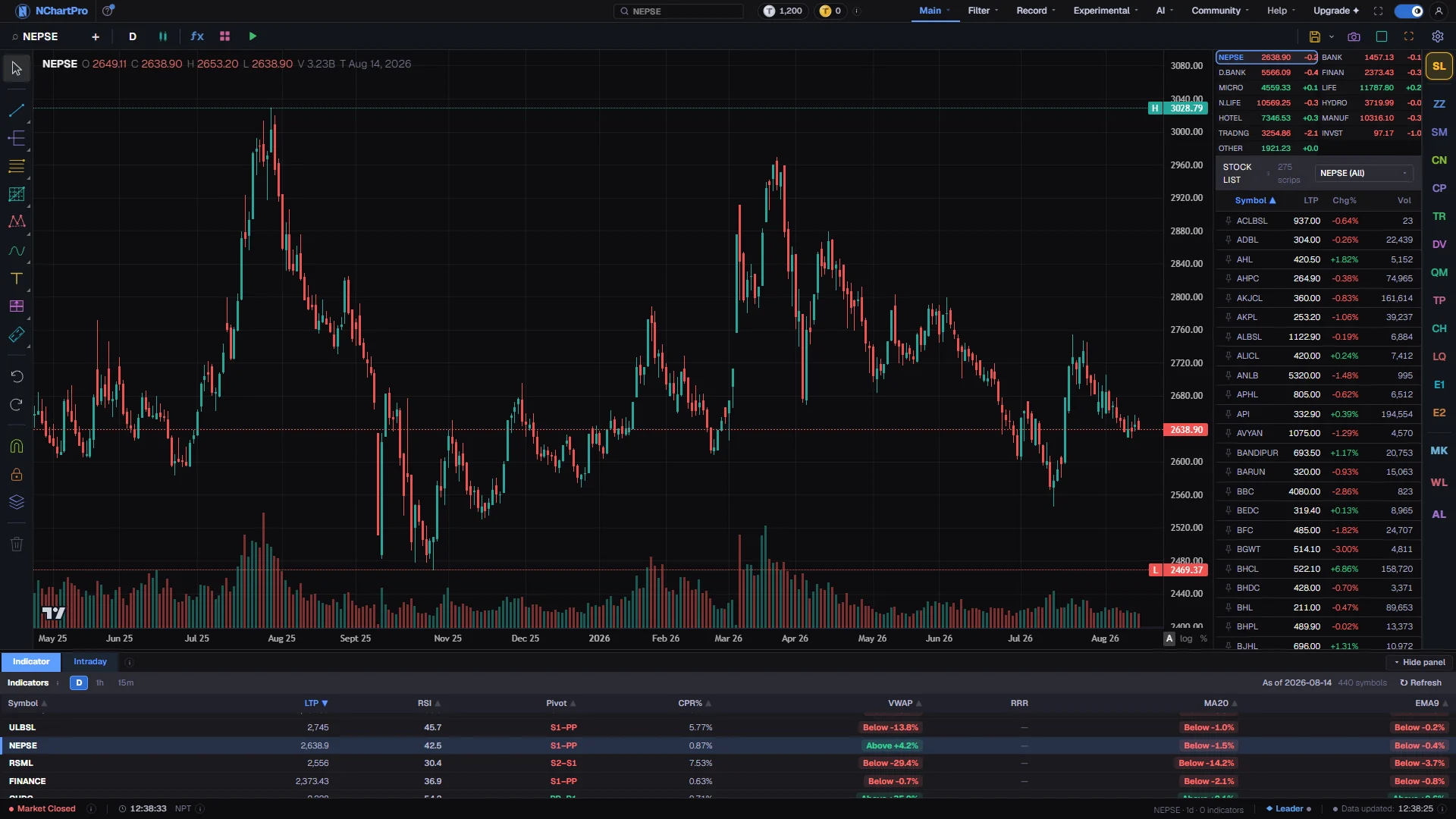
What this page is
The top bar is shared by every chart window on the page. In a split layout there is still only one bar, and it always drives whichever chart window you touched last.
It divides into three runs. On the left, what the chart is showing: the symbol, a compare button, the timeframe and the chart type. In the middle, what is drawn on top: the indicator catalog, indicator templates and bar replay. On the right, what you do with the result: save the layout, share it, split the screen, go fullscreen, and open the settings dialog.
Two of the menus put shortcuts on the bar itself. Every timeframe row and every chart type row carries a small star, and starring one adds a button for it beside the menu — so the four or five you actually use are one click away instead of two.
The bar is honest about what it cannot do. A control that would not work is disabled rather than hidden, and its tooltip says why: no bars to replay, no data for this symbol on that timeframe, no account to file a saved layout against.
Why it helps you
- Star the three timeframes you trade and stop opening the menu. Fifteen minutes, one hour and one day as buttons on the bar is a different working speed from three clicks each.
- The layout picker is the intraday tool on this bar. Two windows on the same stock at two timeframes tells you whether the level you are watching exists on both, which is the whole question.
- Bar replay is on this bar too, and it is what turns a quiet hour into practice rather than waiting.
- Copy Image is the fastest way to put a chart in a message. Copy Link carries the indicators, the drawings and the viewport instead, so the person on the other end can look around.
- Star one day, one week and one month and ignore the rest of the timeframe menu entirely. Six months of monthly candles answers more than a week of minute bars.
- The chart-type menu is worth one visit: Line or Area on the monthly view strips the noise out of a long picture in a way candles do not.
- Save the layout once you have a set of indicators you trust. Reopening it by name is quicker than rebuilding it, and it means you look at every company the same way.
- The settings dialog Presets tab keeps that look under a name and can share it with other members, or borrow theirs.
When to use it, and where to find it
- Read it once, early. Nearly every question about the chart pages turns out to be a question about one of these controls.
- Come back to it when a control is greyed out and you want to know why — every disabled state on this bar has a stated reason.
- Before you share a chart with anyone, so you know which of the four sharing rows does what you meant.
- The bar is at the top of /main/chart, under the site header.
Try it — a short walkthrough
- 1Change the symbolClick the symbol at the far left — its tooltip reads "Symbol search — or just start typing", and that second half is literal: typing anywhere on the chart opens the same box. The plus beside it opens the same search in compare mode instead, to put a second symbol alongside the first.
- 2Pick a timeframe and star itClick the box showing D or 15m. The menu opens in three collapsible sections — Minutes, Hours and Days. Click the star at the right of a row and that timeframe gains its own button on the bar.
- 3Change how the price is drawnThe small candle icon opens the chart-type menu. Twelve ways to draw the same data, each with a star of its own, and the icon on the bar always shows the one in force.
- 4Add indicators, then save the setThe ƒx button opens the indicator catalog. Once the chart carries a set worth keeping, the four-box button beside it saves it under a name and puts it back on any chart in one click.
- 5Split the screenThe grid icon near the right end opens ten arrangements. Each window keeps its own symbol, timeframe, indicators and drawings; the bar drives whichever one you last clicked in.
- 6Keep it or send itThe disk saves the whole arrangement under a name and its caret reopens one. The camera beside it downloads or copies a picture, copies a read-only link, or hands the picture to the community compose box.
Every part, up close
The Chart page — the bar across the top, left to right. Each part with a close-up of the real screen; the numbers match the dots on the picture.
Symbol
The first control on the bar and the one everything else is about: which company the chart is drawing.
Timeframe
How much time one candle covers, with a star on every row that puts the ones you use on the bar itself.
Chart type
Candles, bars, a line or a mountain — the same prices drawn differently, and starrable in the same way.
Indicators
The middle run of the bar begins here: the catalog and the templates, which put things on top of the price rather than change it.
Bar replay
Sits at the end of the middle run and hides the right-hand side of the series so you can walk forward candle by candle.
Split layout
How many chart windows to show at once, with the one bar still driving whichever window you touched last.
Copy and share
What you do with the finished picture — an image for a message, or a link that carries the indicators, drawings and viewport with it.
Fullscreen and settings
The right end of the bar: give the chart the whole screen, or open the dialog that changes how it is drawn.
Reading the numbers
- Left to right the bar is: the symbol, the compare plus, the timeframe menu and any starred timeframes, the chart-type menu and any starred types, the ƒx indicator button, indicator templates, bar replay — then a gap — the save-layout disk and its caret, the share camera, the chart-layout grid, fullscreen, and the settings gear.
- The twelve chart types are Candles, Hollow Candles, Heikin Ashi, Bars, Line, Step Line, Area, Baseline, Renko, Line Break, Kagi and Point and Figure. The first eight are time-based — one mark per period, however quiet that period was. The last four are price-driven: a new brick, line, column or box appears when price has moved far enough, so the horizontal axis is no longer an even clock and long quiet stretches simply do not draw.
- There are twenty timeframes, from one minute to six months. Only two series are ever downloaded — one-minute and one-day — and every other timeframe is regrouped from those in your browser, which is why switching is instant. The regrouping is done on Nepal time boundaries, five hours forty-five minutes ahead of UTC, so an hourly bar starts on the local hour rather than on a UTC hour that has nothing to do with the session.
- That is also why a timeframe can be unavailable. If a symbol has no data for the base a section is built on, the section heading shows "(no data)" and its rows cannot be clicked; a starred shortcut for the same timeframe greys out with the same reason in its tooltip.
- The share menu has four rows and each reports what happened rather than closing silently. Download Image saves a PNG and says "Image saved". Copy Image puts it on the clipboard, or — in a browser with no image clipboard — saves the file instead and says so. Copy Link is marked "read-only" and answers "Link copied — it opens read-only". Share in Community opens the Share Here compose box with the picture already attached.
- The chart-layout grid offers ten arrangements: a single chart, fifty-fifty split horizontally or vertically, three rows, three columns, four-part, and the four mixed splits with one big pane against two small ones on either the left, the right, the top or the bottom.
- The settings gear opens a dialog with six tabs. Symbol is the candle itself — body, border and wick colours, opacity, volume, price precision, timezone and session dividers. Status is what the on-chart legend prints. Scales is the price axis: which side it is on, logarithmic or percent, invert, auto fit, the top and bottom margins, and which labels are drawn. Canvas is the background, the grid, the crosshair, the right margin and how many bars the chart opens with. Watermark is the faint text over the chart, with nine positions. Presets saves the whole look under a name, applies one of yours or one another member has shared, and deletes your own.
What it does not do
- Bar replay is disabled when the chart has no bars, and it stays grey rather than coloured so a green arrow never invites a click that does nothing.
- Saving a layout needs an account. Signed out, the disk is grey and its tooltip reads "Sign in to save chart layouts"; the menu items say the same in place of an error.
- A copied link carries the chart in the address itself and nothing is uploaded, so its size is limited. A chart with very large drawings will still copy, but the menu warns that the drawings did not fit — the symbol, timeframe, indicators and view do.
- Some settings can be greyed out. That is the dialog reporting what the chart engine can honour, and the tooltip on the greyed row says why.
- Indicator templates are stored in this browser, not in your account, so they do not follow you to another machine. Chart presets on the settings dialog Presets tab do.
Questions people ask
The disk keeps the chart — a named arrangement you can reopen and keep working in. The camera keeps a picture of it, or a read-only link somebody else can open. That is why the disk sits first, further from the edge.
Because this symbol has no data for the base series that timeframe is built from. Hover it and the tooltip names the timeframe and says there is no data for this symbol. It comes back on a symbol that has it.
They are still built from the timeframe you chose, but they do not draw one mark per period. A brick or column appears only when price has moved far enough, so the time axis is uneven by design.
Nothing to the server. The symbol, timeframe, indicators, drawings, detector marks, settings and the visible range are packed into the address itself, and the person opening it gets a read-only chart with an Edit-a-copy way out.
It was replaced by the dialog behind the gear. The chart has far more settings than a dropdown had room for, and a dialog has somewhere to explain why one of them is greyed out on this page.