

Mark
Two buttons on the chart need a short note. MK (Mark) opens a panel that is not built yet. AL (Alert) opens a working Alert panel for the stock on the chart.
What this page is
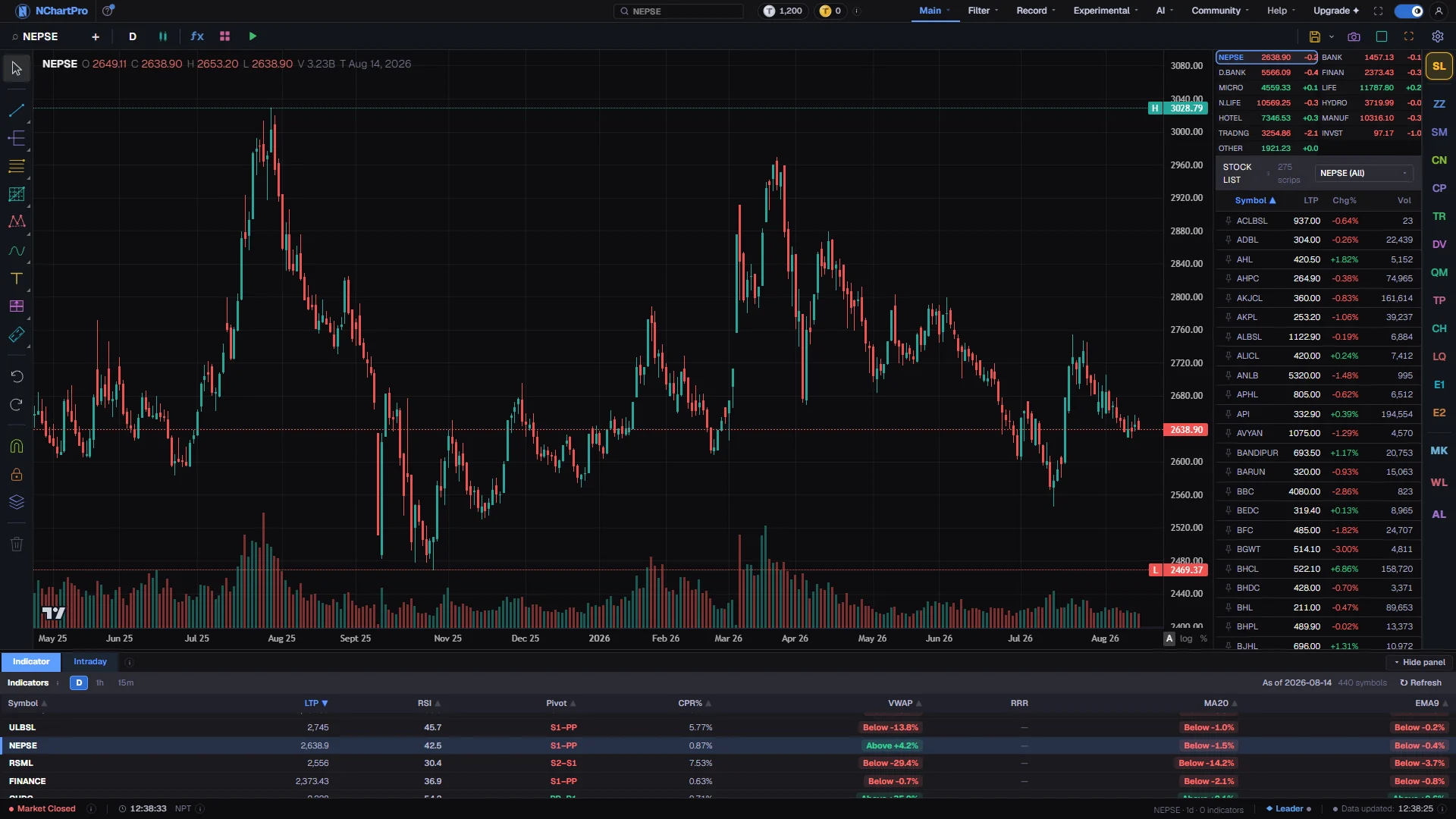
The Chart page has a column of two-letter buttons down the right edge. Two of them are MK for Mark and AL for Alert.
The Mark panel is not built yet. Its own tooltip says so: nothing there works and no drawings are saved. It is not broken, and it is not hiding a setting you missed.
Drawing by hand is finished, but it is not behind MK. It lives on the rail down the LEFT edge of the chart. If you came here to learn how to draw a trend line, go there.
The Alert panel works. It has two tabs. Triggered shows the alerts that fired for the stock on the chart, newest first; switch on All to see every stock. This symbol shows your alerts for that stock, lets you pause or delete each one, and has a button to make a price alert at the current price in one click.
For other kinds of alerts, and for alert settings, use the link at the bottom of the Alert panel. It opens the full Alerts page.
Why it helps you
- Use the Alert panel to set a price alert while you look at the chart. One click makes it at the current price, so you can leave the screen instead of watching it.
- Use the left rail for drawing. It has dozens of tools, anchored to a price and a time, so they stay on the right candles when you pan or change timeframe.
- The detector chips above the two-letter buttons are finished too. They mark support and resistance, Smart Money levels, divergence, trend and Elliott Wave straight onto your candles.
- You can ignore the Mark panel. It does nothing yet.
- The Alert panel is a quick way to be told when a stock you hold reaches a price. An alert only tells you something happened. It never buys or sells for you.
- If you want a price written down rather than watched, the Watch List panel on the same chart saves a buy, a sell and a stop for each symbol.
When to use it, and where to find it
- Read it once, when you open MK and it seems to do nothing.
- Read it when you want to set an alert without leaving the chart.
- Both buttons sit in the button column on the right edge of /main/chart.
- Working drawing tools are on the rail down the left edge of the chart, and the Drawing Tools guide in this document lists them.
Try it — a short walkthrough
- 1Open the Alert panelClick AL in the button column on the right edge of the chart. You need to be signed in. The panel opens on the Triggered tab.
- 2Make a price alertOpen the This symbol tab. Use the button to make an alert at the current price, or type a price and save it. The new alert appears in the list below.
- 3Pause or delete an alertEach alert in the list has a switch to pause it and a cross to delete it. Delete asks once more before it removes the alert.
- 4Draw on the LEFT rail instead of MKMove to the rail down the left edge of the chart. Pick a trend line, click twice on the candles to place it, and double-click the finished line to change its colour or style. Drawings are saved against that symbol for your account.
Every part, up close
The Chart page — the MK and AL buttons, and the rail where drawing really lives. Each part with a close-up of the real screen; the numbers match the dots on the picture.
MK and AL live here
Both buttons sit in this column. If a button is not on your plan, it is not shown, so a shorter column is normal.
Drawing is on the LEFT
Hand drawing is finished and it is this rail, not the MK button — dozens of tools, anchored to a price and a time so they stay on the right candles.
Reading the numbers
- In the Mark panel, a single grey line of text in the middle is the placeholder, not a loading state. It will not fill in if you wait.
- In the Alert panel, an empty list just means no alert has fired, or you have not set one for this stock yet.
- Whether you see MK or AL depends on your plan. A button that is not on your plan is not shown.
What it does not do
- The Mark panel stores nothing. There is nothing to type into it.
- The Alert panel needs you to be signed in. Signed out, it asks you to sign in.
- The Alert panel makes price alerts quickly. Other kinds of alerts are made on the full Alerts page, reached from the link at the bottom of the panel.
- An Elliott Wave side panel was planned but never built, and its button is hidden. The E1 and E2 chips on the mark rail are the working Elliott Wave tools.
- Trust the panel's own tooltip over this page if the two ever disagree.
Questions people ask
No. A button that is not on your plan is not shown, so the column can be shorter on your account.
On the rail down the LEFT edge of the chart, not behind MK. Pick a tool, click on the candles to place it, and double-click a finished drawing to restyle it. They are anchored to a price and a time and saved per symbol.
No. An alert only tells you that something happened. It never places an order.
Nothing has been promised about that. Treat the left rail as the drawing system and the Mark panel as unbuilt until its own tooltip says otherwise.