

Stock List
The panel that answers "what shall I look at next" without taking you off the chart — the whole market in one narrow column, and one click to load any of it.
What this page is
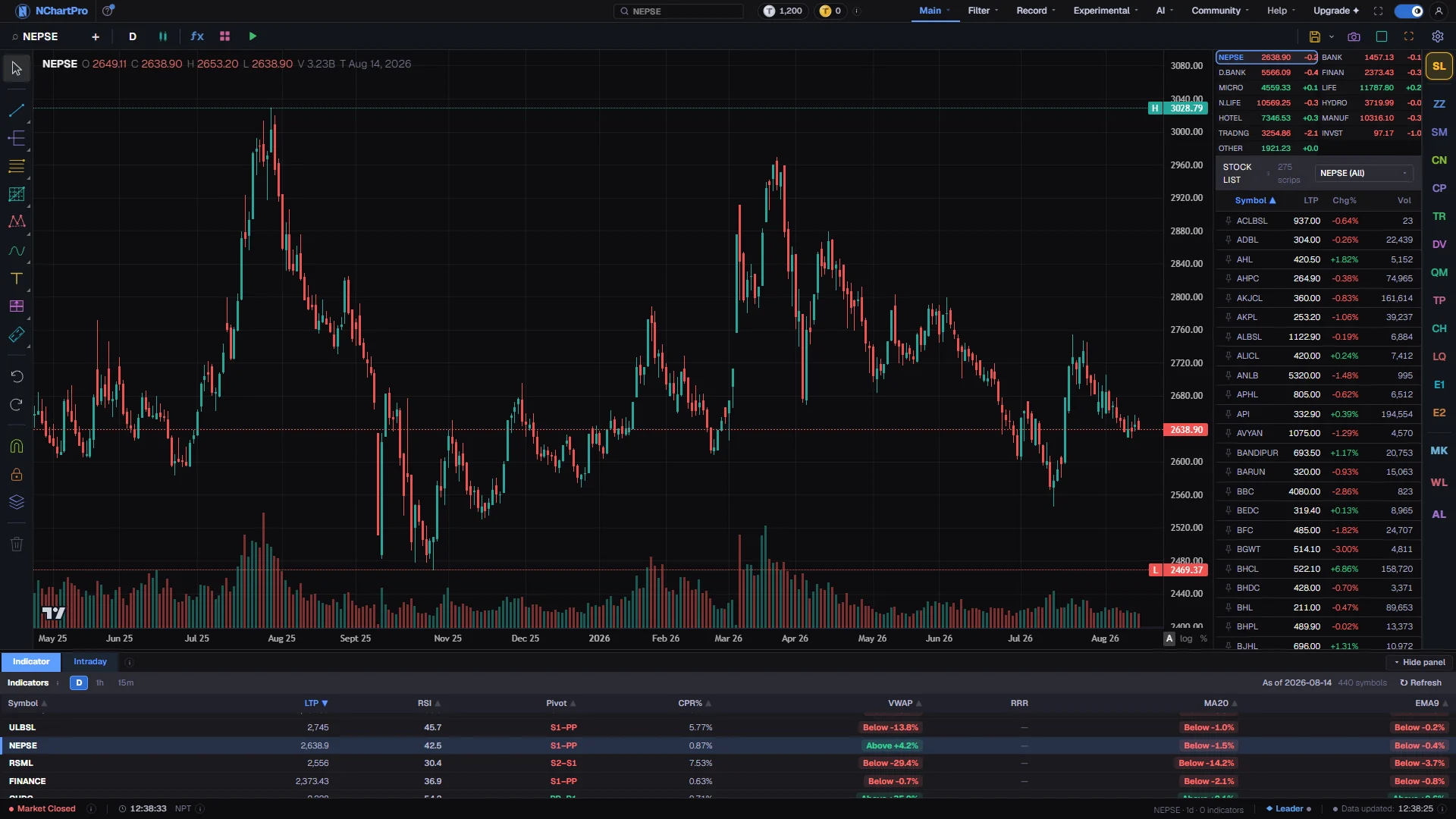
Stock List is the SL button in the column of buttons down the right edge of the Chart page. It opens a panel with two halves: a grid of index tiles across the top, and every listed stock in a scrolling table below. Clicking anything in either half loads it into the chart in place — the candles, the toolbar symbol and the panel under the chart all follow at once.
The tiles at the top are NEPSE itself and its twelve sector sub-indices. Each tile is one compact row: the short name, the index level in points, today change as a percentage, and today turnover in crore. An index has no share count of its own, so what is shown for it is the rupee value traded rather than a number of shares.
The table below is every scrip, with seven columns — Symbol, LTP, Chg%, T.Co (number of trades), Vol, Amt (amount traded) and Imp (impact on NEPSE). The header above it counts how many are listed under the current sector filter, and the sector box on the right of that header narrows the table to one industry. Choosing NEPSE clears the filter and shows everything.
The panel is live. While the market is open the last traded price and the change percentage move with the same feed the growing candle uses, so the row and the chart never tell you two different things.
Why it helps you
- This is the fastest way to walk a list. The charted symbol keeps its own highlighted row, so you can arrow down a sector one company at a time and watch each chart appear without ever going back to a screener.
- Sort by Chg% descending in the first minutes of the session and the top of the list is the day movers; sort ascending and it is the falls. Sorting by Vol or T.Co finds the names that are actually being traded rather than merely quoted, and sorting by Imp puts the stocks that move NEPSE the most at the top.
- The index tiles are a sector read in one glance. If the stock you are watching is down two percent and its sector tile is down two percent as well, the news is the sector, not the company.
- The pin keeps a symbol at the top of the list for the whole app, which is worth doing for the three or four names you are actually working today.
- Set the sector box to one industry and the table becomes a shortlist you can work through methodically — chart each company, form a view, move on.
- Turnover on an index tile tells you where the market money went today. A sector that is up on almost no turnover has moved on very few trades and is worth less as a signal than the same move on heavy turnover.
- Vol and Amt together tell you how easy a stock is to trade. For a long holder that matters: a stock that trades a few hundred shares and a few lakh rupees a day is one you may not be able to leave quickly.
When to use it, and where to find it
- Whenever you are on a chart and want a different company. It is quicker than the search box for browsing, and quicker than any other page for comparing.
- At the open, sorted by Chg% or Vol, to see what the session is doing before you commit to a name.
- When a stock surprises you, to check its sector tile before deciding the move was about the company.
- Off-market it still works as a directory — the prices simply show the last session and the header says so.
- The SL button sits in the button column on the right edge of /main/chart. Pressing it again closes the panel and gives the width back to the chart.
- The same symbol can also be reached from the toolbar symbol button, or by simply typing on the chart, which opens the search box.
Try it — a short walkthrough
- 1Open itPress SL in the button column on the right edge of the chart. The panel slides in beside the candles, with the index tiles at the top.
- 2Pick an index firstClick the NEPSE tile. The chart draws the index itself and the table below shows every symbol; click a sector tile instead and the table narrows to that industry at the same time.
- 3Sort the tableClick Chg% once. The arrow beside the heading shows the direction, and clicking the same heading again reverses it. Symbol sorts alphabetically, the number columns sort largest first.
- 4Load a companyClick any row. The chart changes immediately and the row keeps a coloured left edge so you can see where you are in the list.
- 5Pin what you are working onClick the small pin at the left of a row. Pinned symbols float to the top of the list and stay pinned across the whole app, not just this panel.
- 6Narrow it to one industryUse the sector box in the panel header. The scrips count beside the title updates to how many are in that sector, which is a quick sanity check that the filter did what you expected.
Every part, up close
The Chart page — the Stock List panel open beside the candles. Each part with a close-up of the real screen; the numbers match the dots on the picture.
The panel
This is the panel itself, open on the Chart page: the index picker at the top and every stock under it, live.
The panel buttons
SL, at the top of this same bordered column, opens the list; the buttons marked here open other panels into the slot and put it away.
What changed
Clicking a row loads that company into the chart, and the symbol box up here is where you confirm the switch took.
Reading the numbers
- LTP is the last traded price. Chg% is the change against yesterday closing price, green above zero and red below it. When the panel is at its normal width the percent sign is left off to save space; the heading already says Chg%.
- T.Co is how many trades the stock had today. Vol is the number of shares traded today. At the normal width it is shortened (12.34L or 1.23M); drag the panel a little wider and it is written in full, like 1,234,567.
- Amt is the total rupee amount traded today, shortened to crore and lakh (or million and billion, if you chose that in your number settings). It is the total, not an average price.
- Imp is the stock impact on NEPSE, in percent: the company market value divided by the value of the whole market. A stock with Imp 5.00 moves NEPSE about five times more than one with Imp 1.00 for the same price change. A very small value shows as <0.01.
- On an index tile the last figure is turnover in crore, where one crore is ten million rupees. It is a rupee amount, not a share count, because an index has no shares.
- A dash in place of a number means there is no live quote — off-market, before the first trade of the day, or for a symbol that has not traded. The panel header also says "market closed" in that case.
- The price and the change percentage track the live feed tick by tick. The T.Co, Vol, Amt and Imp columns deliberately do not: the live feed carries a per-minute figure, and showing it would report a fraction of the day as if it were the whole day, so these come from the regular refresh, every few seconds, and show the whole day so far.
- The sector tags in the tiles are shortened to fit two columns — BANK, D.BANK, FINAN, MICRO, LIFE, N.LIFE, HYDRO, HOTEL, MANUF, TRADNG, INVST and OTHER. Hovering a tile shows the full sector name.
- Only about forty rows exist in the page at a time, however long the list is. Scrolling builds the rest as it goes, which is why a very long list stays smooth on a modest machine.
What it does not do
- The panel lists what the app can chart, which is ordinary listed shares plus NEPSE and its sub-indices. A symbol the backend has no candles for will not be here.
- Index tiles refresh on their own schedule rather than on every tick — a poll every thirty seconds with a catch-up about every ten while the market is open. The stock rows update faster, so the two can disagree for a few seconds.
- Sorting acts on what has been loaded, and off-market that is the previous session. A sort by Chg% before the market opens is yesterday ranking, which is correct rather than stale.
- Choosing a sector filters the table only. It does not change the chart, so you can be charting a bank while looking at a list of hydropower companies.
Questions people ask
Because they come from different places on purpose. The price is spliced from the live feed on every tick; the volume is the cumulative day total from the regular refresh. The live feed only carries the last minute of volume, and using it would make a busy stock look nearly untraded.
The tiles chart an index and set the filter at the same time. The sector box only filters the list. Use the box when you want to browse an industry while keeping the chart where it is.
The pin is a per-browser shortcut that floats a symbol to the top of lists across the app, and it holds nothing but the symbol. The Watch List panel is saved to your account and holds your buy, sell and stop prices with it.
Sector membership comes from the exchange classification, and a few companies sit in Others. Clear the filter back to NEPSE and sort by Symbol if you cannot find a name.