

Alerts
An alert watches the market for you. You say what to watch once, and the app tells you the moment it happens — so you can stop staring at the screen.
What this page is
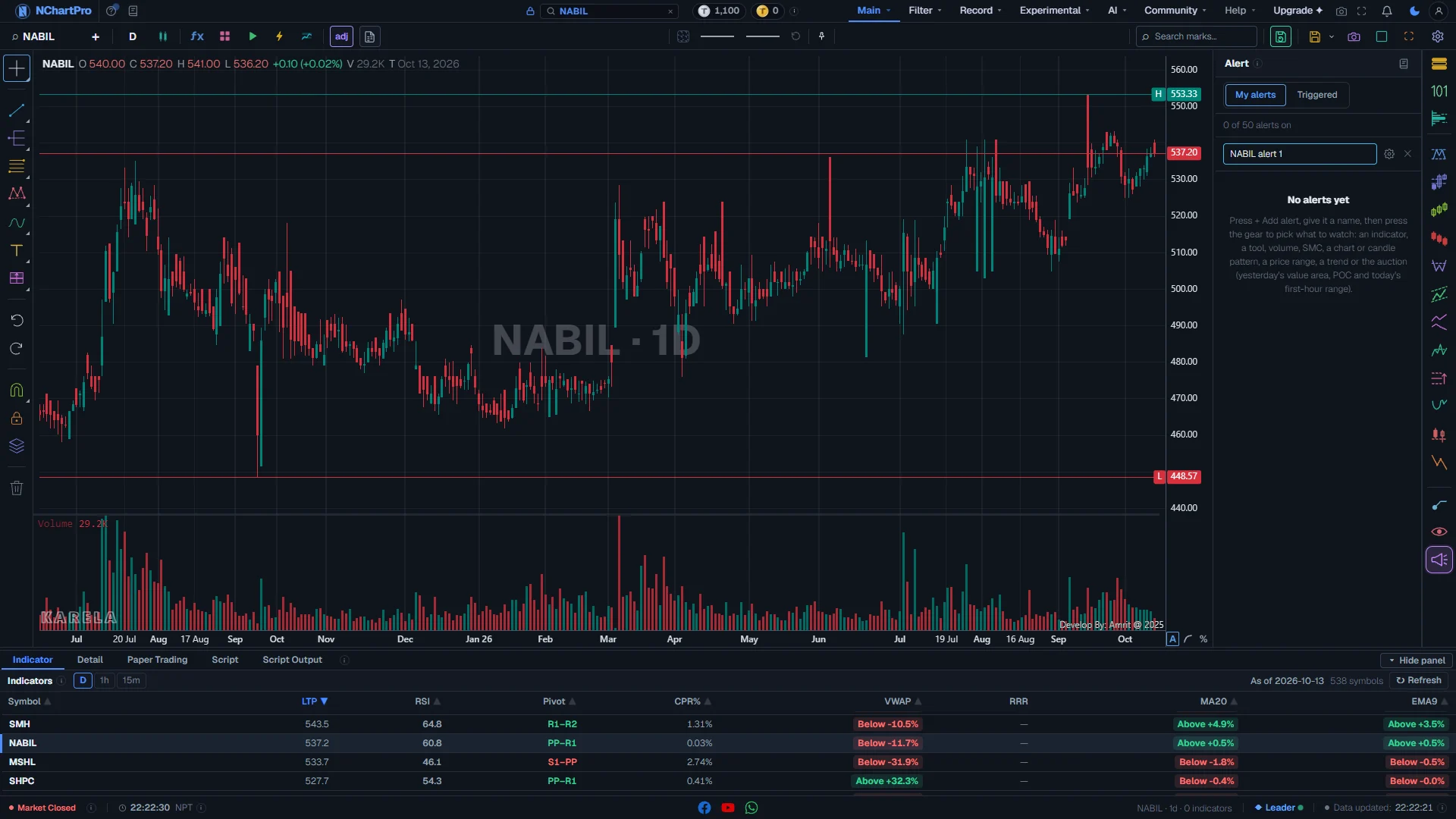
Alerts are made in ONE place: the Alert panel on the chart (the AL button on the right). The panel has two tabs. My alerts is the list of alerts you made. Triggered is the list of alerts that have fired.
Making an alert has three steps. Press + Add alert. Type a name. Press the gear. The gear opens one settings box where you choose what to watch, on which stocks, on which timeframe, how often it may fire, and where to send it.
One alert watches ONE thing — for example "RSI 14 goes below 30 on the 15-minute chart". If you want two things watched, make two alerts. That keeps every alert easy to read and easy to switch off.
An alert can watch the stock on the chart, or every stock at once. "All stocks" is how you scan the market: one alert such as "RSI goes below 30 on 1 hour" checks every stock, and you get one message listing the stocks that matched.
The server does the watching, not your browser. Your alert keeps working when you close the tab, lock your phone or turn off your computer.
An alert only tells you something happened. It never buys or sells for you, and it is not advice.
Why it helps you
- Use "Once per candle" when speed matters. It fires while the candle is still forming — a few seconds after the price moves — instead of waiting for the candle to close.
- Use "Once per candle close" when you only trust a closed candle. A cross that appears in the middle of a candle can disappear before the candle closes; this setting waits.
- An "All stocks" alert on 15 minutes or 1 hour is a live scanner. Pair it with Volume → VAR above 2 to see only the stocks that are moving on real volume.
- Chart marks (SMC, chart patterns, candle patterns, trend line breaks) are checked when each candle closes, because a mark on a candle that has not closed is not a mark yet.
- Use the 1-day timeframe. A daily alert fires at most once a day and ignores the noise inside the session.
- Price range → Days high / low break with 260 days is the 52-week high or low, the alert a long holder most often wants.
- Fibonacci and volume profile on the last swing give you levels where buyers stepped in before — useful for planning a buy price.
- Book close, bonus, right share and the profit or loss on what you hold are portfolio alerts. They are on Portfolio → Alerts, not here.
When to use it, and where to find it
- Before the market opens, to set alerts for the levels and signals you care about today.
- When you find a setup on the chart but the price is not there yet — set the alert and leave.
- Once a week, to switch off alerts you no longer need. An alert you ignore trains you to ignore the next one.
- The AL button is in the button column on the right edge of the chart page.
- Portfolio alerts (profit or loss on a holding, book close, bonus, dividend) are on Main → Portfolio → Alerts.
- Experimental → Alerts has the older alert builder, the watch-list alert switches, quiet hours and the phone test button.
- Fired alerts also show under the bell in the top bar, with a count of the ones you have not read.
Try it — a short walkthrough
- 1Open the Alert panelOn the chart, press AL in the right-hand column. You see two tabs: My alerts and Triggered. The line at the top says how many alerts you have on and how many your plan allows, for example "3 of 10 alerts on".
- 2Press + Add alertA new row appears with a name box. A name is filled in for you, such as "NABIL alert 4". Type your own name if you like — for example "NABIL RSI oversold".
- 3Press the gearThe gear at the end of the row (or the Enter key) opens the settings box. Nothing is saved yet.
- 4Pick a categoryIn "What to watch", open Category and pick one: Indicator, Tool, Volume, SMC, Chart pattern, Candle pattern, Price range, Trend or Auction.
- 5Pick one itemThe second box lists the items of that category — for example RSI, EMA or MACD under Indicator. An item marked "not in your plan" cannot be picked.
- 6Fill in the item's settingsThe boxes under it belong to that item: the indicator length, the condition ("Crosses down through", "Is above" …) and the level. Every box is filled with a sensible starting value.
- 7Choose where to watchIn "Where", pick This stock (the stock on the chart) or All stocks. Then pick the timeframe: 15 minutes, 1 hour or 1 day.
- 8Choose how oftenIn "When to fire", pick Only once, Once per candle or Once per candle close. Each one is explained under the picture of the settings box below.
- 9Choose where to send itIn "Send to", the alert list is always on. Switch on Phone push to get it on the NChartPro phone app, and Email to get an email too.
- 10Press Save alertThe box closes and the alert appears in My alerts with its name, what it watches, the stocks, the timeframe and how often. It is switched on at once.
- 11Change, pause or deleteThe gear on a row opens the same settings to change it. The switch pauses and resumes it. The cross deletes it (press twice — the first press asks "Delete?").
- 12See what firedOpen Triggered. Each fired alert shows what happened and when. Turn on All to see every stock, not just the one on the chart. New ones have a dot and are marked read when you look.
The panel, part by part
The Alert panel open on the chart. Each part with a close-up of the real screen; the numbers match the dots on the picture.
The AL button
Alert is one of the panel buttons in the right-hand column. Press it to open the panel, and again to close it.
How — Closing the panel does not stop your alerts. The server watches them, even when this tab is closed.
My alerts · Triggered
Two lists. My alerts is the alerts you made. Triggered is the alerts that have fired.
How — Click a tab to switch. In Triggered, turn on All to see every stock, not just the one on the chart.
- A Triggered row: the title says the stock and what happened, for example "NABIL: RSI 14 crossed down through 30 (15m)". The line under it explains it in words, with the value, and then the time.
- A dot and a coloured left edge mark a new one you have not seen. It is marked read when you look. A red edge is an urgent one.
Plan counter and + Add alert
How many alerts you have switched on, out of how many your plan allows — for example "3 of 10 alerts on" — and the button that starts a new one.
How — Press + Add alert. A row with a name box appears; a name such as "NABIL alert 4" is filled in for you. Type your own name, then press the gear at the end of the row (or Enter) to open the settings box. The ✕ cancels it.
- Paused alerts do not count. Portfolio alerts do count.
- "Your plan has no alerts": the free plan has no alerts.
- When the count is full, + Add alert tells you to switch one off or upgrade.
One alert
A new alert starts as this row: its name, the gear and the cross. Once saved, the row shows the alert, with three controls on the right: the switch, the gear and the cross.
How — On a saved alert, the switch pauses and resumes it. The gear opens the same settings box to change it. The cross deletes it — press it twice; the first press asks "Delete?".
- Line 1, bold: the name.
- Line 2: what it watches, for example "RSI · Crosses down through · 30".
- Line 3: the stocks, the timeframe and how often, for example "All stocks · 1 hour · Once per candle", then when it last fired.
- A faded row is paused. It keeps its settings and does not fire until you switch it back on.
The stock on the chart
A new alert starts on the stock that is open here. In the settings box you can change it to all stocks.
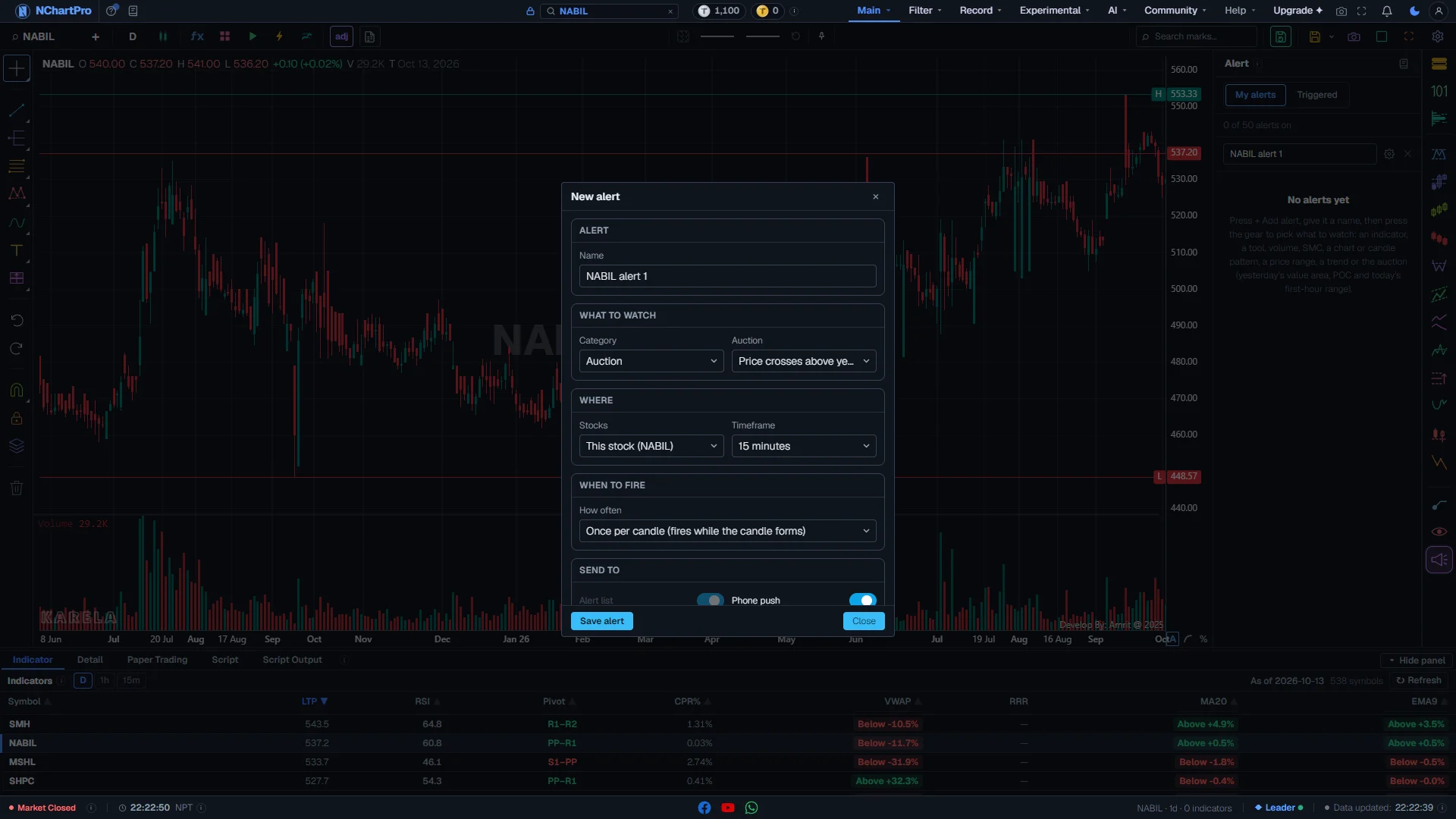
The settings box, part by part
The settings box of a new alert, on the Auction category. Each part with a close-up of the real screen; the numbers match the dots on the picture.
Name
The alert's name, up to 80 letters. It is the title of the phone message and the email.
How — Type a name you will understand at a glance, for example "NABIL RSI oversold".
Category
The kind of thing to watch.
How — Open the box and pick one: Indicator, Tool, Volume, SMC, Chart pattern, Candle pattern, Price range, Trend or Auction. The item list below changes to match.
- Indicator: RSI, EMA, MACD and the other chart indicators.
- Tool: Fibonacci, pivots, CPR and regression lines.
- Volume: VAR, volume profile, big candles, MFI, VWAP.
- SMC, Chart pattern, Candle pattern, Trend: new chart marks, checked when each candle closes.
- Price range: the live price against a level, a high or low, or the circuit limit.
- Auction: yesterday's value area and POC, the untouched POCs and today's first-hour range — the levels of the Auction panel.
Item and its settings
One item of that category — one alert watches one thing. The boxes under it belong to that item.
How — Pick the item, then fill in its boxes: the length, the condition ("Crosses down through", "Is above" …) and the level. Every box starts with a sensible value.
- An item marked "not in your plan" is greyed and cannot be picked.
- An Auction item is one fixed level and one direction, so it has no boxes — you pick only the stocks, the timeframe and how often.
- A chart-mark item shows the note "A chart mark is checked when each candle closes."
Stocks
This stock (the one on the chart) or All stocks.
How — Pick All stocks to scan the whole market with one alert. When several stocks match at once you get ONE message listing them.
- Price level works on one stock only — a typed price means nothing for every stock.
Timeframe
The candles the alert reads: 15 minutes, 1 hour or 1 day.
How — Use 15 minutes or 1 hour for trading, 1 day to ignore the noise inside the session.
- Price range items have no timeframe; this box then says "Live price" (or "Daily, checked live").
How often
When the alert may fire.
How — Pick one of the choices below. A chart mark allows only Once per candle close (and Only once).
- Only once: fires the first time it happens, then stops. On All stocks it fires once per stock per day.
- Once per candle: checks the candle while it is still forming and fires as soon as it happens, at most once a candle. Fastest — but a signal in the middle of a candle can disappear before the candle closes.
- Once per candle close: fires only when a candle closes with the condition true. Slower, but never undone.
- Once a day: Price range items only.
Send to
Where the alert is sent when it fires.
How — Switch on Phone push, Email or both. A bright name is on.
- Alert list: always on. Every alert that fires is kept in Triggered and under the bell in the top bar.
- Phone push: to the NChartPro app on your phone. Greyed when your plan does not include phone pushes.
- Email: to the address on your account, at most 30 alert emails a day.
Save alert
Saves the alert and closes the box. The alert appears in My alerts, switched on.
How — Press it when everything above is set. Nothing is saved before you press it — closing the box throws the draft away.
Reading the numbers
- When an All stocks alert matches several stocks at the same time, you get ONE phone message and ONE email: "RSI 14 crossed down through 30 (15m): NABIL, NICA, ADBL +4 more". Triggered still lists each stock on its own row.
- An alert only tells you that something happened. It never buys or sells for you, and it is not advice.
Every item you can watch
Indicator
The same indicators the chart draws, computed by the same engine.
| RSI | Relative Strength Index crosses or stays above / below a level. Start: crosses down through 30. Tip: Below 30 is often called oversold, above 70 overbought. |
| RS (RS-Ratio) | The RS-Ratio line crosses or stays above / below a level. 100 is the middle. |
| EMA | The price crosses above or below the EMA, or is above / below it. Start: length 20. |
| MA (simple) | The price crosses or stays above / below a simple moving average. Start: length 50. |
| MA cross | A fast average crosses a slow one (EMA or simple). Start: 9 crosses 21. |
| MACD | The MACD line crosses its signal line, or crosses a level such as 0. |
| Impulse MACD | The Impulse MACD line crosses its signal line, or a level. |
| CCI | Commodity Channel Index crosses or stays above / below a level. Start: 100. |
| CycleX | The CycleX line crosses its smooth line, or a level. |
| Stochastic | %K crosses %D, or crosses a level such as 20 or 80. |
| ADX | ADX crosses or stays above a level. Above 25 usually means a strong trend. |
| Bollinger Bands | The price crosses the upper band, the middle line or the lower band. |
Tool
Levels drawn by a tool, checked against the live price.
| Fibonacci (last swing) | The price crosses a Fibonacci level (0.236 … 1.618) of the last finished swing. Tip: The swing comes from the zigzag with depth 20: the last leg whose two ends are confirmed — the 2nd-last swing on the chart. |
| Pivot points | The price crosses the pivot (P) or R1–R3 / S1–S3. |
| CPR | The price crosses the top (TC), the pivot or the bottom (BC) of the Central Pivot Range. |
| Regression Trend | The price crosses the upper, middle or lower line of the regression channel. |
Volume
Is the move backed by trading?
| VAR | Volume ÷ volume average. 1 is normal; above 1 is more volume than usual, below 1 is less. Start: VAR above 2 (twice the usual volume). Tip: On a forming candle VAR grows as the candle trades. For "VAR below" use Once per candle close. |
| Volume profile (last swing) | The price crosses the POC, the value area high or the value area low of the last finished swing. Tip: The same profile as the fixed-range volume profile drawing (24 rows, 70% value area), on the zigzag-20 swing. |
| ATR (big candle) | The candle's high-to-low range is bigger than a number times the ATR. Start: 1.5 × ATR. |
| MFI | Money Flow Index crosses or stays above / below a level. Start: 80. |
| VWAP | The price crosses or stays above / below the VWAP. |
| Today's volume against its average | Today's volume so far is many times the normal daily volume. Live, no timeframe. |
SMC
Smart Money marks from the chart's SMC panel. A new mark fires when a candle closes. Pick up, down or either.
| Order block | A new valid order block appears. |
| CHoCH | A new change of character. |
| BOS | A new break of structure. |
| FVG | A new fair value gap. |
| Liquidity sweep | Price sweeps a high or low and comes back. |
| MSS | A new market structure shift. |
| Breaker block | A new breaker block. |
| Inducement | A new inducement. |
| Equal highs / lows | New equal highs or lows (a pool of stops). |
| Swing failure (SFP) | A new swing failure pattern. |
| Supply / demand zone | A new supply or demand zone (major, minor or strong). |
| SNR hit | The price comes down to a support level, or up to a resistance level, of the chart's support and resistance mark. Tip: Pick Support, Resistance or either. |
Chart pattern and candle pattern
Every pattern the chart's pattern marks find is in the list. A new pattern fires when the candle closes.
| Chart pattern | Head and shoulders, double top / bottom, triangles, wedges, channels, rectangles, flags, pennants, cup and handle, rounding top / bottom and more — pick one. |
| Candle pattern | Engulfing, hammer, doji, morning / evening star, three soldiers / crows and the rest — pick one. |
Price range
Read the live price, about every 15 seconds. No timeframe.
| Price level | The price crosses a price you type. Starts at the last price. One stock only. |
| Days high / low break | The price goes above the highest high, or below the lowest low, of the last N days. 260 days ≈ 52 weeks. |
| Today's high / low break | The price breaks today's high or low, after the first minutes you choose. |
| Opening range break | The price breaks the high or low of the first 15, 30 or 60 minutes. |
| Big move today (%) | The price is up or down by a percent compared with yesterday's close. |
| Near the circuit limit | The price comes within a percent of today's upper or lower circuit. |
Trend
Breaks of the lines that show the trend.
| Trend line break | The price breaks one of the chart's automatic trend lines. Checked when the candle closes. |
| Channel break | The price breaks out of one of the chart's automatic channels. |
| Regression trend break | The price crosses the upper line (break up) or the lower line (break down) of the regression channel. |
| SuperTrend flip | SuperTrend turns up or turns down. |
Auction
Levels from the chart's Auction panel: yesterday's value area and busiest price, the untouched POCs, and today's first-hour range. Each item is one fixed level and one direction — you pick only the stocks, the timeframe and how often.
| Price crosses above yesterday's value area high | The price moves up through the top of yesterday's value area (VAH). Tip: Yesterday means the last full trading day. The level stays the same all day. |
| Price crosses below yesterday's value area low | The price moves down through the bottom of yesterday's value area (VAL). |
| Price comes back into yesterday's value from above | The price was above yesterday's value area high and moves back down through it. |
| Price comes back into yesterday's value from below | The price was below yesterday's value area low and moves back up through it. |
| Price crosses above / below yesterday's busiest price (POC) | The price moves up, or down, through the price where most trading happened yesterday. Two items: one for up, one for down. |
| Price reaches the nearest untouched POC above / below | The price reaches the closest old busiest price that the price has not come back to yet, above or below the last close. Tip: Only untouched POCs within 10% of the last close count. |
| Price breaks above / below today's first-hour range (IB high / low) | The price goes above the high, or below the low, of today's first trading hour (until 12:00). Tip: This level is ready a few minutes after 12:00. Before that, the alert waits. |
What it does not do
- How fast? The server checks every new price as soon as it arrives. Prices arrive from the market feed about every 15 seconds, so from a trade on the exchange to your phone is usually 15–20 seconds.
- Alerts work during market hours. A 1-day candle-close alert fires a few minutes after the market closes.
- Your plan sets how many alerts you can have on: Basic 10, Advance 20, Pro 30, Master 50 (the numbers are set by the NChartPro team and can change). Free accounts have no alerts. During the soft launch, and for new members during the free trial days, you get the alerts of the level you are given.
- SMC, pattern and trend line items need the chart tool in your plan. If a plan changes later, those alerts stop sending until the tool is back.
- Email is sent only when it is switched on for that alert, at most 30 a day, and only to the address on your account.
- One alert watches one thing. There is no "RSI below 30 AND price above EMA" in one alert — make two alerts.
- Alerts from the 101 Analysis cards are not available yet.
- An alert never trades and is not advice.
Questions people ask
Open Triggered and turn on All — if it fired, it is there. If not: is the row switched on (not faded)? Is the market open? For Once per candle close, has a candle closed since? For All stocks, has any stock actually met the condition? For phone pushes, is the NChartPro app signed in on your phone (Experimental → Alerts → My phones has a test button)?
Once per candle looks at the candle while it is still forming and fires the moment the condition is true — fast, but the candle can still change. Once per candle close waits for the candle to close and fires only if the condition is still true then.
The server checks the condition on every stock each time prices update. When several stocks match together, you get one message listing them. With Only once, each stock can fire once a day.
The zigzag with depth 20 (you can change the depth). The last line of the zigzag is still moving with the price, so the alert uses the line before it — the last swing whose two ends are confirmed.
Volume divided by the volume average (the chart's Volume MA). 2 means twice the usual volume; 0.5 means half.
The phone app reads the same list of categories and items, so the same alerts can be made there once the app update ships.
No. It only tells you. You place the order yourself through your broker.