

Drawing Tools
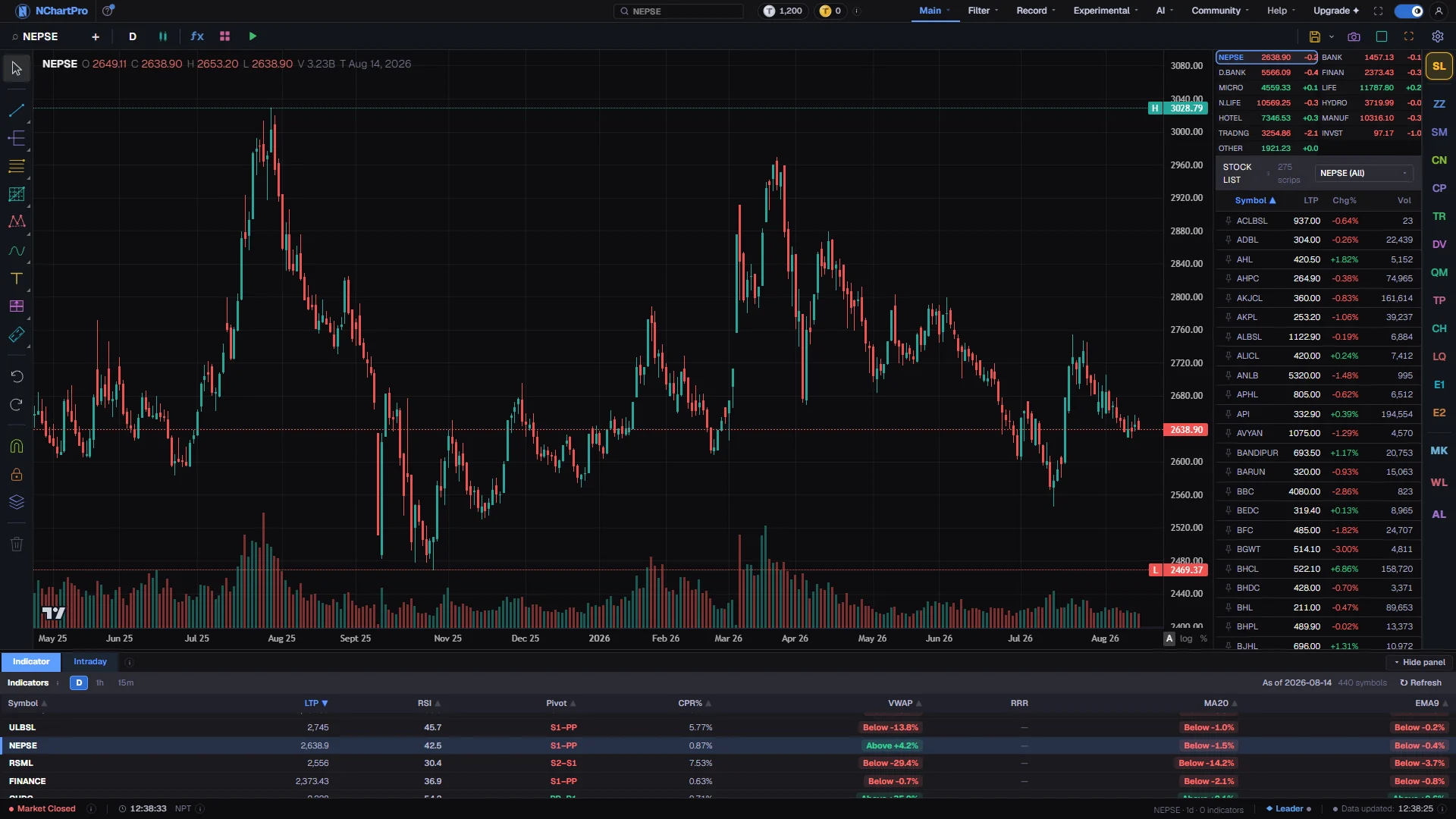
Everything an analyst normally does with a pencil and a printed chart lives on the narrow rail down the left edge of the Chart page, and none of it needs an internet round trip to work.
What this page is
Drawing tools are the part of the chart you own. Indicators are computed for you and pattern detectors are found for you; a trend line is your opinion about where support sits, written onto the candles so you can be held to it later. The rail carries 90 of them, grouped into seven buttons.
The rail is one column, read top to bottom. A cursor button sits at the top and returns you to selecting and editing rather than placing. Under it are the eight category buttons, each opening a flyout that lists every tool in that group with its own icon and a favourite star, under one level of heading. Below those come Undo and Redo, then Magnet, Lock all drawings and the Object tree, and at the very bottom Remove All Drawings with a badge counting how many objects are on the chart right now.
Each category button wears the icon of the last tool you used from it, so the rail slowly reshapes itself around how you actually work. The seven groups, top to bottom, are Trend Line Tools, Pitchforks, Fibonacci and Angle Tools, Patterns, Geometric Shapes, Annotations, and Prediction and Measurement.
One of those seven needs a word of explanation. The third button holds two families at once — the ten Fibonacci tools under one heading and the seven Gann tools under another — and this document keeps a separate page for each, because a Gann box is read nothing like a retracement. So the seven buttons come out as eight pages rather than one page per button.
Measure used to be an eighth button of its own, holding a single tool. It is now the last entry under the Measurement heading of the seventh button, which is where a reader looking for it was always going to look first. The tool itself is unchanged.
A drawing is anchored to a price and a time, never to a place on your screen. Pan the chart, zoom it, switch from fifteen minutes to daily, and the object stays on the candles you drew it against. Drawings are saved to your account per symbol, so a stock you marked up on one browser comes back marked up on another.
Why it helps you
- A level you drew yesterday is worth more than an indicator you added this morning, because you drew it for a reason you can still remember. The rail is where that reasoning gets recorded.
- Star the four or five tools you actually use. Starred tools appear in a small floating bar over the chart that you can drag wherever it does not block the price, which turns a two-click trip through a flyout into one click.
- Magnet is the difference between a level that sits on the high of a candle and one that sits near it. Click the magnet button and pick Weak before marking swing points, and the anchor jumps onto the nearest open, high, low or close within about twenty-four pixels of your click; Strong drops the distance limit and always takes the nearer wick of the candle under the cursor. The same menu carries Object Snap, which locks a point onto another drawing rather than onto a candle.
- Lock all drawings once your map is drawn. It stops you dragging a support line by accident while panning, and new drawings can still be placed on top.
- Two or three horizontal lines on a monthly chart — the level a stock has failed at twice, the level it has bounced from three times — outlast any indicator setting you might tune.
- The Prediction and Measurement group holds Long Position and Short Position, which show what you are risking against what you are hoping for before you commit any money to it.
- The object tree lets you file your lines into named folders per stock, so the levels from one thesis stay together and can be hidden as a set when you want a clean chart.
- Because drawings live on your account rather than in one browser, the notes you made on a company two years ago are still there when the story changes.
When to use it, and where to find it
- The first time you look seriously at a stock, before you add a single indicator. A drawn level tells you what to watch for; an indicator only tells you what already happened.
- After a session that broke a level you had marked, so the map matches the market again.
- Before you place a real order, using Long Position or Short Position to see the reward against the risk at the prices you are actually considering.
- When a chart has become unreadable — the object tree and Remove All Drawings are both a way back to a clean screen.
- The rail is on the Chart page: Main, then Chart. There is only one chart page, so there is only one rail to learn.
- Nothing here needs a menu. Every tool is on the rail, and the ones you star are also on the floating bar over the chart.
Try it — a short walkthrough
- 1Open a category and pick a toolClick any of the eight category buttons on the rail. A panel opens beside it listing that group's tools; click one and it is armed. The rail button then keeps that tool's icon so you can re-arm it with a single click next time.
- 2Place it with clicks, not a dragAlmost every tool is placed by clicking the chart once per anchor — one click for a horizontal line, two for a trend line, three for a channel. When the last anchor lands the object is created. Esc abandons a placement half way through.
- 3The cursor comes back on its ownEvery tool hands the cursor back the moment its object lands, so you are in select mode straight away and the next click picks the thing you just drew rather than starting another one. That is what makes it quick to place a line and then drag its ends, or place a circle and then restyle it. To draw a second object of the same kind, click the rail button again — it keeps the last tool you chose from that category, so it is one click, not two. Esc while a placement is half finished throws that shape away and keeps the tool in your hand for another try.
- 4Switch the magnet on before you mark a swingThe magnet button sits below Undo and Redo, and one click opens its menu. Weak snaps a placement click to the nearest open, high, low or close of the candle under the cursor, so your line touches the bar rather than floating near it; Strong always takes that candle's nearer wick however far away you clicked. Clicking the row already chosen turns the magnet off again. Below the divider, Endpoint and Edge are Object Snap: Endpoint locks the point you are placing onto another drawing's own end, Edge locks it onto the nearest place along another drawing's line. Both can be on together, with or without the magnet, and when several are in range the endpoint wins.
- 5Select the object and restyle itPress the cursor button, or Esc, and click the drawing. A small property bar appears beside it with colour, line width and line type. Shift, Ctrl or Cmd click adds more objects to the selection and the bar then edits all of them at once.
- 6Open the settings dialog for everything elseDouble-click a drawing, or press the gear on the property bar. The dialog has a Style tab, a Text tab, a Coordinates tab for a single object, and a Levels tab for the Fibonacci family. It can be dragged out of the way by its title bar.
- 7Tidy up with the object treeThe layers button opens a list of every drawing on the chart. Drag one row onto another to make a folder, name it, give it a colour, and hide or lock the whole group at once. Delete or Backspace removes whatever is selected, and the bin at the bottom of the rail clears everything.
Every part, up close
The Chart page — the drawing rail runs down the left edge. Each part with a close-up of the real screen; the numbers match the dots on the picture.
The seven categories
Each of these seven buttons opens a flyout, and between them they hold all 90 tools this page is about.
Undo, magnet, lock
The block beneath the categories is the part that draws nothing: undo and redo, the magnet, the lock, the object tree, and the clear-all with its count badge.
Where a drawing goes
Finished objects sit on the candles themselves, so a single click selects one and a double-click opens its style dialog.
Anchored to price
Drawings are pinned to a price and a time rather than to the screen, which is why they stay on the same candles when you pan, zoom or change timeframe.
Reading the numbers
- Trend Line Tools — thirteen tools, in two sections: nine lines and levels, and four kinds of channel.
- Pitchforks — five tools under one heading: the Andrews pitchfork, its three origin variants and the pitchfan. Every one of them takes exactly three clicks.
- Fibonacci and Angle Tools — seventeen tools, in two sections. Fibonacci has ten: retracement, extension, channel, the two time tools, the fan and the arcs, circles, spiral and wedge. Gann has seven: Gann Box, Gann Square Fixed, Gann Square, Gann Fan, Gann Square of Nine, Gann Squares and Gann Square Range. The two halves have a page each in this document.
- Patterns — fourteen tools, in three sections: six harmonic and classical patterns, five Elliott wave labellings and three cycle tools.
- Geometric Shapes — eighteen tools, in three sections: two freehand brushes, six arrows and ten shapes.
- Annotations — ten tools under one heading: text, notes, comments, callouts, signposts, price labels, flags and the sticker.
- Prediction and Measurement — thirteen tools, in four sections: the two position tools, three dummy-candle tools, two volume-based tools, and six measurement tools. Measure is the last of the six — a quick box reporting price change, percent change and elapsed days — and it had a rail button to itself until 2026-08-31.
- Every flyout shows exactly one level of heading, and that is recent. A panel used to carry a sticky header with the category name and then a section heading immediately under it, so a short group announced itself twice. The header was dropped; a group that declares no sections of its own — Pitchforks and Annotations — now shows a single heading carrying the category name instead, so no panel is left unlabelled.
- The colours are not decoration. The fourteen tools in the Patterns flyout each have one fixed signature hue, so the colour tells you which pattern you are looking at. The Fibonacci and Gann tools draw every level in its own colour from a fixed ladder, which is why setting the object colour on one of those stamps the whole ladder rather than changing a single line. Every other tool deals from a shuffled sixteen-hue wheel, which only has to make two lines drawn on top of each other tellable apart.
- The style fields a tool offers are derived from what it actually paints. Everything gets line colour, line width and line style. A tool that fills a shape also gets a background colour, a background visibility switch and a background opacity slider. Every object can carry a text label, with colour, size, bold, italic, an optional outline halo, an optional background plate, a transparency slider and, for most tools, a position on each axis. Fibonacci-family objects add the Levels tab; the Gann tools do not have one, because their ratios are fixed.
- The badge on the bin is the number of drawings on the chart for the symbol you are looking at. At zero the button is disabled.
What it does not do
- Undo and Redo are never greyed out, even with nothing to undo. The chart engine does not report how deep its history goes, so a button disabled from a guess would be worse than one that occasionally does nothing. Ctrl and Z is Undo; Ctrl and Y, or Ctrl Shift and Z, is Redo.
- The rail asks the chart engine which tools it can draw, and greys out any it cannot, with a tooltip reading "this chart's engine cannot draw it". Checked against the engine tool table: all 92 tools currently map, so the disabled set is empty today — the mechanism is why a button could ever appear greyed, not a list of tools that are.
- Lock all drawings freezes what is already on the chart. It does not stop you placing new objects, which is deliberate.
- Reset to Defaults in the settings dialog clears an object's appearance overrides but deliberately does not unlock it, because a lock is a state rather than a look.
Questions people ask
No. Every anchor is a price and a time, so an object drawn on the daily chart appears on the same candles when you switch to weekly or to fifteen minutes. It is only the bars around it that change.
No, that is deliberate. Every drawing tool releases as soon as its object lands and the rail returns to the cursor, because the next thing most people do is adjust or restyle the object they have just drawn — and if the tool were still armed, that click would draw a second one on top of it instead. To place another, click the same rail button again; it remembers the tool you last used from that category.
Click it, then press Delete or Backspace. The bin at the bottom of the rail is for clearing the whole chart, and its badge tells you how many objects that would be.
Yes. Style one object the way you want it, then use Save as Default in the footer of the settings dialog. It applies to every future object of that same tool and never touches anything already on the chart. A selection mixing two different tools has no single answer, so the button greys out there.
It adds the tool to a floating shortcut bar over the chart, which appears only once something is starred and can be dragged wherever you like. It is there to skip the two clicks a flyout costs.
It was retired and its tools moved onto the Fibonacci button. Open the third button and they are under the second heading, Gann — seven of them now. Nothing was lost in that move; the family has gained tools since rather than losing any.