

Trend Lines & Channels
The first button on the drawing rail, and the one most charts never need to go beyond — a trend line and a horizontal level between them answer most of what a chart is asked.
What this page is
Trend Line Tools is the top category on the rail. Its flyout is split into two sections: Lines, which holds nine tools that draw a single stroke, and Channels, which holds four that draw a pair of edges with a corridor between them.
The difference between the nine line tools is mostly about where the line stops. A Trend Line ends at your second click. A Ray carries on past it to the right forever. An Extended Line runs out of both ends. A Horizontal Line spans the whole width at one price, while a Horizontal Ray runs only to the right of the bar you clicked. Three of them add a readout: Info Line prints the move, Trend Angle prints the slope in degrees, and Vertical Line prints the date.
The four channel tools all answer the same question — is price travelling inside a corridor — but they build it differently. Parallel Channel copies your line at a fixed offset. Flat Top / Bottom pairs a sloping edge with a level one. Disjoint Channel lets both edges do as they please. Regression Trend does not ask you to draw the line at all: it fits one to the closes between your two clicks and draws the statistical spread around it.
Why it helps you
- A trend line that has been touched three times is worth acting on; one drawn through two points is a guess. Place the line, then leave it and let the market either respect it or break it.
- Horizontal Ray is the honest version of a horizontal level. A price only became support at the bar where it held, so drawing it back across history you had not seen yet flatters the level.
- Info Line is the fastest way to size a move you are considering: two clicks and it reports the rupee change, the percent change and the bar count in one box at the far end.
- Regression Trend gives you a mean and a band instead of an edge. Price outside the two-sigma line is genuinely unusual for the stretch you selected, which is a different and more testable claim than "it broke my line".
- On monthly candles a single Extended Line through two major lows will often frame a decade. That is the sort of line worth keeping.
- Horizontal Line is the tool for a price you have decided about in advance — the level you would buy at, the level you would sell at. Drawing it makes the decision visible before the day gets noisy.
- Vertical Line marks an event: a results date, a bonus announcement, the day a policy changed. It carries the date in a small label so the chart says why the line is there.
- Parallel Channel on a weekly chart is a quick sanity check on whether a stock that feels expensive is actually above where its own trend has been running.
When to use it, and where to find it
- At the start of any serious look at a stock, before indicators. Levels first, then decoration.
- After a session that broke or held a level you had marked, to move the line or to add a second one.
- When you want a number rather than an impression — Info Line and Trend Angle both turn a look into a measurement.
- When price has been going sideways and you want to know whether it is sideways inside a corridor: Parallel Channel or Flat Top / Bottom will tell you quickly.
Try it — a short walkthrough
- 1Draw one trend lineClick the first rail button, choose Trend Line, then click a swing low and a later swing low on the chart. The object appears and the tool releases, so you are back in select mode and can drag either end straight away. To draw a second line, click the rail button again — it keeps the tool you last chose. Switch the magnet on first if you want the anchors to sit exactly on the candle extremes.
- 2Put a level where you would actChoose Horizontal Line and click once at the price. It runs the full width of the chart at that price and follows the candles through every pan, zoom and timeframe change.
- 3Measure a move instead of guessing at itChoose Info Line and click the start and end of the move. A box at the far end reports the price change, the percent change and how many bars the span covers.
- 4Build a channel in three clicksChoose Parallel Channel. The first two clicks draw the main edge; the third sets how far away the parallel copy sits. Drag any of the three handles afterwards to retune it.
- 5Let the maths draw the trendChoose Regression Trend and click the two ends of the stretch you care about. It fits a least-squares line through the closes in between and adds dashed envelopes one and two standard deviations either side.
Every part, up close
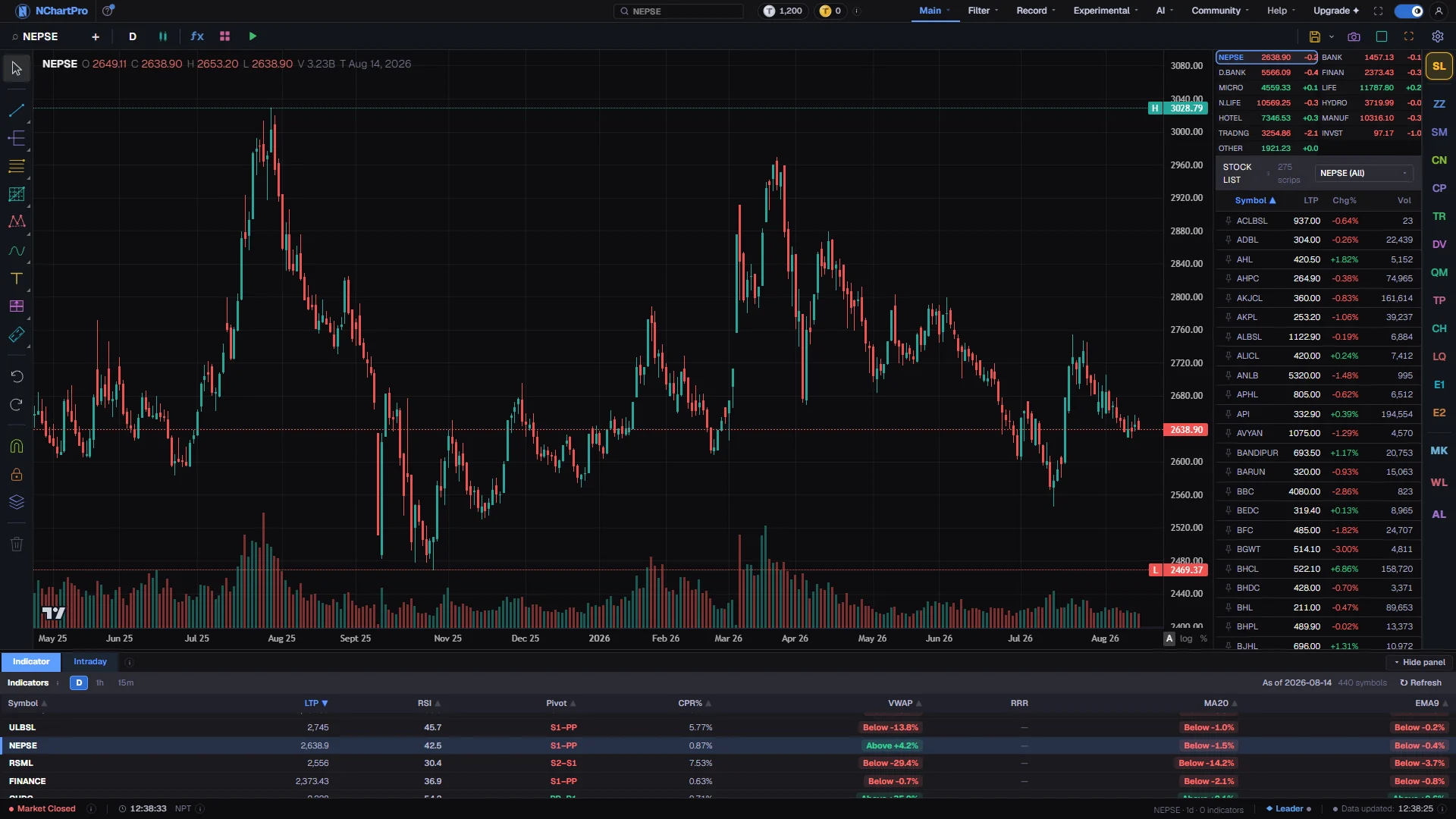
The Chart page — the line and channel tools are behind the first rail button. Each part with a close-up of the real screen; the numbers match the dots on the picture.
First button down
The top button on the rail opens the flyout these thirteen tools live in, split into Lines above and Channels below.
Two clicks
Every tool here is placed with one click for each end of the line, landing on two bars rather than on two points of the screen.
The magnet
Switch the magnet on before drawing a level and the click snaps to the real high or low instead of settling a pixel away from it.
Reading the numbers
- Trend Line — 2 clicks. A plain straight segment between the two points, stopping at both.
- Ray — 2 clicks. Starts at the first click, passes through the second and carries on to the right indefinitely.
- Info Line — 2 clicks. The same segment, with a boxed readout at the far end giving the price change, the percent change and the number of bars covered.
- Extended Line — 2 clicks. The line through both points, run out past both ends.
- Trend Angle — 2 clicks. A segment with a dashed horizontal baseline from the first anchor and an arc between them, labelled with the slope in degrees.
- Horizontal Line — 1 click. One price, across the whole width of the pane.
- Horizontal Ray — 1 click. One price, from the clicked bar rightwards only, with the price printed in a tag at the right edge.
- Vertical Line — 1 click. One moment in time, top to bottom, with the date in a small label at the top.
- Cross Line — 1 click. A horizontal and a vertical through the same point at once, for marking where a price and a date meet.
- Parallel Channel — 3 clicks. Two clicks for the main edge, the third for the offset of a parallel copy of it.
- Regression Trend — 2 clicks. A least-squares fit of the closes between the two anchors, drawn solid, with dashed lines at plus and minus one and two standard deviations.
- Flat Top / Bottom — 3 clicks. A sloping edge from the first two anchors and a flat edge at the third anchor's price over the same horizontal span, which is the shape a rising or falling wedge actually has.
- Disjoint Channel — 4 clicks. Two independent lines, one per pair of clicks, that do not have to be parallel.
- Every one of these carries line colour, width and dash from the property bar, and an optional text label from the Text tab of the settings dialog. Two of them do fill a shape and therefore do offer a background colour: Flat Top / Bottom and the Disjoint Channel both shade the band they mark out. The Parallel Channel, which sits beside them, strokes its rails and fills nothing, so it has no background row.
What it does not do
- These tools draw exactly where you click, with no opinion about whether the line is any good. Two points always fit a line; that is not evidence.
- Regression Trend measures only the bars between your two anchors, and only the closes. Move an anchor by a few bars and the fit and its bands move with it, so it describes the window you picked rather than the trend as such.
- Trend Angle reports the slope in screen degrees, so it depends on how the chart is zoomed and on whether the price axis is linear or logarithmic. It is useful for comparing two lines on the same view, not as an absolute figure.
- Info Line counts the bars that exist between the anchors. Over a market holiday or a weekend there are fewer bars than there are calendar days, which is the right answer for a chart and the wrong one for a diary.
- All thirteen tools can be drawn on the Chart page, so nothing in this flyout is greyed out. If the engine ever could not draw a tool, its row would be disabled with a tooltip saying so.
Questions people ask
A Ray is anchored at your first click and only travels forward through the second. An Extended Line runs out of both ends, so it also projects backwards over history you have already seen.
When the point itself is what matters — a price reached on a particular day. One click gives you both axes and one object to move, hide or delete instead of two.
Probably Disjoint Channel, which is the one that deliberately allows it. Parallel Channel copies its main edge exactly; Flat Top / Bottom pairs a sloping edge with a horizontal one.