

Technical
Instead of opening one chart at a time, this page puts the engine's latest indicator reading for every listed symbol side by side, so you can rank the market by any of them.
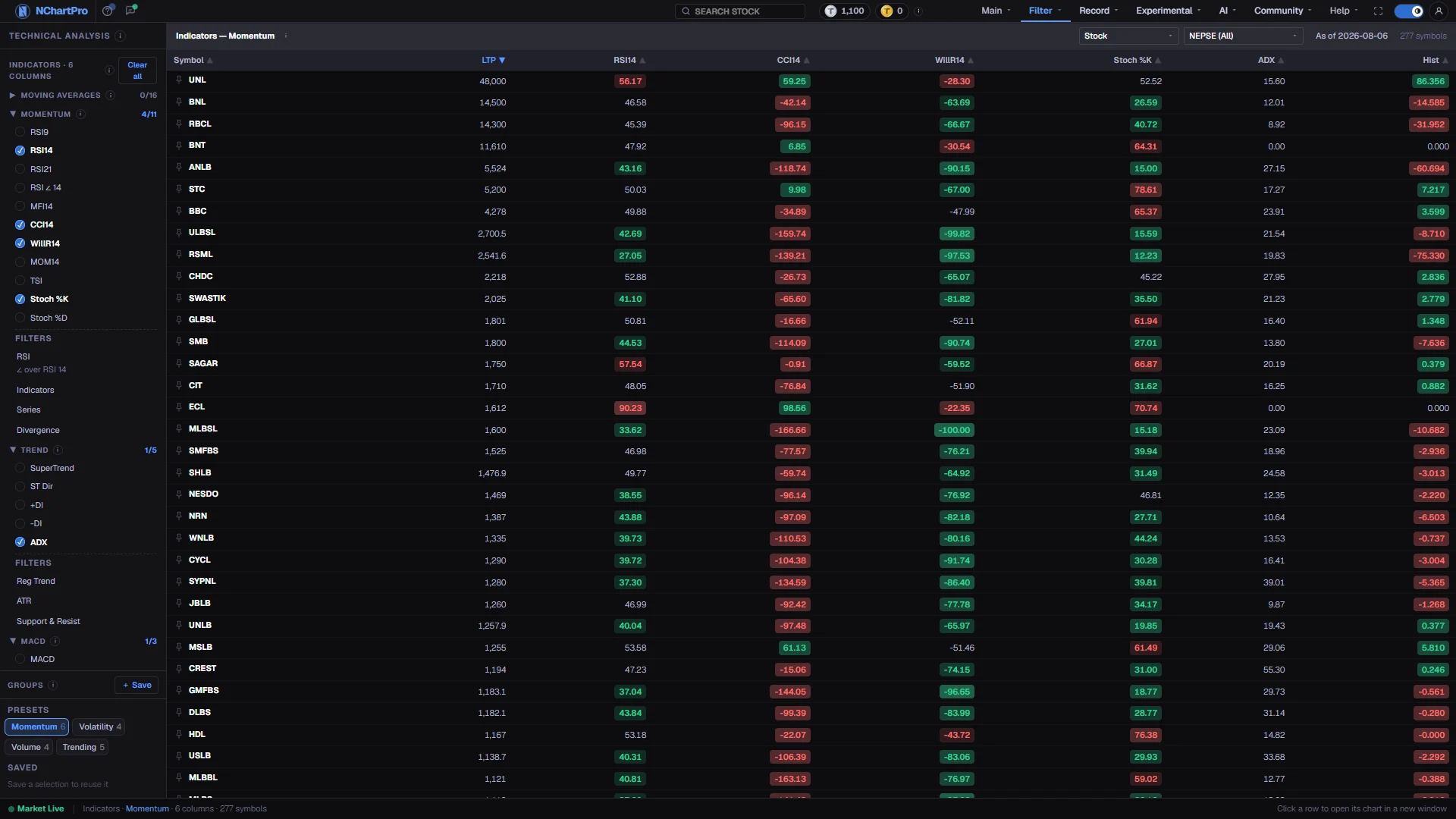
What this page is
The Technical filter answers one question: which stocks are in a given chart situation right now. It never looks at a company's accounts. It reads price and volume history, and it reads it for everything that trades, in a single table.
The page works in two modes that share the same left panel. In indicator mode you tick the readings you care about and each one becomes a column, so the table is a grid you designed. In filter mode you click a ready-made view instead, and the engine's own columns replace the table wholesale.
Think of it as the opposite of the chart. The chart shows one symbol in depth; this shows one measurement across the entire market. Most work starts here and ends on the chart.
Why it helps you
- Ranking the market by a single momentum reading is the fastest way to find today's extremes. Sort by RSI and both ends of the list are in front of you in one click.
- The timeframe buttons in filter mode let you check whether a move is a one-day event or something the weekly candles agree with. A signal that only exists on 15m is a different trade from one that also shows on W.
- Direction columns matter more than levels. A high reading that is still rising and a high reading that has turned over are opposite situations, and the angle columns separate them.
- Save the eight or ten columns you actually use as a group. A repeatable morning scan beats a different set of columns every day.
- Use it after you have chosen a company on merit, not to choose one. Nothing on this page knows whether a business earns money.
- The weekly and monthly timeframes are the useful ones for a long holding. They tell you whether you are buying into a multi-month uptrend or in front of one that has already turned.
- Price against the 50 and 200-day averages is a cheap sanity check before adding to a position you intend to keep.
- Where a stock sits inside its own volatility range helps you stage a purchase rather than commit the whole amount on one day.
When to use it, and where to find it
- Before the open, to see where the market finished and which names ended stretched.
- After the close, once the day's snapshot has refreshed and the readings reflect a completed candle.
- When you already have a shortlist and want the same measurement for all of it at once, rather than opening five charts.
- When a stock has moved hard and you want to know whether the rest of its sector moved with it.
Try it — a short walkthrough
- 1Open a category and tick two or three readingsClick a category name in the left panel to expand it, then tick the boxes you want. Each tick adds a column to the table immediately.See this part in detail →
- 2Watch the column counterThe counter at the top of the panel shows how many columns are on. If the table has scrolled too far sideways to read, press Clear all and start with fewer.See this part in detail →
- 3Sort by the column you care aboutClick a column heading to rank the whole market by it, and click again to reverse. Click a row to open that symbol's chart.See this part in detail →
- 4Narrow the rows before you conclude anythingSet the instrument box to Stock and pick a sector. Comparing a hydropower company with a bank on the same indicator rarely tells you much.See this part in detail →
- 5Try a ready-made filter on two timeframesClick a Filter under a category, then press D and W in turn. If the same names survive both, the reading is not a one-day artefact.See this part in detail →
- 6Save the set you keep coming back toWith your columns ticked, press Save in Groups and name it. Next visit it is one click, and the selection follows your account to any device.See this part in detail →
Every part of the page
In the order you meet them on screen, each with a close-up of the real thing. The numbers match the dots on the figure above.
The Technical Analysis panel
Every indicator the engine publishes, grouped into collapsible categories: Moving Averages, Momentum, Trend, MACD, Volatility, Volume, Matrix and Pivot & CPR, plus two filter-only groups at the end, High Low and Price.
How — Click a category name to open or close it. Inside you get checkboxes (each adds a column to the table) and, under a dashed "Filters" heading, ready-made engine views.
- The x/y badge on a category counts how many of its indicators you have ticked. High Low and Price have no checkboxes, so they show a ● instead when one of their filters is the active view.
- The ⓘ beside a category name explains what that whole family of indicators measures.
- Indicator values come from the engine's daily snapshot; filter tables are precompiled files, one per timeframe. Both refresh through the trading day.
How many columns are on
The counter reads "Indicators · N columns" — how many indicator columns are currently ticked — and "Clear all" unticks every one of them.
How — Press "Clear all" to empty the selection and start again. It is greyed out when nothing is ticked.
- With no column ticked the table is replaced by a line telling you to check indicators in the left panel or pick a saved group.
- Ticking boxes by hand marks the selection "Custom" — it does not change any saved group.
- Very wide selections scroll sideways, so keep the columns you actually compare.
Inside a category — the checkboxes
Momentum is open as an example. Its eleven tick boxes are single indicator VALUES: RSI 9 / 14 / 21, RSI ∠ 14, MFI14, CCI14, WillR14, MOM14, TSI and Stoch %K / %D. Tick one and it becomes a column for every stock at once.
How — Tick a box to add the column, untick it to remove it. Ticking anything switches the table back to the indicator grid, whatever it was showing before.
- RSI is a 0–100 momentum gauge: above 70 is commonly called overbought, below 30 oversold. Those are conventions, not rules.
- RSI ∠ 14 is a DIRECTION, not a number: ↑ rising, ↓ falling, — flat. RSI at 45 and rising is a very different situation from RSI at 45 and falling.
- MFI14 is RSI weighted by volume; CCI14 beyond ±100 marks a stretched move; WillR14 runs −100 to 0; MOM14 is the raw price change over 14 candles; Stoch %D is the smoothed %K.
- The number in a name is the lookback length — RSI9 reacts far faster than RSI21 on the same chart.
Groups — save a column set
A group is a saved set of indicator columns. Instead of re-ticking the same eight boxes every visit, click a group once and the table switches to exactly those columns.
How — Presets are built in: Momentum, Volatility, Volume and Trending. To keep your own, tick the columns you want, press "+ Save", type a name. Press × on a saved chip to delete it.
- The small number on a chip is how many columns it holds. Momentum — the preset the page opens with — holds six.
- Saving or deleting needs you to be signed in — the login box opens by itself. Your groups are private to your account and follow you to any device.
- Applying a group also opens every category its columns live in, so you can see what it picked.
- Changing a checkbox afterwards switches the selection back to "Custom" without touching the saved group.
The Indicators table
One row per symbol, one column per indicator you ticked — the latest reading for the whole market side by side, so you can rank every stock by any of them.
How — Click any column heading to sort by it, click again to reverse. Sorting by RSI, for example, instantly lists the most oversold or overbought stocks. Click a row to open that symbol's full chart in a new window.
- Symbol and LTP are always there; every other column is one you ticked. The heading bar carries the ⓘ, the date the snapshot is as of, and the row count.
- Cell colours are a quick read, not a signal — they only say which side of a reference the value sits on.
- Price-level columns (averages, pivots): green = price above, red = below. 0–100 columns: green is the low end, red the high end. +/− columns: green is positive.
- LTP is the last traded price, overlaid with the live feed during market hours, so it stays current even when the indicator is from the last completed candle.
- The pin beside a symbol keeps that stock at the top of every list in the app.
Narrow the rows
Two boxes that limit which symbols the table shows: an instrument type (All Instruments, Stock, Index, Debenture, Promoter or Mutual Fund) and a NEPSE sector.
How — Leave the first on "Stock" for ordinary company shares — that is the default and what most technical readings are meant for. Pick a sector to compare only peers.
- The same pair follows you into the filter view, where it sits in the bar above the table.
- They narrow the rows only; nothing is recomputed, so switching them is instant.
- Volume means different things by instrument: for an ordinary stock it is a share count (kitta), for NEPSE and the sector sub-indices the same field is turnover in rupees.
Filters — the engine's ready-made tables
Under the dashed line in a category sit its FILTERS. A filter is not a column: clicking one replaces the whole table with a view the technical engine precompiled for that idea. Momentum offers RSI, Indicators, Series and Divergence.
How — Click a filter name once. The tour has just done that with RSI, so the pane on the right is now showing a filter table instead of your column grid.
- A small caption under a filter name is a note on how it is built — RSI carries "∠ over RSI 14", the series its angle column is measured over.
- "Series" repeats the same five momentum readings with their last three values, so you see whether they are building or fading.
- "Divergence" flags price and an indicator disagreeing (+1 bullish, −1 bearish, 0 none). That detection is still being finished in the engine, so treat it as provisional.
- Reg Trend under Trend is listed so the menu matches the engine's set, but it is NOT implemented — every one of its columns returns 0. Use ATR or Support & Resist instead.
The filter bar
While a filter is showing, this bar sits above the table: the filter's name, its own ⓘ, the category it came from, the timeframe buttons, the instrument and sector boxes, the date the data is as of, how many symbols came back, and the symbol you last clicked.
How — Nothing here changes the maths — use it to confirm which filter, which timeframe and which narrowing the table below is actually showing.
- The ⓘ changes with the filter: it explains that filter's exact columns and formulas, in more detail than the tour can.
- The symbol count is taken after the instrument and sector narrowing, so it can be smaller than the file itself.
- The accent-coloured symbol on the right is the row currently highlighted in the table.
- Tick any indicator checkbox on the left and the page leaves filter mode and goes back to your column grid.
Which candle the filter is built on
D / 15m / 1h / W / M choose the candle size the filter is calculated on — daily, 15-minute, hourly, weekly or monthly. The same indicator reads very differently on a 15-minute candle and on a monthly one.
How — Click one and the table reloads from that timeframe's precompiled file. The ⓘ beside the buttons carries the same detail.
- Shorter timeframes react faster and produce more, noisier signals; longer ones are slower but far steadier.
- The four High Low filters are always computed on DAILY candles, so these buttons fade out and stop responding while one of them is selected.
- Each timeframe is a separate precompiled file on its own refresh schedule — about a minute for 15m, a few minutes for the longer ones.
Reading a filter table
The engine's own columns for the chosen filter, one row per symbol. The first column is always the symbol; the rest depend on the filter.
How — Click any heading to sort, click again to reverse. Click a row to highlight it and open that symbol's chart in a new window.
- A column with "Ang" in its name holds a direction, so it draws ↑ / ↓ / —, not a number. A "%" column shows a dash when it is exactly zero.
- Difference, %, angle and cross columns are tinted: green when positive, red when negative.
- Where the filter has an LTP column it is overlaid with the live price during market hours, so it ticks while the rest of the row stays on the last completed candle.
- Two known gaps carried over from the engine: MACD histo ang always reads 0, and the RSI filter's RSI Divergence column is not computed yet and stays 0.
- If it says "No data — run the filter generator first", that timeframe's file has not been built yet.
The status bar
A one-line summary of what you are looking at: the market-open dot, then the mode with the active group or filter, the timeframe, the number of columns and how many symbols are shown.
How — Nothing to click — use it to confirm the table really is showing what you meant to select.
- In filter mode it reads "Dynamic Filter · <name> · <timeframe>"; in indicator mode "Indicators · <group> · N columns".
- "Refreshing…" appears while a new indicator snapshot is being fetched; the old numbers stay on screen until it lands.
Reading the numbers
- Sorting works the same way on every table in the Filter menu. Each heading carries a faint upward arrow when it is not the sort column; the active column shows a solid arrow in the accent colour, pointing up for ascending and down for descending.
- Volume does not mean the same thing for every row. For an ordinary company share it is a quantity of shares, in kitta. For NEPSE and the twelve sector sub-indices the same field is turnover in rupees, because an index has no shares. Do not rank the two in one sort.
- Turnover for a stock is not on the candle. It is price multiplied by quantity, worked out separately, so a cheap stock with enormous volume can still be a small day in money terms.
- Columns whose name ends in an angle mark hold a direction rather than a number, and draw as up, down or flat. A percent column shows a dash when the value is exactly zero.
- Indicator values come from the daily snapshot, while LTP is overlaid with the live feed during market hours. The price can therefore be newer than the reading beside it.
- Each timeframe in filter mode is its own precompiled file with its own refresh schedule, so the shorter ones update more often than the longer ones.
What it does not do
- Reg Trend, under the Trend category, is not implemented. Every one of its columns returns zero for every stock. Use ATR or Support and Resist instead.
- Two engine gaps are known and visible: MACD histo ang always reads zero, and the RSI filter's RSI Divergence column is not computed yet.
- Divergence detection generally is still being finished, so treat those flags as provisional rather than as findings.
- If a filter says there is no data and asks for the generator to be run, that timeframe's file has not been built yet. The other timeframes are unaffected.
- Nothing here reflects company quality, dividends or valuation. A stock can top every momentum column and still be a poor business.
Questions people ask
The table shows the last completed candle from the daily snapshot, while the chart can be mid-candle and live. They converge once the candle closes.
No. Changing a box moves the selection to Custom and leaves the saved group exactly as it was. Click the group chip again to return to it.
Match it to how long you intend to hold. Day trades read 15m and 1h, swings read D, and positions held for months read W or M.
Yes. Filter → Screener takes conditions such as RSI below 30 combined with above-average volume and returns only the stocks that pass.