

Fundamental
This is the side of the market that does not move during the day: what each listed company earns, what it owns, what it owes and what it pays back to shareholders.
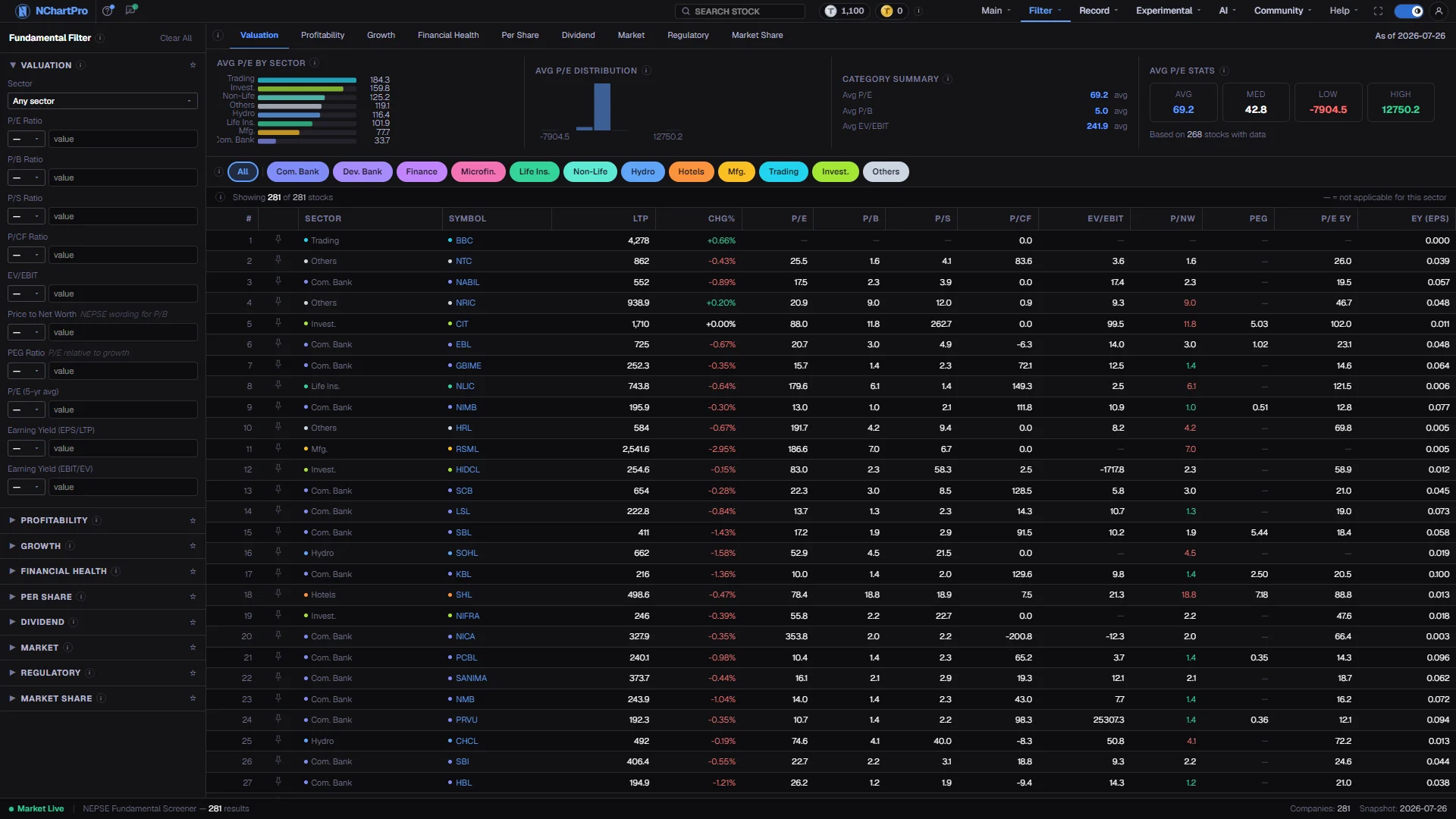
What this page is
The Fundamental filter answers a different question from every other page in this menu. Not what the price is doing, but whether the business behind the price is any good, and whether today's price is a fair one to pay for it.
The numbers come from each company's published financial statements for its latest fiscal year on record. They change when a company reports, not when the market opens. A stock can rally for a month without a single figure here moving.
The page is three parts working on the same list. Conditions on the left decide which companies survive. The tabs and mini-charts across the top summarise the survivors. The table below shows them company by company.
Why it helps you
- Results season is the one time these numbers move prices. Knowing which companies are about to report, and what they reported last time, is worth more than any chart reading that week.
- Dividend yield and the book-close season drive real buying in Nepal. Screening for high yield ahead of announcements finds the names that flow will chase.
- Use it as a veto rather than a signal. A chart setup on a company with negative growth and a stretched valuation is a trade to size smaller, not one to skip the chart for.
- The sector averages tell you whether a move is company-specific or the whole industry being repriced.
- This is the primary screen. Start with the business, then look at the price, then look at the chart, in that order.
- Compare a company against the median of its own industry rather than against the market. A bank's P/E and a hydropower company's P/E are not measuring the same thing.
- Quality shows up in a handful of columns: return on equity year after year, non-performing loans for a bank, capital adequacy, and growth that is steady rather than one good year.
- Book value and dividend yield together tell you what you are buying and what it pays while you hold it, which is the whole case for owning a stock for years.
When to use it, and where to find it
- At results season, when companies publish quarterly and annual statements and the table refreshes with real new figures.
- Before a dividend or bonus announcement, when yield and book value decide which names are worth the wait.
- When you are building a long list from scratch and want to cut a market of hundreds down to a few dozen.
- After a stock has fallen hard, to work out whether it became cheap or simply became worse.
- The ↗ on the Fundamental card of Main → Kundali opens this page with that stock highlighted.
Try it — a short walkthrough
- 1Pick the industry firstSet the Sector box, or tap a sector pill above the table. Fundamentals only compare fairly inside one industry, so this step comes before any condition.See this part in detail →
- 2Add one condition, not fiveOpen Valuation and set P/E to less than 20. Watch the count in the info bar drop. A single condition tells you how much of the market it removes.See this part in detail →
- 3Add a quality condition on topOpen Profitability and set ROE greater than 15. Cheap and profitable is a far smaller list than cheap alone, and a far more useful one.See this part in detail →
- 4Switch tabs to see the survivors from another angleThe tabs change which columns are shown, not which companies passed. Move through Growth, Financial Health and Dividend on the same filtered list.See this part in detail →
- 5Check each company against the medianRead the Med figure in the stats strip, then compare a company's cell with it. The median is the fairer benchmark; one unusual company can drag the average a long way.See this part in detail →
- 6Sort and take the shortlist to the chartClick a column heading to rank the survivors, then open the ones you like in Main → Chart to see whether the price agrees.See this part in detail →
Every part of the page
In the order you meet them on screen, each with a close-up of the real thing. The numbers match the dots on the figure above.
The condition panel
Seven collapsible sections of conditions: Valuation, Profitability, Growth, Financial Health, Per Share, Dividend and Market. Fill any of them and the table keeps only the companies that pass.
How — Pick a comparison (>, >=, <, <=, = or "btwn" for a range), type a number, and the table narrows straight away. "Clear All" at the top resets every condition; the ☆ pins a section to the top of the panel.
- Conditions across different sections stack: P/E < 20 AND ROE > 15 means a company must satisfy both.
- A blank field is ignored. A company with no value for a metric (shown "—") is excluded once you filter on that metric.
- The number badge on a section header counts how many of its conditions are currently active.
Valuation — is the price cheap or dear?
Valuation is about PRICE versus what the company actually delivers. Each ratio divides the share price by one measure of the business, so a lower number is cheaper on that measure — though a cheap price often reflects real worries.
How — Set the Sector box first: fundamentals only compare fairly inside one industry, because a bank's P/E and a hydropower company's P/E are not the same animal.
- P/E = share price ÷ earnings per share — roughly how many years of today's profit you are paying for.
- P/B = share price ÷ book value per share, i.e. price against the company's net worth in its accounts. "Price to Net Worth" is the NEPSE wording for practically the same idea.
- P/S, P/CF and EV/EBITDA are PLACEHOLDERS scaled from P/E in this build, not reported figures — do not trade on them.
The metric tabs
These tabs decide which columns the table shows and which numbers the mini-charts summarise. They do not filter anything out.
How — Click a tab to switch the view: Valuation (cheap or dear), Profitability (how well it earns), Growth (is it improving), Financial Health (can it survive a bad year), Per Share (rupees per share), Dividend (what you get paid), Market (how big it is).
- Banks and insurers have regulator-set measures of their own, which is why NPL and CAR only fill in for banks and Solvency Margin only for insurers.
- A dash "—" means the metric does not apply to that industry, or is not in the feed yet.
The mini-charts strip
Three quick summaries of the companies CURRENTLY passing your filters, for the tab you are on: an average per industry, a distribution, and the tab's own averages.
How — Change a filter or a sector pill and all of it recomputes for the narrowed list.
- The bar chart is one bar per industry — the plain average of the headline metric. Only the top 8 industries are drawn.
- For NPL and D/E, where lower is better, those bars are ordered smallest first.
- The histogram cuts the range from lowest to highest into 8 equal slices and counts the companies in each. A long thin tail on the right means a few extreme outliers.
- These are unweighted averages of companies, so a giant and a tiny company count the same, and one unusual company can pull a small sector's bar.
Avg · Med · Low · High
Four reference numbers for the tab's headline metric across the companies currently shown, so you can tell at once whether a single company is unusual.
How — Compare a company's figure in the table against Med rather than Avg — the median is the fairer "typical" value.
- Avg = the mean (add everything up, divide by the count). A few extreme companies can drag it.
- Med = the median: the middle company when they are lined up in order.
- Low / High = the smallest and largest value in the current list. The line underneath says how many companies actually had a value.
Sector pills
NEPSE groups every listed company into an industry and publishes a sub-index for each. These coloured pills show only that industry.
How — Tap a pill to filter; tap the pill that is already active to clear it. "All" brings every company back.
- The pills and the Sector box in the left panel are the same filter — changing one moves the other.
- The list comes from the app's stock classification, the same source every other sector picker uses.
How many passed
"Showing X of Y stocks" — X is how many companies survived your conditions, Y is the whole market. The ⓘ here explains every column of the tab you are on.
How — If X collapses to a handful, one condition is probably too tight, or you filtered on a metric most companies do not report.
- The note on the right is the legend for the table: "—" = not applicable for this sector.
The company table
One row per company: its symbol and sector, its LTP (last traded price) and today's change, then the columns of the tab you are on.
How — Click any column heading to sort by it, click again to flip the order. The pin keeps a stock at the top of every list in the app.
- Some cells are tinted to flag an extreme: ROE green at 20%+ and red under 10%; NPL red above 3%, green under 1%; CAR red under 11%, green above 14%.
- Growth figures are year-on-year from the company's accounts — but EPS Growth currently repeats the reported profit growth, as per-share growth is not published separately.
- Market amounts are in crore (1 Cr = Rs 1,00,00,000).
The status bar
How many companies currently pass your conditions, plus which fiscal period the fundamentals belong to.
How — Nothing to click — read it as a sanity check before acting on the table.
- Be aware: the two labels on the right of this bar are fixed text in the page, not read from the data, so trust the company's own report over them.
Reading the numbers
- A ratio that divides price by something is a valuation measure, so lower is cheaper on that measure. Cheap is not automatically good; a low number often reflects a real worry the market has already priced.
- Every table in the Filter menu sorts on a column click, this one included, and the heading arrow shows which column and which direction is active.
- Market amounts are in crore. One crore is one hundred lakh, or ten million rupees.
- A dash means no value: either the measure does not apply to that industry, or it is not in the feed. Filtering on a metric silently removes every company that shows a dash for it.
- Regulator-specific measures only fill in where they apply. Non-performing loans and capital adequacy are bank figures; solvency margin is an insurance figure.
- The mini-charts and the stats strip describe the companies currently passing your conditions, so they move every time you change a box.
What it does not do
- P/S, P/CF, EV/EBIT, ROCE, the profit margins, debt to equity, book-value growth and EPS growth are read from real reported figures, not worked out from other columns.
- Current ratio is real, and solvency margin is real for insurance companies. Quick ratio and interest coverage are not published, so they always show a dash. Net asset value per share also shows a dash, because it is a mutual-fund measure.
- The split between bonus and cash dividend comes from the real dividend record, and free float is the real total float.
- Net interest margin, revenue growth, profit growth and premium growth are not published, so they always show a dash. For banks, use the interest spread instead of net interest margin.
- The two labels on the right of the status bar are fixed text in the page, not read from the data. Trust the company's own report over them.
- Fundamentals lag by definition. A company that reported six months ago may already be a different business.
Questions people ask
Usually one condition is too tight, or you filtered on a measure most companies do not report, which removes every company showing a dash. Clear All and add conditions back one at a time.
No. It means the market is paying little for each rupee of profit, which can reflect a cheap price or a profit nobody expects to last. Check growth and the balance sheet before deciding which.
The latest fiscal year on record for each company, shown in the status bar. Companies do not all report on the same date, so the table can mix periods.
Main → Kundali puts a single company's fundamentals, chart and broker flow on one screen.