

Stock Screener
This is the long form of the Screener: six categories instead of four, including price action, smart-money structure and broker fields, with the same table of results underneath.
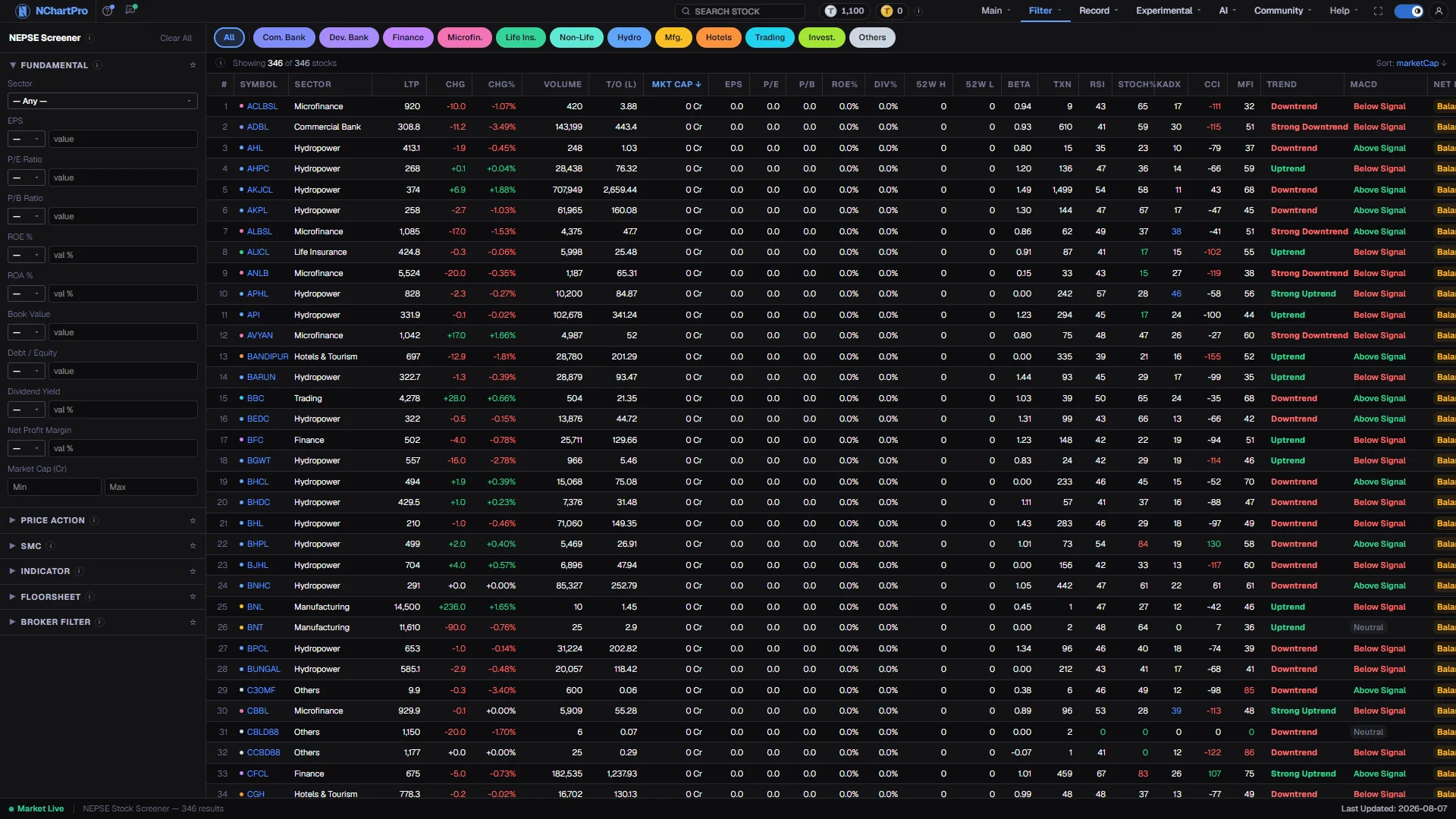
What this page is
The idea is the same as the Screener above it. You describe a stock with conditions on the left and the table returns the ones that satisfy all of them. What differs is breadth: Fundamental, Price Action, SMC, Indicator, Floorsheet and Broker Filter, each with its own set of fields.
Breadth here comes with a caveat that the page states openly. Some of these controls are ahead of the data behind them. A few are compared against fields the backend does not yet produce, which quietly empties the list; others are never read at all, so setting them changes nothing.
That is why this page carries an unusual section in its walkthrough: a plain list of which conditions really work and which do not. Read it before you build a screen. Conditions on price, volume, flow and the main indicators are trustworthy today, and they are enough for most screens.
Why it helps you
- The working conditions cover the whole of a normal setup: price range, change, volume, trend grade, buy and sell quantity, transaction count, net flow and the standard momentum indicators.
- Trend is the most useful single field, because it combines direction with strength rather than reporting one of them. Strong Uptrend and Uptrend are genuinely different situations.
- Buyer Dominance is a stricter version of Net Flow. When you want conviction rather than a small edge, demand 70 or 80 percent of the buy side instead of the default balance test.
- Skip the SMC category for now. Order Block and Liquidity change nothing, and Structure and Fair Value Gap empty the list because the data behind them is not emitted.
- The Fundamental category is the one you would want, and it is the one that reads zero. Screen for a business on Filter → Fundamental instead and use this page only for the trading picture.
- Beta and turnover are the two conditions worth setting for a long holding. Together they describe a stock that is neither wild nor illiquid.
- Transaction count is a quiet quality check. A company traded by many hands every day is one you can leave and come back to.
- Treat everything else here as timing, not selection. It cannot tell you what a company is worth.
When to use it, and where to find it
- When the Screener's four categories are not specific enough and you want the extra Indicator and Floorsheet fields.
- After the close, once the day's candles and floor sheet are final and the conditions describe a completed session.
- When you want to check a setup across the whole market quickly, using only the conditions the walkthrough marks as working.
- Not when you need company financials. Those fields are empty here by design.
Try it — a short walkthrough
- 1Read what works before you set anythingThe walkthrough part titled Which conditions really work lists the fields backed by real data. Build screens from those and the results can be trusted.See this part in detail →
- 2Note the fields to avoidThe part after it names the controls that either do nothing or empty the list. Nothing you set there will help, and two of them will silently hide every stock.See this part in detail →
- 3Open a category and set a comparisonClick a category heading to expand it, choose the comparison from the small dropdown, then type the number. The badge on the heading counts how many conditions inside it are active.See this part in detail →
- 4Pin the category you are working inThe star beside a heading moves that category to the top of the panel, which saves scrolling when you are adjusting one condition repeatedly.See this part in detail →
- 5Filter by sector and sortTap a pill above the results for a single industry, then click a column heading to rank the survivors. Clicking the active pill again clears it.See this part in detail →
- 6Clear everything when the count looks wrongPress Clear All. A forgotten box in a collapsed category is the usual reason a screen returns nothing.See this part in detail →
Every part of the page
In the order you meet them on screen, each with a close-up of the real thing. The numbers match the dots on the figure above.
Clear All and the ⓘ
The ⓘ next to "NEPSE Screener" explains where each row comes from: price and volume from the daily candles, indicators from the daily indicator snapshot, and buy/sell flow from the latest floor-sheet day.
How — "Clear All" resets every condition on the panel at once — useful when a forgotten box is silently emptying your results.
Six categories of conditions
Fundamental, Price Action, SMC, Indicator, Floorsheet and Broker Filter. Each has its own ⓘ explaining its fields in plain language.
How — Click a category heading to open it. The number badge counts the active conditions inside it, and the ☆ pins that category to the top of the panel.
- Conditions combine with AND — the more you fill in, the fewer results. Leave a box empty to ignore it.
How a numeric condition works
Each numeric field has a small dropdown next to the value: > greater than, >= at least, < less than, <= at most, = exactly, btwn between two values.
How — Pick the comparison first, then type the number. With "btwn" a second box appears for the upper bound.
- A condition with no comparison picked, or an empty value, is ignored entirely.
Which conditions really work
These are backed by real data and do narrow the list: Sector, Price, Change %, Volume, Beta, Trend, Buy/Sell Quantity, Transactions, Net Flow, Buyer Dominance, RSI and RSI Signal, MACD Signal, Stochastic %K, Bollinger Bands, ADX, CCI and MFI.
How — Build your screens out of these and the results will be trustworthy.
- Trend comes from SuperTrend direction graded by ADX strength (Strong Uptrend … Strong Downtrend).
- MACD Signal only ever reports whether MACD sits Above or Below its signal line — the two "Crossover" options in the list never match a stock.
Which conditions do nothing — read this
Setting any of these changes NOTHING at all: 52W Position, MA Signal, Volume vs Avg, Order Block, Liquidity, Timeframe, Total Quantity, and all four Broker Filter fields (Buy Broker, Sell Broker, Broker Role, Broker Activity).
How — Avoid them. If your result count looks wrong, they are not the cause — but they are also not helping.
- A second group IS compared but the data is missing, so picking a value empties the list: Structure (BOS / CHOCH), Fair Value Gap, Stochastic Signal, VWAP and Ichimoku Cloud.
- Use Buy Quantity or Sell Quantity instead of Total Quantity — those two do work.
The Fundamental category is empty for now
EPS, P/E, P/B, ROE, ROA, Book Value, Dividend Yield and Market Cap all read 0 until the fundamentals feed is loaded. Debt/Equity, Net Profit Margin and the 52-week high and low are not stored at all yet and are always 0.
How — Conditions on those fields will not return anything useful. The columns are shown as 0 rather than invented numbers.
The sector pills
The coloured pills across the top of the results filter the list down to a single sector. "All" clears the pick.
How — Clicking the pill that is already active turns it off, so you never get stuck inside one sector.
The results table
One row per stock that passes every condition. LTP = last traded price. Chg / Chg% = today's move in rupees and percent. T/O (L) = turnover in lakhs. Txn = number of separate trades.
How — Click a column heading to sort by it; click again to flip between highest-first and lowest-first. The bar above shows how many stocks passed out of the total.
- RSI, Stoch%K and MFI run 0–100 — high is shown red (overbought), low green (oversold). ADX is trend STRENGTH only, not direction.
Reading the numbers
- LTP is the last traded price. Chg and Chg% are today's move in rupees and in percent. T/O (L) is turnover in lakh and Txn is the number of separate trades.
- The table sorts on a column click like every table in this menu, and clicking the same heading again flips between highest first and lowest first.
- The 0 to 100 indicators are tinted at both ends, red where they are stretched high and green where they are stretched low. ADX is trend strength only and says nothing about direction.
- An empty condition, or one with no comparison chosen, is ignored completely. Only filled conditions narrow the list.
- Volume is a share count. Turnover is money. A high volume on a cheap stock is a small day in rupee terms.
What it does not do
- Two groups of controls are unreliable and the walkthrough names both. One group is never read, so setting it changes nothing. The other is compared against data the backend does not emit, so setting it empties the results. Neither is a bug you can work around; use the working fields instead.
- The whole Fundamental category reads zero until the company-financials feed is loaded, and debt to equity, net profit margin and the 52-week high and low are not stored at all.
- MACD Signal only ever reports whether MACD sits above or below its signal line, so the two crossover options in that dropdown never match a stock.
- Last Updated in the status bar shows the real market date of the data. It is a date, not a clock time.
- If you want a screener where every control works, use Filter → Screener. It offers less and delivers all of it.
Questions people ask
This one was built with a wider set of conditions than the data currently supports. The Screener above it is the narrower page where every control is genuinely applied.
You probably set one of the fields that is compared but has no data behind it, such as Structure, Fair Value Gap, Stochastic Signal, VWAP or Ichimoku Cloud. Clear it and the list returns.
Buy Quantity or Sell Quantity. Both are read and both narrow the list correctly.
They fill in when the company-financials feed is connected to this page. Until then the columns show zero rather than invented numbers, and Filter → Fundamental has the real figures.