

Screener
Where a filter table hands you the whole market and asks you to spot what matters, a screener reverses the work: you describe the situation you want, and it returns only the stocks in it.
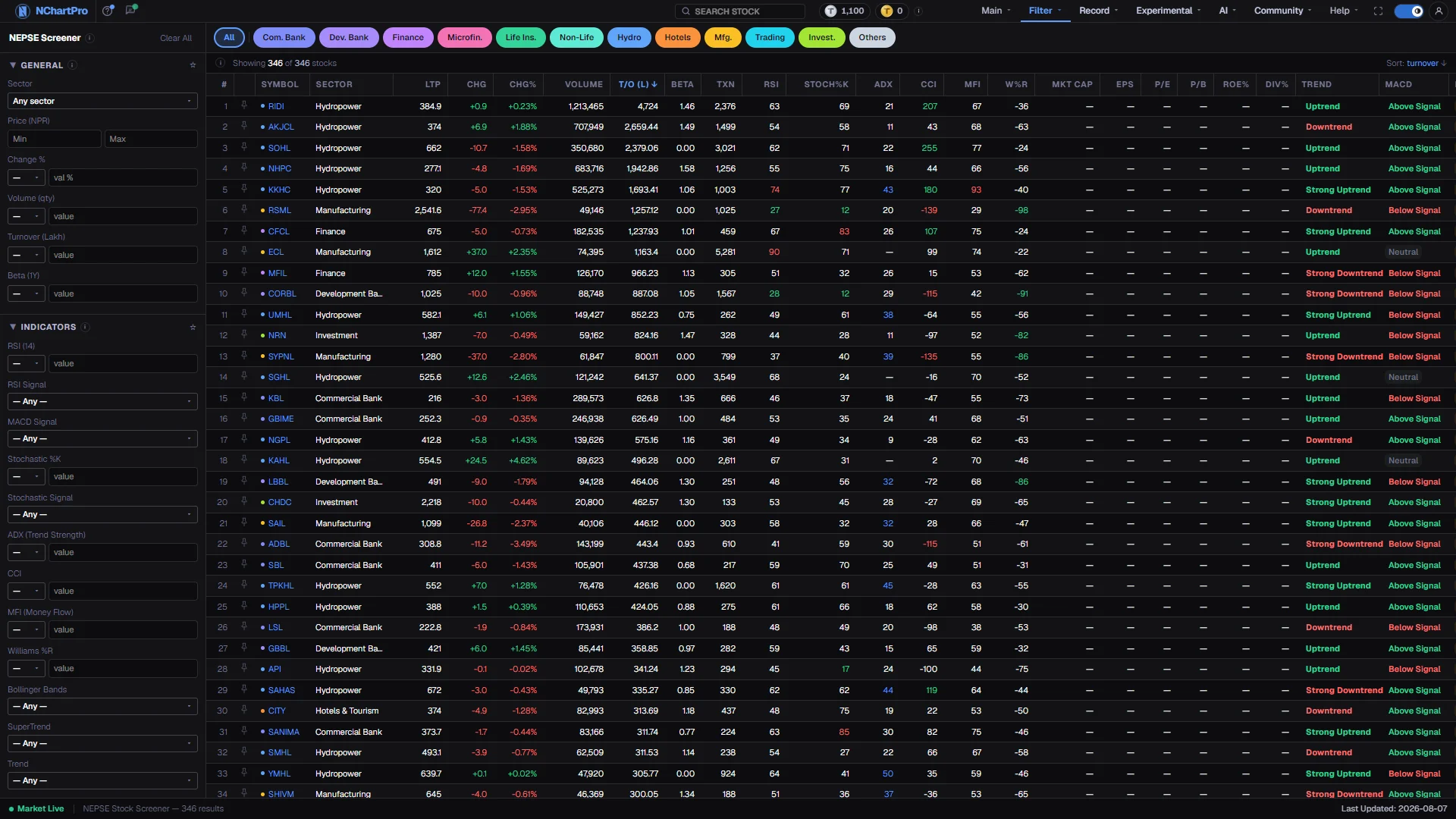
What this page is
You set conditions on the left. Price between two levels, RSI under a value, volume above its own average, the floor sheet showing net buying. The table on the right keeps only the stocks that satisfy every one of them at once.
Each row is assembled by the backend from three real sources: price and volume from the daily candles, technical readings from the daily indicator snapshot, and buy and sell flow from the latest floor-sheet day. There is no separate screener database that can drift from the rest of the app.
Conditions combine with AND, never OR. Every box you fill makes the result smaller. Two or three well-chosen conditions usually produce a more useful list than ten, because ten conditions describe a stock that may not exist.
A second, wider screener sits under this one in the sidebar. Filter → Stock Screener offers more categories, including price-action and smart-money fields, but several of its controls are not connected to data yet. This page's controls all work.
Why it helps you
- A screener is how you turn a repeatable setup into a daily list instead of a hunch. Write your conditions once and run them every morning.
- The combination that finds real setups is a technical condition plus a flow condition: oversold momentum together with accumulation on the floor sheet says the selling is being absorbed.
- Volume against its own 20-day average is the single most useful condition here. It separates a stock that moved from a stock that moved on nothing.
- Watch the result count as you type. The condition that takes the list from forty names to two is the one doing all the work, and usually the one to relax.
- Use it to build a candidate list, not to make a decision. A stock passing a screen is a stock to research, and the research happens on the Fundamental page.
- Beta is the useful long-term condition here. Screening for stocks that swing less than the market narrows the list to holdings you can leave alone.
- Turnover matters more than price for a long position. A stock you can buy in size and exit later has to trade every day, not once a week.
- Ignore the momentum conditions for anything you intend to hold for years. They describe this week, and you are not buying this week.
When to use it, and where to find it
- Before the open, running the same saved set of conditions to see what changed overnight.
- After a broad market fall, when a screen for oversold plus net buying finds where the money went instead of out.
- When a strategy you read about needs testing, to see whether the Nepali market currently offers any stock that fits it.
- Any time the market has too many names to look through by hand, which is most days.
Try it — a short walkthrough
- 1Start loose in GeneralSet Price between 200 and 1000 and Turnover above 50. That removes the very cheap, the very expensive and the barely traded, leaving a workable universe.See this part in detail →
- 2Add one technical conditionOpen Indicators and set RSI to less than 40, or pick Oversold from the matching Signal dropdown. Both do the same job; the dropdown is the plain-language version.See this part in detail →
- 3Add who was tradingOpen Floorsheet and set Accum / Distribution to Accumulation. You now have a screen for weak momentum with quiet buying behind it.See this part in detail →
- 4Narrow to one industry if the list is still longTap a sector pill above the table. Sector narrowing happens before the conditions, so the showing count already reflects it.See this part in detail →
- 5Sort the survivors and read the labelsClick a column heading to rank the list. The four label columns at the end, Trend, MACD, Net Flow and Accum/Dist, summarise each row in words.See this part in detail →
- 6Reset when a screen returns nothingPress Clear All rather than hunting for the offending box. Rebuilding from scratch with two conditions is faster than debugging ten.See this part in detail →
Every part of the page
In the order you meet them on screen, each with a close-up of the real thing. The numbers match the dots on the figure above.
The condition panel
Four collapsible sections: General, Indicators, Floorsheet / Broker and Fundamental. General and Indicators open by default.
How — Click a section header to open or close it. The number badge counts how many of its conditions are active; the ☆ pins a section to the top of the panel.
- The dropdown next to a value is the comparison: > greater than, >= at least, < less than, <= at most, = exactly, btwn between two values (a second box appears for the upper end).
- A blank box is ignored, so you can leave most of the panel untouched.
General — the basics
Sector, price, today's move and how much of the stock changed hands. This is where most screens start.
How — A common opener: Price between 200 and 1000 to skip the very cheap and the very expensive, then Turnover > 50 so only stocks with real trading survive.
- Price (NPR) = LTP, the last traded price, from the latest daily candle. Change % is today's move against the previous close.
- Volume (qty) is a SHARE count — kitta. Turnover (Lakh) is the rupee value traded ÷ 1,00,000. They are not the same thing: a cheap stock can have huge volume and small turnover.
- Beta (1Y) = how strongly the stock follows NEPSE over the last year. 1 = moves in step, above 1 = swings harder than the market, below 1 = calmer.
Indicators — the chart side
Technical readings computed from each stock's daily candles. They describe momentum, trend and volatility — never company quality.
How — Use a number box for a precise level (RSI < 30) or the matching Signal dropdown for the plain-language version (RSI Signal = Oversold). Both do the same job.
- RSI (14) runs 0–100: above 70 is usually called overbought, below 30 oversold. Stochastic %K uses 80 / 20 for the same idea.
- ADX measures TREND STRENGTH only, not direction — 25 and above means a real trend. Trend combines SuperTrend direction WITH ADX into Strong Uptrend … Strong Downtrend.
- MA Signal compares LTP with the 20 / 50 / 200-day averages, and offers the MA50 vs MA200 cross.
- Volume vs Avg compares today's volume with its own 20-day average (Above, Below, ≥2×, ≥3×).
- CCI beyond ±100 and MFI (money flow, 0–100) mark stretched moves; Williams %R runs −100 to 0, where −80 or lower is oversold.
Floorsheet / Broker — who was trading
Who was buying and selling on the latest trading day, taken from the NEPSE floor sheet — the official trade-by-trade record.
How — Combine it with an indicator condition to find a setup: for example Accum / Distribution = Accumulation together with RSI < 40.
- Buy / Sell Quantity are share counts. At stock level they are equal, since every share bought was sold by someone.
- Transactions = the number of separate trades in the stock, a rough gauge of how many hands were involved.
- Net Flow compares buy VALUE with sell value: Net Buyer above 55% of the total, Net Seller under 45%, otherwise Balanced.
- Buyer Dominance lets you demand a stricter buy share instead (60 / 70 / 80%).
- Accum / Distribution is the backend's day label — Accumulation = quiet buying, Distribution = quiet selling.
Fundamental — switched off, on purpose
EPS, P/E, P/B, ROE, ROA, Book Value, Dividend Yield and Market Cap would go here, but the company-financials feed is not connected to this page yet.
How — The boxes are deliberately disabled and marked "Coming soon" rather than silently returning zeros, which would filter every stock out.
- The matching columns in the table (Mkt Cap, EPS, P/E, P/B, ROE%, Div%) therefore show "—" for every stock.
- For real company numbers today, use Filter → Fundamental, which reads the fundamentals dataset directly.
Clear All
Resets every condition in all four sections at once, so the table goes back to the whole market.
How — Use it when a screen returns nothing and you are not sure which box was too tight — start again rather than hunting.
- It does not touch the sector pills' own state; it resets the sector condition along with everything else.
Sector pills
A quick sector filter above the table, holding the same value as the Sector box in the left panel.
How — Tap a pill to keep only that industry; tap the active pill again, or "All", to clear it.
- The list comes from the app's stock classification, so it always matches the sector pickers elsewhere.
- Sector narrowing happens before the conditions are applied, so the "Showing X of Y" count already reflects it.
Result count and current sort
"Showing X of Y stocks" — X survived your conditions, Y is every stock the backend returned. On the right it shows which column the table is sorted by, and in which direction.
How — Watch X as you type a condition: if it drops to zero, the last box you filled is the one to relax.
- The ⓘ here spells out every column of the table in one place.
The results table
One row per stock that passed. Price and trading first, then the technical readings, then the (currently empty) fundamentals, and finally four label columns: Trend, MACD, Net Flow and Accum/Dist.
How — Click any column heading to sort by it, click again to flip the order — every table in the Filter menu sorts this way. The pin keeps a stock at the top of every list in the app.
- Colours flag the extremes: RSI, Stoch%K and MFI turn red at the overbought end and green at the oversold end; CCI green above +100, red below −100.
- W%R turns green at −80 or lower; ADX is highlighted from 30 up.
- Volume is shown in full with commas, T/O (L) is turnover in lakhs, Txn is the number of trades.
- A "—" means no value: either the fundamentals feed is missing or that stock had no technical snapshot.
The status bar
A one-line confirmation of how many results the current screen produced.
How — Nothing to click — read it as a sanity check before acting on the list.
- Note: the "Last Updated" text on the right of this bar is fixed text in the page, not read from the data — judge freshness from the price columns instead.
Reading the numbers
- The comparison dropdown beside each value is part of the condition. Greater than, at least, less than, at most, exactly, and between two values, which opens a second box for the upper end.
- A blank box is ignored entirely, so most of the panel can stay untouched.
- Volume is a share count in kitta. Turnover is the rupee value traded, shown here in lakh. They are not interchangeable: a cheap stock can have enormous volume and a small turnover.
- The results table sorts on a column click like every table in this menu, and the info bar states which column and direction are currently active.
- Cell colours mark the extremes only. High readings on the 0 to 100 scales are tinted at the overbought end and low readings at the oversold end; they are shorthand, not signals.
- A dash means no value for that stock, either because the fundamentals feed is missing or because it had no technical snapshot that day.
What it does not do
- The Fundamental section is deliberately disabled. The company-financials feed is not connected to this page, so those boxes are marked as coming rather than silently returning zeros that would filter every stock out.
- Because of that, the table's Market Cap, EPS, P/E, P/B, ROE and Dividend columns show a dash for every stock. Use Filter → Fundamental for real company numbers.
- The Last Updated text in the status bar is fixed text in the page, not read from the data. Judge freshness from the price columns instead.
- Flow conditions come from the latest floor-sheet day, which is a completed session. During market hours they describe yesterday, not this minute.
- Passing a screen is not a recommendation. The conditions you chose are the entire logic; the page adds no judgement of its own.
Questions people ask
Conditions combine with AND, so each one can only remove stocks. If a condition uses a measure many stocks have no value for, it removes all of those too.
That page offers more categories but several of its controls are not backed by data yet. Everything on this page is genuinely applied to the results.
Whichever you find clearer. RSI less than 30 and RSI Signal set to Oversold express the same idea; the dropdown just spares you remembering the level.
The conditions are not stored on this page. Note down the handful you use, or build the equivalent column set as a saved group in Filter → Technical.