

Floor Sheet
A floor sheet is the official record of each trade NEPSE executed today: the buying broker, the selling broker, the quantity and the rate, one line per trade.
What this page is
Nothing on this page is calculated from price alone. The floor sheet is the raw ledger of the session, so it can answer questions a chart cannot: how many separate hands were involved, whether one broker took most of a stock, and whether a day's volume was one enormous order or a thousand small ones.
A single day of that ledger runs to tens of thousands of lines, which is unreadable on its own. So the left menu holds sixteen filters, each one a different question asked of the same day. Bulk Trade asks which single trades were unusually large. OTM asks whether one broker dominated one side. Accumulation and Distribution asks whether the buying was quiet and persistent.
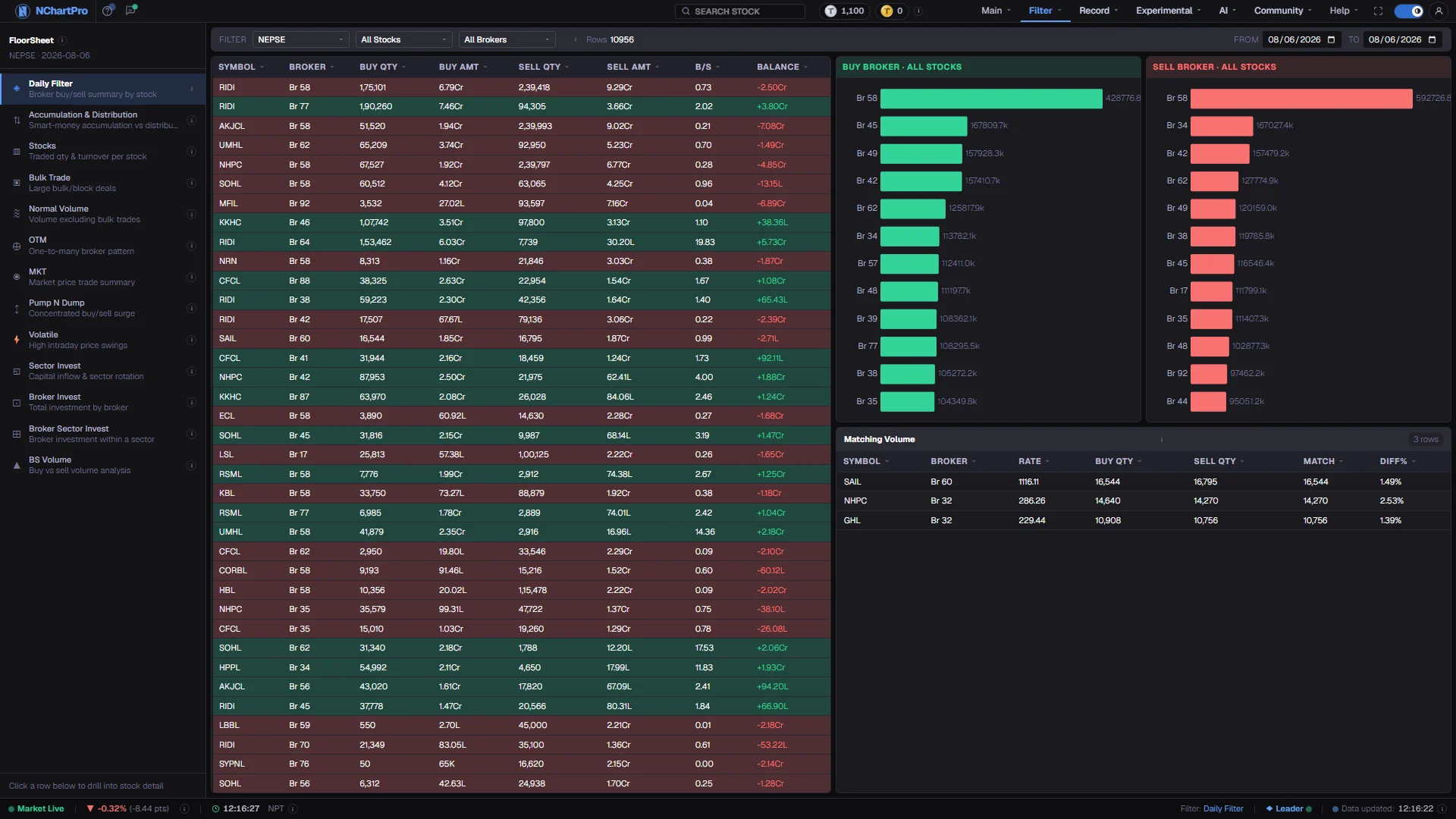
This page is therefore mostly a doorway. Fifteen of the sixteen filters now have their own purpose-built page and will take you straight there. The ones that do not keep the layout you see here: a market map in the middle, a broker bar chart on each side, and two tables underneath.
NEPSE publishes broker numbers, never client names. Nothing here identifies an individual investor, and nothing here should be read as one.
Why it helps you
- This is where you find out who was actually in a stock today, rather than what its candle looked like afterwards.
- One broker on 30 percent of the buy side and nowhere on the sell side is a different day from the same volume spread across forty brokers, even though the chart draws the same bar.
- Bulk trades tell you when a large holder moved. A thin stock with one twenty-lakh trade is worth a look precisely because its ordinary day is small.
- Transaction counts separate genuine interest from a single order being filled in pieces. Both raise volume; only one means many buyers.
- Read it monthly rather than daily. Repeated quiet accumulation in a company you already like is more informative than any single session.
- It is a useful check on liquidity before you commit. A stock you cannot exit without moving the price is a different proposition from one that trades all day.
- When a company you hold makes an announcement, the floor sheet shows whether the reaction was broad or one broker adjusting a position.
- Do not build a thesis on it. Broker flow describes today; the case for owning a business comes from Filter → Fundamental.
When to use it, and where to find it
- After the close, once the day's sheet has been loaded. This data is written after the session ends, not streamed during it.
- The following morning, to see who was on each side of yesterday's move before you act on it.
- When a stock has moved sharply on volume and you want to know whether the buying was concentrated.
- On any day the market looks quiet on the surface but one sector's rectangles dominate the map.
- The ↗ on the FS Filter card of Main → Kundali opens this page narrowed to that stock.
Try it — a short walkthrough
- 1Pick a filter from the left menuEach entry has a one-line description and its own information icon stating the exact threshold it uses. Click one and most will open their own dedicated page.See this part in detail →
- 2Confirm which day you are readingThe page opens on the latest day the backend actually holds, which is not always today. Use the date box to look back; days with no trading are not offered.See this part in detail →
- 3Narrow to ordinary sharesLeave the instrument box on Stock and pick a sector if you want one industry. Floor-sheet filters are most meaningful on company shares.See this part in detail →
- 4Read the map, then click one rectangleRectangle size is the active filter's main number and the grouping is by sector. Clicking a stock narrows both broker charts to it.See this part in detail →
- 5Compare the two broker sidesWith a stock selected, read the buying chart against the selling one. A broker large on one side only says more than a broker busy on both.See this part in detail →
- 6Sort the table underneathClick any column heading to rank the rows, and click again to reverse. Clicking a row selects that stock, exactly as clicking the map does.See this part in detail →
Every part of the page
In the order you meet them on screen, each with a close-up of the real thing. The numbers match the dots on the figure above.
The toolbar
The active filter's name with its own ⓘ, how many stocks came back, the "As of" trading date the data belongs to, and — once you click a stock — a chip showing which one is selected.
How — Press ✕ on that chip to clear the selection and put the broker charts back to whole-market.
- The "As of" date comes from the backend's list of trading days, so it is the real date of the data, not your computer's clock.
Filter and Sector
Two boxes that narrow which symbols the map and both tables show: a share type (All Instruments, Stock, Mutual Fund, Index, Debenture, Promoter) and a NEPSE sector.
How — It opens on "Stock", because floor-sheet filters are most meaningful on ordinary company shares. Pick a sector to look at one industry only.
- Sector applies to equities only, so the box greys out for mutual funds, debentures and promoter shares — those have no sector of their own.
- Changing either box also clears the selected stock.
- The symbol lists come from the app's stock classification, the same source every other sector picker uses.
The trading day
Which day's floor sheet you are reading. The page opens on the latest day the backend actually has, not on today's calendar date.
How — Pick another date to look back. The picker is limited to the range of days that exist in the data, so you cannot land on an empty day by accident.
- Weekends and holidays have no floor sheet at all, because no trading happened.
- If a day shows "No data for …", that session has not been loaded into the backend yet.
The market map
A treemap: one rectangle per stock, its SIZE set by the active filter's main number, and the rectangles grouped into NEPSE sectors so you can see which industry the activity sat in.
How — Click a rectangle to select that stock — the two broker bar charts beside the map immediately narrow to it. Click it again to clear.
- Bigger rectangle = a bigger number for that filter (turnover, quantity or trade value, depending which filter is loaded).
- The green / red tint is the buy-versus-sell balance for that stock in that filter; on Daily Filter it instead shows the stock's live daily % change.
- A small rectangle can still matter — a thin stock with one huge trade shows up in Bulk Trade even though its whole day is small.
Top buying brokers
The brokers that put the most MONEY in on the buy side on this trading day. With no stock selected it is the whole market; select a stock and it counts only that stock.
How — Compare this chart with the selling one beside the map. A broker that is large on one side only is more telling than one busy on both.
- "Br 58" is the NEPSE broker number — the licensed firm that executed the orders.
- This is client order flow passing through the broker, not the broker's own investment.
- Amounts are in rupees: K thousand, L lakh, Cr crore.
Top selling brokers
The same day from the other side: the brokers that sold the most, in rupees.
How — Selecting a stock on the map narrows both broker charts at once, so you can read who was buying it and who was letting it go.
- Every trade has a buyer and a seller, so total buy quantity always equals total sell quantity at market level — what differs is WHO was on each side.
The filter's own table
The records behind the map, in full: the columns change with the filter, but the first column is always the stock. The row count sits in the title bar.
How — Click any column heading to sort by it, click again to flip the order — every table in the Filter menu sorts this way. Click a row to select that stock and narrow the broker charts.
- Qty columns are share counts (kitta), shown in full with commas. Amount columns are rupees, abbreviated K / L / Cr.
- Word cells are colour-coded: Pump and Accumulation green, Dump and Distribution red, Buy Heavy green, Sell Heavy red.
- The table is virtualised, so a day with thousands of rows still scrolls and sorts instantly.
The broker table
The same broker ranking as the bar chart, but with the numbers spelled out: broker, the rupee amount on that side, the quantity in shares and how many separate trades it took.
How — Sort by Trades instead of Amount to separate a broker that placed one huge order from one that placed hundreds of small ones.
- It follows the stock you selected, so it answers "who traded THIS stock today" rather than "who traded most overall".
- On the Daily Filter page this half is replaced by a Matching Volume table instead of brokers.
Reading the numbers
- Quantity columns are share counts in kitta, written out in full with commas. Amount columns are rupees and are abbreviated: K for thousand, L for lakh, Cr for crore.
- Every table in the Filter menu sorts on a column click, with the arrow in the heading showing the active column and direction.
- A broker number such as Br 58 is the licensed firm that executed the order. The flow is its clients' orders passing through it, not the firm investing its own money.
- At market level total buy quantity always equals total sell quantity, because every share bought was sold by someone. What differs is who stood on each side.
- The as-of date comes from the backend's list of real trading days, so it reflects the data rather than your computer's clock.
- Sixteen filters are listed in the menu. Fifteen have their own page and are documented separately in this section; Liquid stays on this generic map-and-tables layout.
What it does not do
- The floor sheet comes from a paid market-data feed. During the session the app keeps new trades without broker numbers. After the market closes, the full floor sheet for the day is downloaded again with broker numbers, and these pages are built from it. So the broker view for today is ready only after the close.
- Some older days were saved without broker numbers, and the broker detail for those days is missing.
- Weekends and public holidays have no floor sheet at all, because no trading took place.
- A flag on any of these filters is a reason to look closer. It is never proof of manipulation or of anything improper.
- Each filter uses a fixed threshold, stated in its own information icon. A stock just under a threshold is not meaningfully different from one just over it.
Questions people ask
The full floor sheet for the day is downloaded after the session ends, and broker numbers come only with it. Until then the page shows the last completed trading day.
No. NEPSE publishes the broker number that executed each trade and nothing about the client behind it.
Daily Filter for a plain broker buy and sell summary per stock, then Bulk Trade for the large single deals. Both are documented as their own pages in this section.
Rectangle size is the active filter's number, usually turnover or quantity, not the price change. A large percentage move on small money stays a small rectangle.