

Broker Sector Invest
Broker Invest tells you which firms moved the most money; this page tells you where that money went, industry by industry, on both sides of the trade.
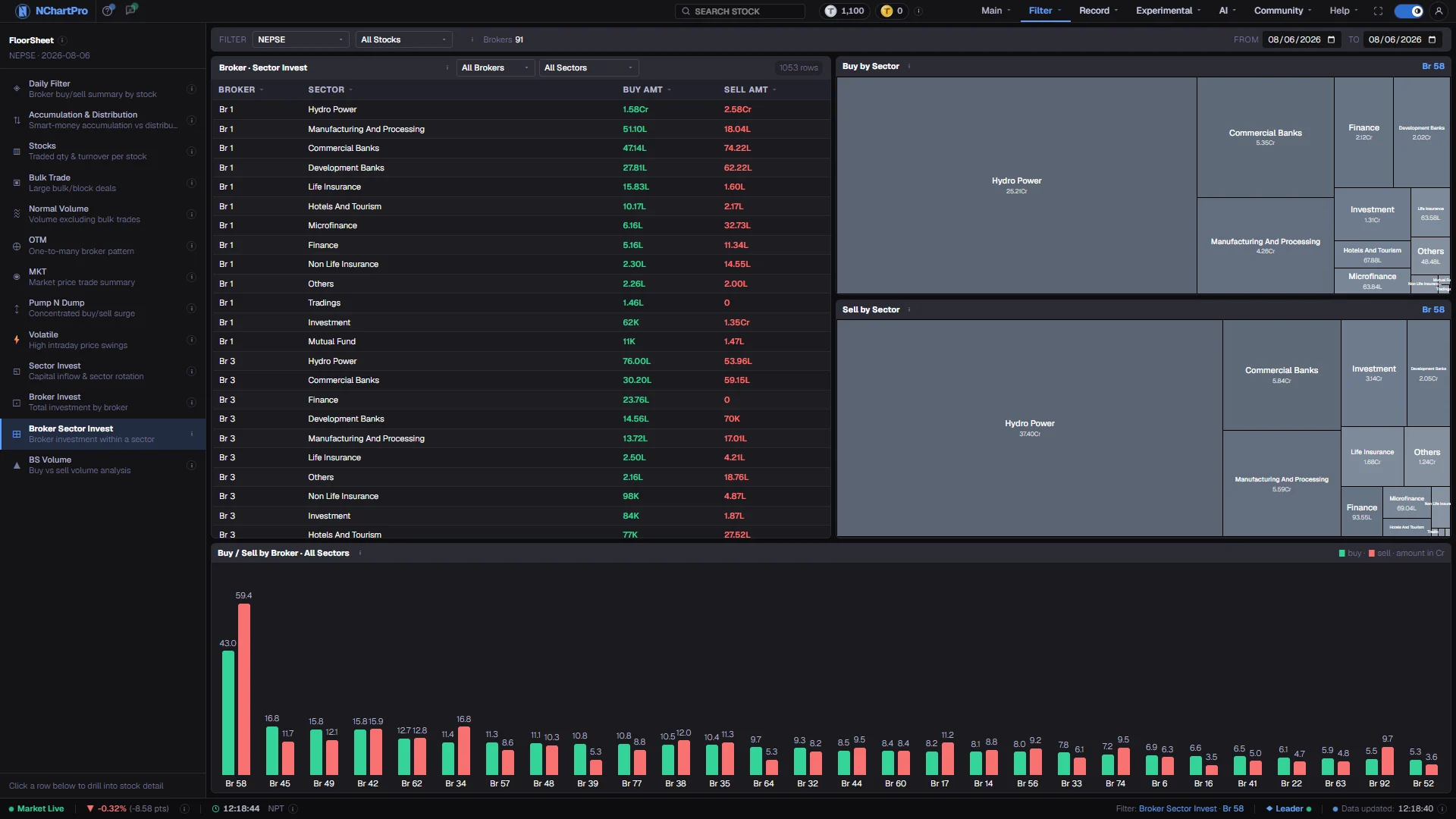
What this page is
Every trade in the range is grouped by broker and by the sector of the stock traded, then the buy and sell rupees are summed. One table row is one broker and sector pair, so a single firm appears once per industry it touched.
Selecting a broker redraws two treemaps beside the table — where that firm's buying money went, and where its selling money came from. Below them, a bar chart flips the question round: every broker side by side within one industry, green for buying and red for selling.
Why it helps you
- The comparison that matters is a sector large on a broker's buy map and small on its sell map. That is where that firm's clients were net buyers over the period.
- The bottom bar chart is the faster read when you already know the industry you care about: it ranks every broker inside one sector in a single view.
- Use a range of at least a week. One day of broker and sector splits is mostly noise from whichever large orders landed.
- Slow-cadence context at best. Watching which industries the largest brokers have been putting money into over months is mildly informative about where market interest sits.
- It is flow through an execution venue, not conviction, and it carries no information about the companies in the sector.
When to use it, and where to find it
- After the close, once the full floor sheet for the day has arrived — the whole page is built from broker numbers.
- Weekly or monthly, with the range open. Sector tilts do not form in a day.
- Straight after Broker Invest, when a broker's market-wide total made you want to know where the money went.
Try it — a short walkthrough
- 1Open a range, not a single daySet From and To across at least a week. Every trade inside is grouped by broker and by the sector of the stock traded before the amounts are summed.See this part in detail →
- 2Narrow the table and pick a brokerUse the Broker and Sector boxes on the table's title bar, then click a row. That selection drives both maps on the right.See this part in detail →
- 3Compare the two mapsBuy by Sector against Sell by Sector for the same firm. A rectangle that is large above and small below is where that broker's clients were net buyers.See this part in detail →
- 4Flip to one industry across all brokersSet the Sector box and read the bar chart at the bottom. Brokers are ordered by buy amount, and you can scroll sideways for the rest.See this part in detail →
Every part of the page
In the order you meet them on screen, each with a close-up of the real thing. The numbers match the dots on the figure above.
The floor-sheet filter menu
Every floor-sheet filter has its own page, all listed here. Broker Sector Invest is the one highlighted.
How — Click any name to jump to that filter. Your date choice carries across.
From and To
Every trade in the range is grouped by broker and by the sector of the stock traded, then buy and sell rupees are summed.
How — Set both boxes to the same date for a single trading day, or open a range to see a broker's tilt over a longer stretch.
- "Brokers" beside the ⓘ counts how many broker houses appear in the range.
Every broker + sector pair
Broker is the NEPSE broker number ("Br 58"). Sector is the industry. Buy Amt / Sell Amt are RUPEES (K thousand, L lakh, Cr crore) — not share counts.
How — Click any column heading to sort. Use the Broker and Sector boxes on the table's title bar to narrow it, and click a row to select that broker for the maps on the right.
- Unclassified symbols fall into "Others".
Buy by Sector
Where the selected broker put its BUYING money. Each rectangle is one sector, sized by the rupees that broker spent buying stocks of that sector over the chosen dates.
How — Pick a broker in the table on the left, or from the Broker box on its title bar, to change what is shown here.
- A bigger rectangle simply means more money. The grey shades only tell rectangles apart — they are NOT profit or loss.
Sell by Sector
The same broker's SELLING side: each rectangle is a sector, sized by the rupees that broker received selling stocks of that sector.
How — Compare it with the buy map above. A sector large on the buy map and small on the sell map is where that broker's clients were net buyers.
Buy / Sell by Broker
Every broker side by side for ONE industry: the green bar is what that broker bought, the red bar what it sold, over the chosen dates.
How — Pick the industry with the Sector box on the table's title bar; with no sector picked, all sectors are added together. Brokers are ordered by buy amount — scroll sideways to reach the rest.
- Numbers above the bars are in CRORE (1 Cr = 1,00,00,000 rupees) — money, not share counts.
Reading the numbers
- Buy Amt and Sell Amt are rupees, not share counts: K thousand, L lakh, Cr crore.
- Broker is the NEPSE broker number ("Br 58"). Sector is the industry group of the stock traded; symbols with no classification fall into Others.
- On both treemaps, rectangle size is money. The grey shades only tell rectangles apart — they are not profit and loss, and not up and down.
- Numbers above the bottom bars are in crore (1 Cr = 1,00,00,000 rupees). With no sector selected, all sectors are added together.
- Every column heading in the table sorts, with a dim arrow on inactive columns and an accent arrow on the active one.
What it does not do
- This shows a broker's flow, not its own position. Most of what passes through a broker is client money, and the firm may hold no view at all on the sectors it appears to favour.
- NEPSE publishes the broker and never the client, so a large tilt could be one institution or a thousand retail accounts.
- Sector classification comes from a curated symbol list. A newly listed or reclassified symbol can sit in Others until that list is updated, which shifts money between rectangles.
- Broker numbers arrive only with the full floor sheet after the close. Some older days were saved without them, so those days show nothing.
Questions people ask
Because it was matching its own clients — buyers and sellers in the same industries. That is the normal shape for a large firm and implies nothing directional.
Others collects symbols with no sector classification, which includes anything recently listed. It is a gap in the classification list, not a real industry.