

AI Chat
Some questions are faster to ask than to look up. This assistant reads the same NEPSE numbers the rest of the app shows you, and answers in whichever of the two languages you prefer.
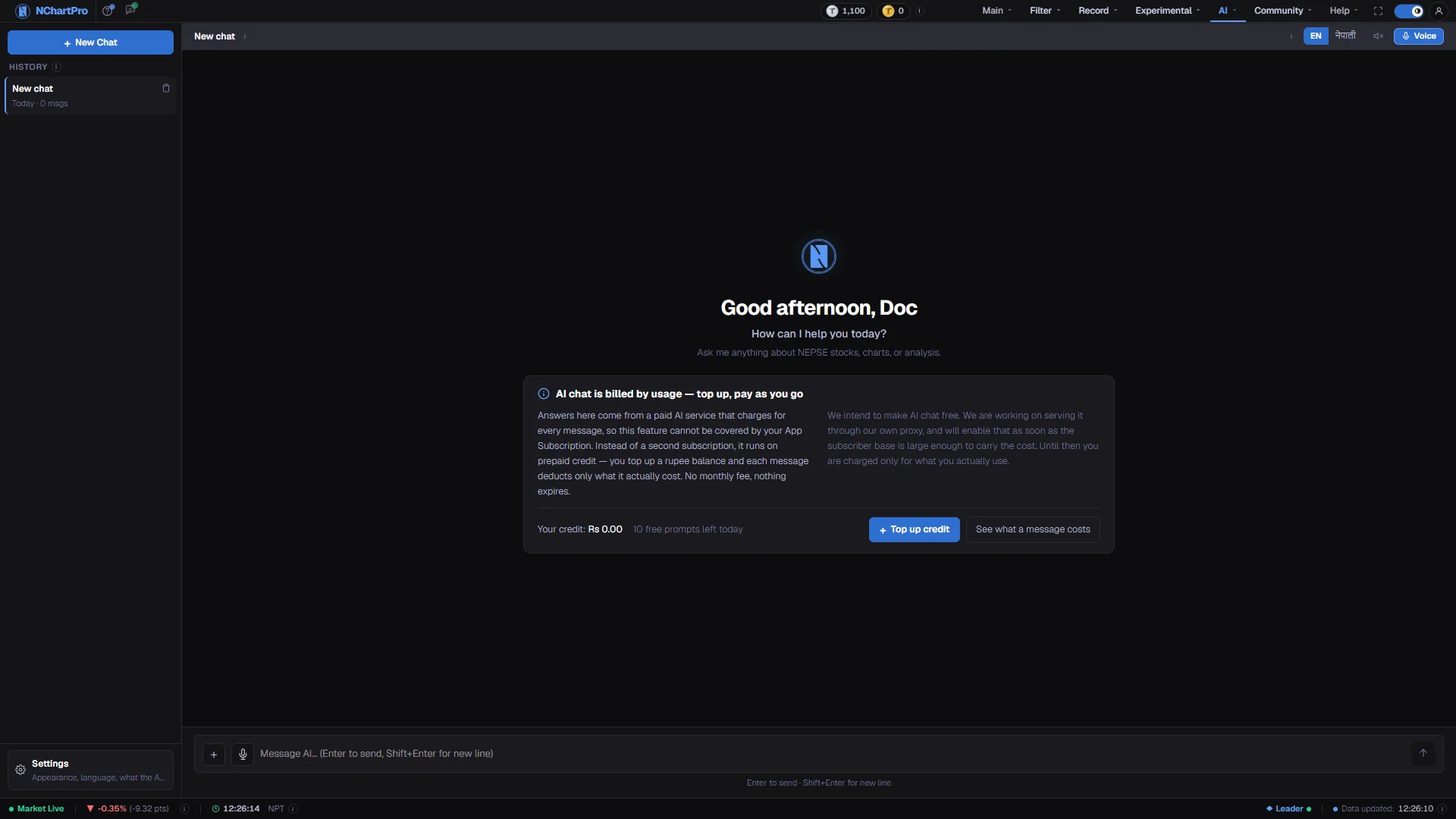
What this page is
The assistant can look up NChartPro's own data — prices, indicators, floor-sheet activity, fundamentals — and answers from what it reads together with general knowledge. It is a way into the data, not a second source of it.
Conversations are kept and each one holds its own context. The assistant remembers what you asked earlier in the same thread, so a new chat is a clean slate and an old chat can be picked up where you left it.
It is educational. The page states this in its own tooltip: it answers from what it can read plus general knowledge, and it can be wrong.
Why it helps you
- It is fastest as a lookup. Asking for one stock's RSI, its recent volume, or who was buying it yesterday is quicker than navigating to the page that holds each of those numbers.
- Use it mid-session to check a term you have just met on another screen, rather than guessing at what it means.
- Do not ask it what to buy. It has no view of your position, your cost or your risk, and a confidently phrased answer is still only a description of data that already happened.
- Verify anything you would act on against the page it came from. The number on the page is the record; the sentence around it is not.
- It is at its best on the slow questions: what a right share is, how a bonus dividend changes what you hold, what price to book actually measures.
- Ask it to explain a company's reported figures in plain terms, then read those same figures yourself on Filter → Fundamental.
- A conversation is a poor place to form a long-term view. Nothing here substitutes for the company's own annual report.
- Where it helps a long holder most is patience. Asking why something moved often ends in an ordinary answer that needs no action at all.
When to use it, and where to find it
- The moment you meet a word or a number in the app you do not recognise, without leaving what you were doing.
- After the close, while reviewing the day, to get a summary of one name before opening its charts.
- When you are new to the market and want a term explained in your own language rather than in a glossary.
- Not as the last step before placing an order. Read the underlying page for that.
Try it — a short walkthrough
- 1Start a clean threadPress New Chat whenever you change subject. Context carries inside a single chat, and old context can colour an unrelated answer.See this part in detail →
- 2Ask something specificType in English or Nepali and press Enter. "NABIL RSI today" gets a far better answer than "how is the market".See this part in detail →
- 3Set the reply languageUse the EN / नेपाली switch to choose the language answers come back in. The speaker button beside it reads each reply aloud as it arrives.See this part in detail →
- 4Follow the threadReplies arrive formatted, sometimes with suggestion chips underneath. Clicking a chip sends it as your next question.See this part in detail →
- 5Watch what it costsThe line under the box shows your AI credit balance, any free prompts left for the day, and which AI model is answering you. AI chat is prepaid: every message deducts what its tokens actually cost.See this part in detail →
- 6Come back to it laterEvery conversation is saved to your account, so the History list is there on any device you sign in on.See this part in detail →
Every part of the page
In the order you meet them on screen, each with a close-up of the real thing. The numbers match the dots on the figure above.
History
Your past conversations with the assistant, newest first. Each row shows when it was last used and how many messages it holds.
How — Click a row to reopen that chat and carry on where you left off. The bin icon on a row removes it from this list.
- Saved to your account, so the list follows you to any device you sign in on.
- On a narrow screen this panel is a drawer — open it with the ☰ button in the chat bar.
New Chat
Starts an empty conversation. The assistant remembers what was said inside one chat, so a fresh chat is a clean slate.
How — Start a new chat when you switch to a different stock or a different question, so the old context does not colour the answer.
Settings
Everything about how this chat behaves, in one dialog: the text size and typeface of the conversation, the reply language, how much thinking goes into each answer, and what the assistant should draw on.
How — Pick a section from the list down the left. Changes save as you make them — there is no Save button. Your credit balance and where it went are the last section.
- Indicators, Technical, Fundamentals, Broker and News each have four choices: let the AI decide, always use it, use only the parts you tick, or leave it out.
- Response is Normal or Pro — how deeply it thinks, and therefore how much credit a message uses. Normal is the same answer for less credit on a simple question.
- Everything here is saved to your account, so it follows you to any device you sign in on.
The chat bar
Shows the title of the open chat (taken from your first message) and the ⓘ that explains the whole feature. While an answer is being written it also shows "Generating…".
How — Hover the ⓘ any time you want the rules of the feature — how it is billed, what it can read, and what it cannot promise — without leaving the page.
Language & voice controls
Three controls that change how the assistant talks to you: the reply language, automatic read-aloud, and a hands-free voice conversation. Your choice is remembered in this browser.
How — EN / नेपाली sets the reply language. The speaker button reads every reply aloud as it arrives. Voice starts a hands-free loop: it listens, sends what you said, speaks the answer, then listens again.
- Voice input and voice conversation need Chrome or Edge and microphone permission.
- Speaking and reading aloud happen in your browser and cost nothing — but the message itself is billed exactly like a typed one, so hands-free mode can spend credit quickly.
The conversation
Your messages on one side, the assistant's on the other. Answers arrive formatted — headings, lists and tables are rendered, not shown as raw symbols.
How — Click the small speaker on any reply to hear just that one read aloud. After a reply you may see follow-up suggestion chips — clicking one sends it as your next question.
- A follow-up chip is a normal message — it is billed exactly like one you typed yourself.
Ask your question
Type here in English or Nepali. Ask about a stock, a chart, a number you saw on another page, or a term you do not understand.
How — Enter sends, Shift+Enter starts a new line. The ↑ button sends too, and shows … while an answer is being written.
- Be specific — "NABIL RSI today" gets a better answer than "how is the market".
Attach a file
Lets you send a file along with your question — images, PDF, txt, csv or json, up to five at a time.
How — Click +, pick the files, and they appear as chips above the box; the × on a chip removes it before you send.
Speak instead of typing
Dictates into the message box instead of typing. It fills the box with what you said so you can read it over before sending.
How — Click the microphone, speak, and it stops on its own. Edit the text if it heard you wrong, then press Enter.
- Needs Chrome or Edge; it dictates in whichever language the EN / नेपाली switch is set to.
Sending, and what it costs
Enter sends; Shift+Enter starts a new line. AI chat is prepaid — there is no fixed price per message, you are charged on the real length of the question and its answer.
How — Your balance and every charge live in Settings → Credit & usage, bottom-left. If a message ever cannot be sent, a panel appears right here saying why, with your text still in the box.
- A one-line question costs a fraction of a long one, so there is no per-message price this line could honestly quote.
- Input is your prompt, the earlier turns of this chat and the data tools it can call. Output is the answer and the calls it makes to fetch NEPSE data.
- A long conversation costs more per message, because the whole thread is sent again each time. “+ New Chat” starts the count over.
Reading the numbers
- AI chat is prepaid and separate from your app subscription. You top up a credit balance, and each message deducts what its tokens actually cost — a short question costs a fraction of a long one.
- You choose which AI model answers you, and the choice is only about price and answer quality. The settings panel lists every available model with its own rate per million tokens in and out, cheapest first, and marks how many times dearer each of the others is. Switch at any time — nothing else about your account changes.
- You are charged for tokens in and tokens out. In: your prompt, the earlier turns of the conversation, and the data tools the assistant reads. Out: the answer, plus the calls it makes to fetch that data. Output always costs more than input.
- A long conversation costs more per message than a fresh one, because the whole thread is re-sent each time. Starting a new chat resets that.
- The App Subscription Pro plan includes a number of free AI prompts each day, shown in the settings panel. They are spent before any credit is.
- A spoken message and a suggestion chip are ordinary messages and are charged the same way.
- Attachments accept images, PDF, txt, csv and json, up to five files at a time.
What it does not do
- The assistant writes sentences; it does not audit them. It can state a figure wrongly, miss a recent event, or answer confidently about something it has no data for.
- It is educational and not financial advice. Nothing it says is a recommendation to buy or sell, and it does not know your holdings, your cost or your risk.
- Everything it tells you about NEPSE can be checked on a page in this app. Check it before you act on it.
- You must be signed in to send a message. Signed out, a sign-in box opens in place.
- Voice input and voice conversation need Chrome or Edge and microphone permission. Other browsers show the rest of the page normally but cannot listen.
Questions people ask
It can read the app's own data, so recent figures are available to it. Where a number matters to a decision, open the page that shows it and read it there.
Yes. Type in Nepali, and use the EN / नेपाली switch to set which language the replies come back in.
The message is not sent, and your text stays in the box. Top up from the settings panel in the chat sidebar, or at /ai/credit, and press Enter to send it. Buying an app plan does not add AI credit — the two are paid for separately.
It is a language model. It produces fluent sentences whether or not the underlying facts were complete, which is exactly why the page tells you to check the data yourself.