

Broker
Every other floor-sheet page reads one day. This one replays the whole history to work out what each broker has accumulated, what it has let go, and what it is still sitting on.
What this page is
A single day's floor sheet tells you who traded. Adding those days together tells you who has a position. That is what this page does: it reconstructs each broker's running holding in each stock from the trade history, and then lets you read that holding forwards through time.
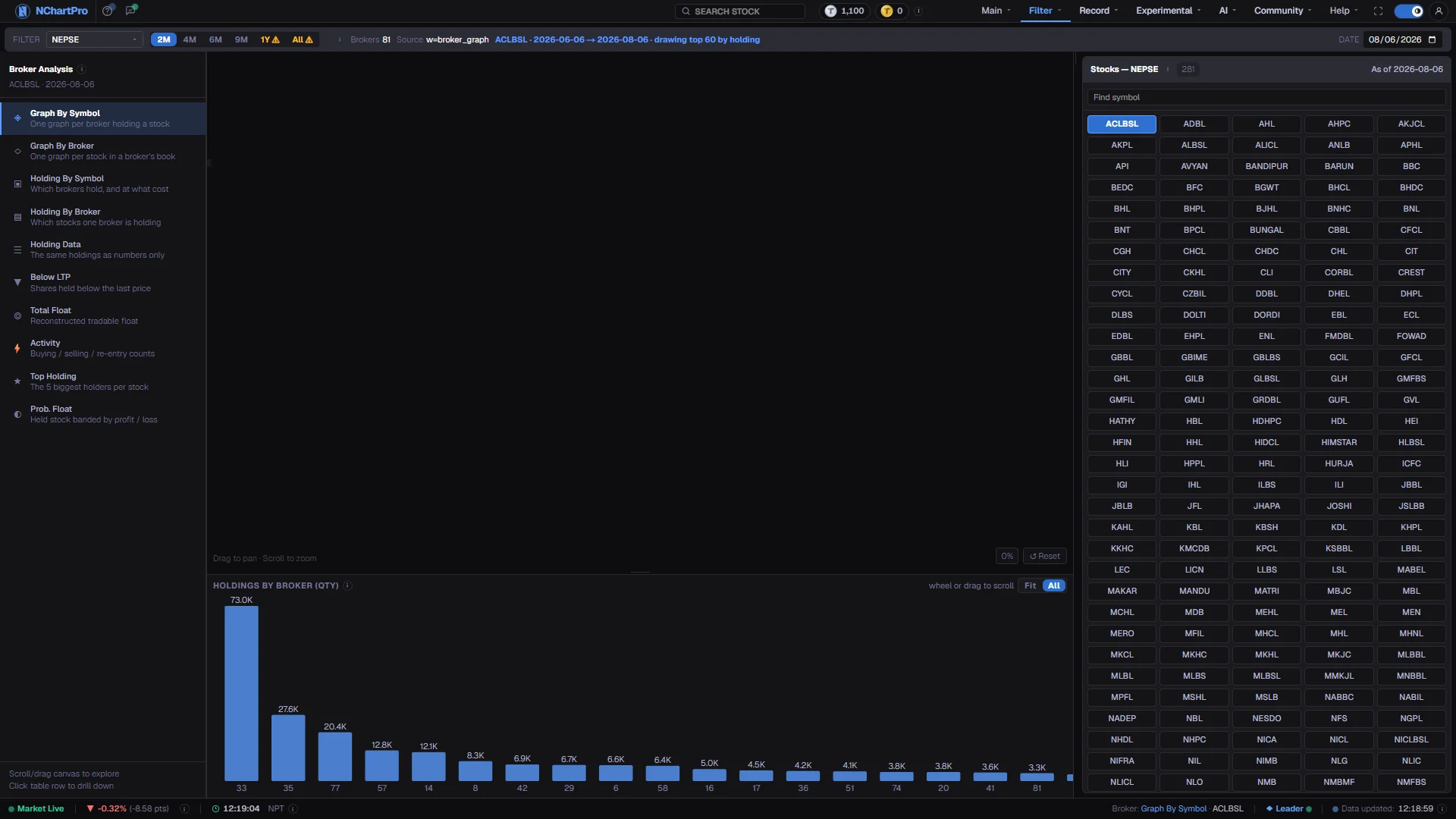
The left menu holds eleven views of the same reconstruction. Two Graph views draw the holding as a line, one per broker for a chosen stock or one per stock for a chosen broker. Two Holding views show the same figures as a snapshot grid, and Holding Data shows them as numbers with no drawing at all. Broker Compare puts the brokers you choose side by side, one group of columns each, for every stock any of them holds. Below LTP finds holdings sitting on a paper profit, Total Float reconstructs how much of a company can actually trade, Activity counts how busy each broker has been, Top Holding names the five largest holders per stock, and Prob. Float bands held stock by profit or loss.
This is a paid feature. If your plan does not include it, the page shows a lock panel instead of the data. Individual views can also be unlocked one at a time with Gold TPoints, and each unlock is a one-month rental rather than a permanent purchase. The price shown is the one that applies to your account level.
Why it helps you
- A broker steadily adding to a position over weeks is a slower and more reliable signal than any single day of heavy buying.
- Below LTP tells you where accumulated stock sits relative to the current price. Holdings bought well below it are in profit and can be sold into strength; holdings bought above it are supply waiting for a recovery.
- Total Float matters most for the small names. A company where little of the share count can actually trade needs very little money to move, in both directions.
- Activity separates the brokers that move size occasionally from the ones that are in a stock every day. The second kind sets the day-to-day price.
- Read it as ownership rather than as a trade. Who has been accumulating a company over quarters is a question about conviction, not about this week.
- Float is a structural fact about a company. A tightly held share register means the price you see is set by a small number of participants, which is a risk to hold consciously.
- Use the Graph views on a company you already own to see whether accumulation has continued or quietly reversed since you bought.
- None of this replaces the accounts. It describes who owns the stock, not whether the business behind it is worth owning.
When to use it, and where to find it
- After the close, once the day's floor sheet has been folded into the history. Nothing here updates during the session.
- Before taking a position in a thinly traded company, to check how much of it can actually change hands.
- When a stock has drifted for weeks with no obvious news, to see whether someone has been building a position through the quiet.
- When you want the medium-term picture rather than the single day the floor-sheet filters give you.
Try it — a short walkthrough
- 1Choose a view from the left menuEach entry says in one line what it shows. Views your plan does not cover are still listed, and clicking one shows the unlock panel with its price and rental period.See this part in detail →
- 2Set the scope in the toolbarThe views split into by-symbol and by-broker. Pick the stock or the broker in the toolbar above, and set the date range for the graph views.See this part in detail →
- 3Read the right-hand table firstIt ranks the entries and carries the numbers. Net is buy minus sell, so a positive figure means that broker took on more shares than it released.See this part in detail →
- 4Click a row to drive the canvasOn the grid views the matching chart highlights; on the single-stock views the centre chart rebuilds for what you clicked.See this part in detail →
- 5Check where the holdings were boughtSwitch to Below LTP. Average cost is what the held shares were bought at and the gap is the last price minus that cost, so a positive gap is stock in profit.See this part in detail →
- 6Put it against the tradable floatSwitch to Total Float. A large reconstructed holding matters far more when the freely tradable share count is small.See this part in detail →
- 7Open Broker Compare and add a brokerClick Broker Compare in the left menu. In the box above the table, pick a broker number and press Add. Do it again for every broker you want to watch, up to twelve.

- 8Read the brokers side by sideEach broker gets three columns: Holding Qty, % of Float and A. Rate. Total Holding adds your brokers together, and Total % is that total against the stock's float. Click a heading to sort.

- 9Double-click a number to see the graphDouble-click any of a broker's three numbers in a row. A window opens with that broker's holding graph in that stock. The span buttons in the toolbar set how far back it goes.

- 10Save the brokers as a presetPress Save preset, type a name and press Save. Next time, pick the name from the preset box and the same brokers come back, on any device you sign in on.

Every part of the page
In the order you meet them on screen, each with a close-up of the real thing. The numbers match the dots on the figure above.
The five views
Graph — each broker's buy / sell / holding quantity plotted over time. Holding — how many shares each broker is currently sitting on. Below LTP — stocks where brokers hold shares bought under the current price. Total Float — a stock's freely tradable share count over time. Activity — how busy each broker has been.
How — Click any of the five to switch the canvas and the right-hand table together.
- The "NEPSE · 2081-03-15" line under the title is a fixed placeholder, not a real date.
The canvas
On Graph, Holding and Activity this becomes a grid of mini line charts, one per broker. On Below LTP and Total Float it becomes a single chart for the stock you pick.
How — Drag the canvas to pan and scroll to zoom. It is empty right now because the broker feed has no data to draw.
The right-hand table
Its columns change with the active view. On Graph and Holding it ranks brokers by Holding, with Buy, Sell and Net beside it — Net = Buy − Sell, and a green "+" means the broker took on more shares than it let go.
How — Click a row to drill into it: on the grid views it highlights that broker's mini chart, on the stock views it drives the centre chart.
- Holding, Buy, Sell and Net are all SHARE COUNTS, not rupees.
Below LTP — what it will show
Stocks where brokers hold shares they bought BELOW the current market price, so those holdings sit on a paper profit. Avg Cost is the average price those holdings were bought at; Gap = LTP − Avg Cost; Brokers Holding is how many different brokers are in that situation.
How — Switch to Below LTP in the menu to see this column set. It is empty until the feed is published.
Total Float — what it will show
The "float" is the part of a company's shares that can actually be traded. Promoter shares are locked and cannot be sold freely, so a small float means a small amount of money can move the price a lot.
How — Switch to Total Float in the menu. Total Shares is everything issued; Promoter% is the locked part; Float% is the tradable remainder; Float Qty = Total Shares × Float% ÷ 100.
- This view is also empty until the backend feed exists.
The holdings strip
A fixed strip under the canvas on the three grid views, summarising the broker list and whichever broker you have selected.
How — It fills at the same time as the rest of the page — once the broker feed is published.
Reading the numbers
- Holding, Buy, Sell and Net are share counts, not rupees. Do not read them as money.
- The right-hand table sorts on a column click like every other table in the Filter menu, and the arrow in the heading marks the active column and direction.
- Float is the part of a company's shares that can actually be traded. Promoter shares are locked, so float quantity is the total issued shares multiplied by the float percentage.
- A broker's holding is the aggregate of its clients' positions passing through it. It is not the firm's own investment, and it is not one investor.
- The graph views cover a date range while the holding views are a snapshot on one date. Switching between them changes what the toolbar asks you for.
Every setting, explained
Broker Compare
Every control on the Broker Compare view, from left to right along the bar above its table.

| Broker box | Lists every broker by number and short name. A broker you have already added is shown grey. |
| Add | Adds the picked broker to the table as a new group of three columns. Tip: Up to twelve brokers at a time. |
| Broker chips | One chip per added broker. The cross on a chip removes that broker. Clear removes them all. |
| Save preset | Asks for a name and keeps the current brokers under it on your account. Using a name you already have updates that preset. |
| Preset box | Your saved presets, with how many brokers each holds. Picking one loads its brokers into the table. |
| Delete | Shown when a preset is loaded. Removes that preset from your account. The table stays as it is. |
| Holding Qty | Shares the broker holds in the stock on the selected date. |
| % of Float | That holding as a share of the stock's tradable float. |
| A. Rate | The broker's average cost for that holding, in rupees. |
| Total Holding / Total % | All your brokers added together, and that total as a share of the stock's float. |
| TOTAL line | Adds up the share counts down each column. Percentages and rates are left blank, because each row is a different stock. |
What it does not do
- The whole page is behind a plan gate, and individual views are sold separately. What you can open depends on your level and on any one-month unlocks you hold.
- Holdings are reconstructed by replaying floor-sheet history. They are an inference from executed trades, not an official share register, and any day missing from the history leaves a gap in the running total.
- Broker numbers come only with the full floor sheet, which is downloaded from a paid market-data feed after the market closes. Today is added to the history only after that.
- While the broker history is being rebuilt, recent dates can legitimately come back empty. That is a rebuild in progress, not a missing stock.
- The date line under the menu title is read from the data. It shows the trading day the figures belong to.
- The guided tour steps on this page were written when the broker feed was still unpublished and describe five views. The page has since grown to eleven and reads live data, so trust the page over that wording.
- Broker Compare shows at most twelve brokers at a time, and you can keep up to fifty presets.
Questions people ask
On your account, not in the browser. Sign in on another computer or phone and the same presets are there.
Only stocks that at least one of your brokers holds on the selected date are listed. The sector picked in the toolbar also narrows the list.
It is a paid feature. Your plan level decides whether the page opens, and some views are sold individually as a one-month unlock. The lock panel shows the price that applies to your account.
No. It is the net of its clients' buying and selling, held under that broker number. The firm itself is executing orders, not investing.
Either the day's floor sheet has not been folded in yet, or the history is being rebuilt. Step back a few days and see whether the earlier dates are populated.
Filter → Broker Invest gives each broker's total buy and sell across the market, and Filter → Daily Filter gives what the brokers did in one stock on one day. Both read the same floor sheet.