

Calendar
Half of planning a trade is knowing which days you cannot place one, and the other half is remembering, weeks later, what you meant to do on the day you can.
What this page is
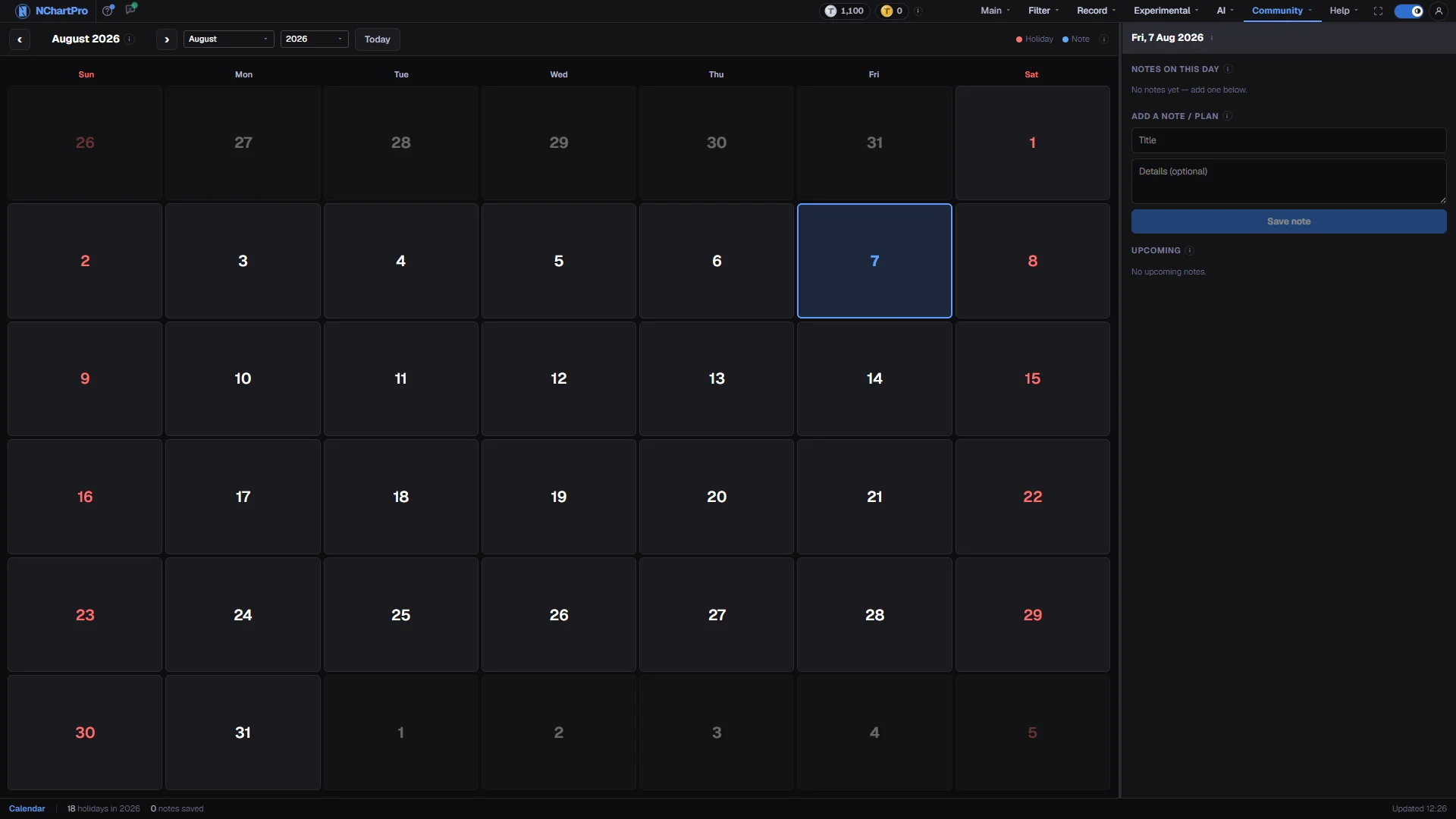
The Calendar page has two halves that do different jobs. The left half is the exchange's own closure list for the year you are looking at, drawn as a month grid. The right half is a notebook: any date can carry as many notes as you want to write on it.
It sits in the Community menu, but nothing on it is communal. The holiday list is public data everyone sees the same way; the notes are stored against your account and no other member can read them. Nothing you type here is published anywhere.
That makes it the one page in the app where the content is yours rather than the market's. Everything else describes what happened; this describes what you intend to do.
Why it helps you
- A short week changes position sizing before it changes anything else. Four trading days with a holiday in the middle means less volume, wider spreads and a gap risk over a longer break than usual, and this is where you find that out before you are already in.
- Settlement runs on trading days, not calendar days. Money from a sale placed before a two-day closure is not in your account when you expected it, and the grid is the fastest way to count the real days rather than guess.
- Write the plan, not the outcome. A note that reads "sell half if it closes above 640" is worth reading back a week later; "watch NABIL" is not.
- The dates that matter to you arrive months apart and are easy to lose: book closure, the AGM you meant to attend, the last day of a right-share application, an IPO closing. Record them here the moment you learn them and they surface again on their own.
- Upcoming is the part of this page you will actually use. It gathers every future note across every month into one list, so a reminder set in Shrawan is still in front of you in Bhadra without you going looking for it.
- Use the year picker backwards as well. Comparing the same month a year apart tells you how many trading days a quarter really had, which is the honest denominator for any "average daily" figure you calculate yourself.
When to use it, and where to find it
- At the start of a month, to see where the closures fall before you plan anything around them.
- Immediately after reading a corporate action in Record, so the date is captured while you have it.
- Before a sale you need the cash from, to count trading days rather than calendar days.
- On the last working day before a long break, as a check that nothing you meant to do is still open.
Try it — a short walkthrough
- 1Land on the month you care aboutUse the month and year boxes rather than clicking ‹ repeatedly. Today brings you straight back to the current date whenever you get lost.See this part in detail →
- 2Count the trading days in the week aheadLook along one row of the grid and ignore the red numbers. What is left is the number of sessions you actually have.See this part in detail →
- 3Open a date you want to plan forClick the day box. The whole right panel switches to it, and any official closure name for that date appears under the heading.See this part in detail →
- 4Write one note you will thank yourself forGive it a title specific enough to act on and put the reasoning in Details. Title alone is enough to save.See this part in detail →
- 5Check Upcoming before you leaveEverything dated today or later is listed there, earliest first. Clicking a line jumps the calendar to that date, which is the fastest way to move a plan forward.See this part in detail →
- 6Give the side you use the roomDrag the grey strip between the two halves. If you mostly write notes, widen the right; if you mostly count days, widen the left. The width is remembered.See this part in detail →
Every part of the page
In the order you meet them on screen, each with a close-up of the real thing. The numbers match the dots on the figure above.
Move around the year
The bar that decides which month you are looking at. Holidays are loaded fresh from the backend every time you change the year.
How — Use ‹ and › to step one month, the two boxes to jump straight to a month or year, and Today to come back to the current date.
- Holiday lists are published per year, from 2007 up to next year for planning.
- A year with no published list simply shows no holidays — it does not mean the market was open.
The month grid
Six weeks of day boxes, always starting on Sunday. Faded numbers are days that belong to the month before or after, kept so the grid is always full.
How — Click any day to load it into the panel on the right. Hover a holiday box to see its full name in a tooltip.
- NEPSE trades Monday to Friday, 11:00–15:00 Nepal time. Saturday and Sunday are the weekly closure and their dates are red.
- A red tint with a red chip is an official exchange holiday; the chip text is the holiday name.
What the marks mean
The legend for the day boxes. Red is a closure, blue is you.
- Red date number without a chip — a weekend (Saturday or Sunday).
- Blue date number — today.
- Blue count badge in the corner — how many of your own notes are on that day; the line underneath previews the first one.
- Accent outline — the day currently open in the panel on the right.
The selected day
Everything on this panel belongs to the one day named here. A red line under the date is the official NEPSE holiday name for that day.
How — Click another date in the grid to switch the whole panel to it.
Notes on this day
Your own notes saved on the selected date. They are personal reminders — only your account can read them.
How — Edit reloads a note into the form below so you can change it and press Update. Delete removes it immediately.
- Delete has no undo — there is no confirmation step and no recycle bin.
Add a note or plan
Pins a private reminder to the selected date — an earnings date, an AGM, a trade plan, anything you want to remember on a given day.
How — Title is required, Details is optional. Enter in the title box saves it. Saving needs you to be signed in; the login box opens here if you are not.
- Notes live on your account, so they follow you to any device you sign in on.
Upcoming
Every note you have saved dated today or later, across all months, earliest first — so a reminder two months out is still visible from here.
How — Click one to jump the calendar straight to that date.
Resize the two sides
The grey strip between the calendar and the note panel is a drag handle.
How — Drag it left or right to give whichever side you use more room. The width is remembered in this browser, so the page reopens exactly where you left it.
Reading the numbers
- The grid is the Gregorian calendar. There is no Bikram Sambat view, so a date you were told in BS has to be converted before you can pin a note to it.
- Holiday names come from the exchange's published list for that year, not from a national holiday list, so the wording is theirs.
- Every date is Nepal time. A note saved late at night belongs to the date you had selected, not to the date your computer clock rolls over to.
- The counts in the bar at the bottom are holidays in the year currently on screen and notes across your whole account — the two are not on the same scale.
What it does not do
- A note is text on a date and nothing more. It does not alert you, email you or appear on any other page, so it only works if you open this page.
- Notes are private with no way to share one. This page cannot be used to send someone a date.
- Deleting a note is immediate and final — no confirmation, no undo, no recycle bin. Edit an existing note rather than deleting and retyping it.
- A year with no published holiday list simply shows a clean grid. That is missing data, not an open market, and it is most likely on a year far in the past or the year ahead.
- The calendar knows about closures, not about settlement. It will not tell you when money from a sale clears; you have to count the trading days yourself.
Questions people ask
No. They are stored against your account and are returned only to you. The page is in the Community menu because of where the calendar sits, not because anything on it is shared.
Red on this grid means no trading, and that covers both the weekly closure and official holidays. A red number with no name chip beside it is simply a weekend.
Yes. Notes live on your account rather than in the browser, so they follow any device you sign in on. The width of the two panels does not — that is remembered per browser.
Not from here. The Knowledge Base under Record carries the announced dates; this page is where you copy the ones that concern you so they come back to you later.