

Trade Ledger
Fourteen pages of holdings, cash, profit, risk and tax are all calculated from the rows on this screen, and from nothing else.
What this page is
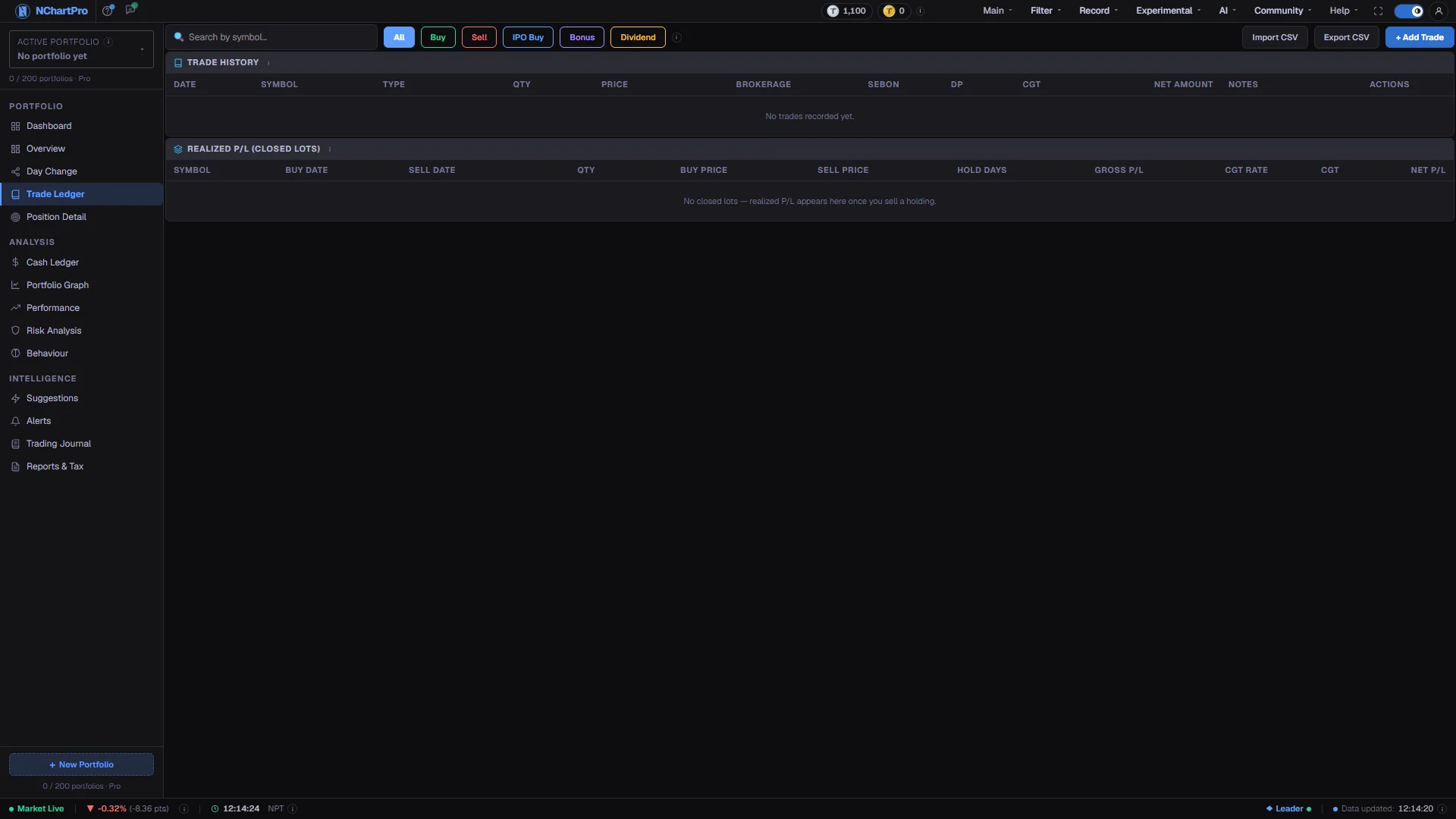
The Trade Ledger is where your portfolio actually lives. Each row is one trade you typed from your broker's contract note: the type, the stock, the date, the quantity in kitta and the price per share. Every other page in this section is derived from those rows.
The table itemises what a trade really cost. Rather than folding charges into one total, it breaks out the brokerage, the SEBON fee, the DP charge and, on a profitable sale, the capital-gains tax — so the Net Amount column is the true effect on your cash.
Below the history sits Realized P/L, one row per completed sale. That is banked profit, calculated on Nepal's average-cost method, and it is the section of this page your tax report is built from.
Nothing arrives automatically. There is no broker connection and no demat sync, which is the price of the ledger being entirely yours and entirely private to your account.
Why it helps you
- Entering trades the same evening keeps your average cost honest. Position sizing done against a stale average is guesswork, and the error compounds every time you add.
- The itemised charge columns are the cost of churn made visible. Add up brokerage across a month of active trading and compare it with the Realized P/L below — for many accounts the two are uncomfortably close.
- Hold Days on a closed lot is an exit-discipline record. A pattern of very short holds with thin gross profit is the shape of a strategy that only works before costs.
- Recording the correct trade date matters more than it looks: your holding period, and therefore your tax band, is counted from it, not from when you typed it in.
- This is the permanent record of your cost basis. Years later, the only reliable answer to what you actually paid for a holding is the row you entered when you bought it.
- Recording Bonus and Dividend entries with the right type is what keeps a long hold accurate. Bonus shares raise your quantity at zero cost and lower your average; dividends are income and never touch your shareholding.
- The Realized P/L section is your tax working. It carries the average buy price used, the hold days and the rate applied, which is exactly what a fiscal-year capital-gains statement needs.
- One careful evening entering historic trades gives you a portfolio history you can never reconstruct later from memory.
When to use it, and where to find it
- The same day you trade, while the contract note is in front of you.
- When you first set up a portfolio — enter your existing holdings as buys at their original dates and prices, not at today's.
- On a bonus issue, a rights allotment or an IPO allocation, each of which has its own entry type.
- Whenever a figure elsewhere in the section looks wrong; the cause is almost always a row here.
Try it — a short walkthrough
- 1Check which portfolio you are writing toThe trade lands in the portfolio named in the sidebar. If you keep more than one, confirm this before you record anything — trades cannot be moved between portfolios afterwards.See this part in detail →
- 2Open the entry formClick + Add Trade and pick the type first: Buy, Sell, IPO Buy, FPO Buy, Rights Buy, Bonus or Dividend. The type decides how the entry affects your average cost, your cash and your tax.See this part in detail →
- 3Copy the contract note exactlyEnter the stock, the trade date from the note, the quantity in kitta and the price per share. Watch the auto-calculation strip work out the commission, the fees and your effective price before you save.See this part in detail →
- 4Verify the row against the noteFind the new row in Trade History and check the Net Amount against the amount your broker actually debited or credited. If they differ, something in the entry is wrong.See this part in detail →
- 5Correct rather than re-enterUse Edit on the row to fix a wrong quantity, price or date. Every dependent page rebuilds from scratch, so one correction fixes the whole section at once.See this part in detail →
- 6Read your banked resultScroll to Realized P/L. Rows appear only after you sell, and Net P/L there is the take-home figure after fees on both sides and capital-gains tax.See this part in detail →
Every part of the page
In the order you meet them on screen, each with a close-up of the real thing. The numbers match the dots on the figure above.
Which portfolio you are writing to
The trade you add lands in the portfolio named here. If you keep more than one — your own and a family member's, say — check this box before recording anything.
How — Click it to switch portfolio, rename or delete one, or create a new one.
- Each portfolio has entirely separate trades, cash and tax; a trade recorded in one never shows up in another.
Search and the type tabs
The search box filters the table by stock symbol. The coloured tabs filter by the kind of entry: All, Buy, Sell, IPO Buy, Bonus and Dividend.
How — Type part of a symbol to jump to one stock's history, or click a tab to see only that kind of entry. Both filters apply together.
- Recording the RIGHT type matters — it decides how the entry affects your average cost, your cash and your tax.
- Bonus means free extra shares: quantity goes up at a cost of zero, which pulls your average buy price DOWN.
- Dividend is a cash payout per share; it credits your cash ledger and does not change your shareholding.
+ Add Trade
Opens the entry form. Pick the type (Buy, Sell, IPO Buy, FPO Buy, Rights Buy, Bonus or Dividend), the stock, the date, the quantity in kitta and the price per share — exactly as they appear on your broker's contract note.
How — As you type quantity and price, the Auto-Calculation strip works out the real cost live: broker commission, SEBON fee, DP charge, Total Cost and the Effective Price per share.
- Use the trade DATE from the contract note, not today's date: your holding period, and therefore your capital-gains tax rate, is counted from it.
- Broker commission is tiered on the trade amount — 0.36% up to Rs 50,000, 0.33% to Rs 5 lakh, 0.31% to Rs 20 lakh, 0.27% to Rs 1 crore, 0.24% above, minimum Rs 10. SEBON fee is 0.015%; DP charge is a flat Rs 25 per stock per settlement.
- A Bonus entry needs no price — it is recorded at 0.
Import CSV / Export CSV — not built yet
These two buttons are placeholders. Clicking them does nothing at the moment: there is no CSV import and no CSV export on this page yet.
How — For now, enter trades one at a time with "+ Add Trade". Your data is safe in the database either way — this only affects bulk import and download.
- The tour says this plainly rather than promising a feature that is not there.
Trade History — every charge itemised
One row per trade, with each charge broken out separately instead of hidden inside a single total.
How — Read a row left to right: Price is what you paid or received per share BEFORE charges; Net Amount is the actual effect on your cash.
- Brokerage is the NEPSE broker commission on that trade; SEBON is the regulator's 0.015% fee; DP is the flat Rs 25 depository charge, on both buys and sells.
- CGT appears only on a SELL that made a profit: 10% if held ≤365 days, 7.5% if held longer. Your broker deducts it at source, so it is not a bill you pay again.
- Net Amount is negative on a buy (price × qty plus all fees left your account) and, on a sell, is the proceeds after fees and CGT.
Fixing a mistake
The last column of every row has Edit and Delete. Edit reopens the same form pre-filled with that trade; Delete removes it after a confirmation.
How — Use Edit when a quantity or price was typed wrong, and Delete only when the trade never happened. Delete asks for confirmation because it cannot be undone.
- Either action rebuilds your positions, realised P/L and cash ledger from scratch — every page updates together, so you never have to correct the same mistake twice.
- If a stock is missing from your holdings, the cause is almost always a wrong or missing row here, not a bug elsewhere.
Realized P/L (Closed Lots)
One row for every sale you have COMPLETED — a "closed lot". This is real, banked profit or loss, unlike the paper gain on shares you still hold.
How — Watch the Hold Days column: crossing 365 days moves that lot from the 10% tax band to the 7.5% band, which the CGT Rate column then shows.
- Buy Price is your weighted average buy price for that stock at the time of the sale — Nepal's average-cost method is used, not first-in-first-out.
- Hold Days runs from your FIRST buy of that stock to the sell date. Over 365 days is shown green.
- Gross P/L = qty × (sell price − average buy price), before any charges. CGT Rate reads "Loss" when the trade lost money — a loss is never taxed.
- Net P/L is the take-home figure: proceeds after sell-side fees, minus what the shares cost including buy-side fees, minus the CGT. Rows appear only after you sell.
What the ledger feeds
Once trades are in, the rest of the menu comes alive. Dashboard and Overview show the holdings they imply, Cash Ledger shows the same trades as a running cash balance, Reports & Tax groups the closed lots by fiscal year, and Performance, Risk and Behaviour analyse them.
How — If a page in this menu looks empty or wrong, come back here first — the cause is almost always a missing or mistyped row.
- Nothing in this section is entered twice. One trade recorded here is the only input the whole section needs.
Reading the numbers
- Price is what you paid or received per share before charges. Net Amount is the real cash effect: negative on a buy, and on a sell the proceeds after fees and tax.
- Broker commission is tiered on the trade amount — 0.36% up to Rs 50,000, 0.33% to Rs 5 lakh, 0.31% to Rs 20 lakh, 0.27% to Rs 1 crore and 0.24% above, with a Rs 10 minimum. SEBON charges 0.015%. DP is a flat Rs 25 per stock per settlement, on the buy and again on the sell.
- Realized P/L uses the weighted average buy price for that stock at the time of the sale — Nepal's average-cost method, not first-in-first-out. Selling part of a holding leaves the average unchanged.
- Gross P/L on a closed lot is qty × (sell price − average buy price), before any charge. That gross difference is also the base capital-gains tax is charged on.
- Capital-gains tax is 10% when hold days are 365 or fewer and 7.5% beyond that, on a profit only. The CGT Rate column reads "Loss" on a losing trade, because a loss is never taxed.
- Hold Days runs from your first buy of that stock to the sell date, and turns green once it passes 365.
- A Bonus entry is recorded at price 0, which lowers your average cost. A Dividend credits cash and leaves your quantity alone.
What it does not do
- Your portfolio is only as right as what you entered. There is no import from your broker, no reconciliation, and no warning if a trade is missing — it simply does not exist as far as the app is concerned.
- Import CSV and Export CSV are placeholders with no handler. Trades go in one at a time for now.
- You must be signed in to add, edit or delete a trade.
- Delete cannot be undone, and deleting a portfolio in the sidebar deletes every trade in it.
- Fee rates come from the backend fee schedule and reflect the current NEPSE structure. A historic trade is calculated with today's schedule, so a very old entry may not reconcile to the paisa with its original contract note.
Questions people ask
Here. Search the symbol in the toolbar and check that the buy row exists, has the right quantity, and is not accidentally recorded as a Sell. A missing or mistyped row on this page is the cause almost every time.
Add a trade with the Bonus type, the stock and the date the shares were credited. No price is needed — it is recorded at zero, which increases your quantity and pulls your average cost down.
No. Your broker deducts it at source, so the CGT column tells you what was already taken out of your proceeds. It is not a second bill.
Yes. Hold days, your tax band and every days-held figure in the section are counted from the trade date. Edit each row back to its real purchase date.